
How to Set Business Working Hours in BytePhase CRM

Introduction
Manage customer interactions, bookings, and check-ins with precision
Setting accurate Business Working Hours in BytePhase CRM is an important step for any service-based business. Your configured working hours directly control when customers can interact with your services—whether it’s booking a schedule pickup, creating a job ticket, or completing a self check-in.
In this guide, we’ll walk you through why business hours matter and how to set them up inside BytePhase CRM.
Step-by-Step:How to Set Business Working Hours in BytePhase CRM
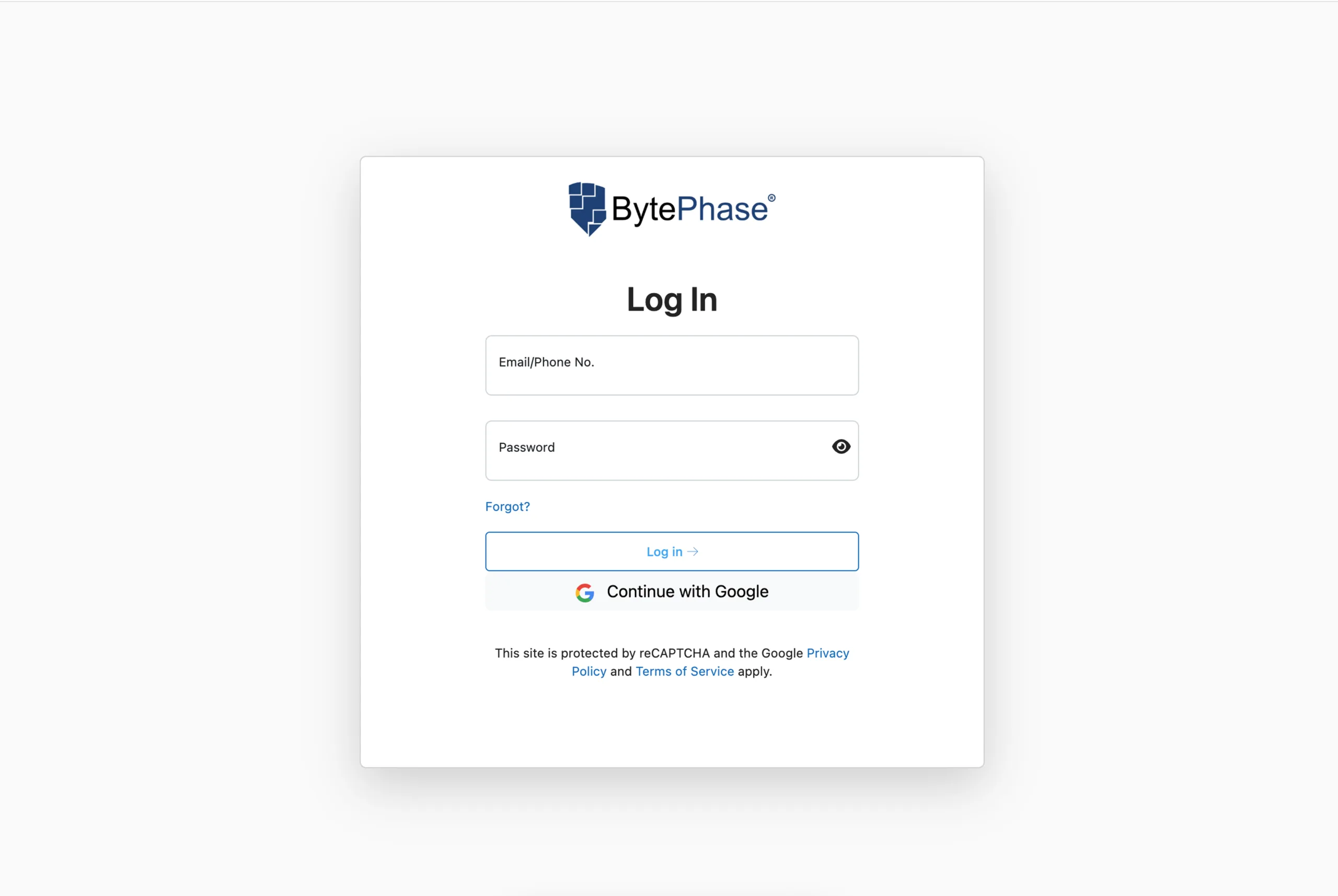
Step 1: Log in to BytePhase Portal
- Start by visiting the BytePhase login account using your email or phone number and password
Step 2: Navigate to Business Settings
-
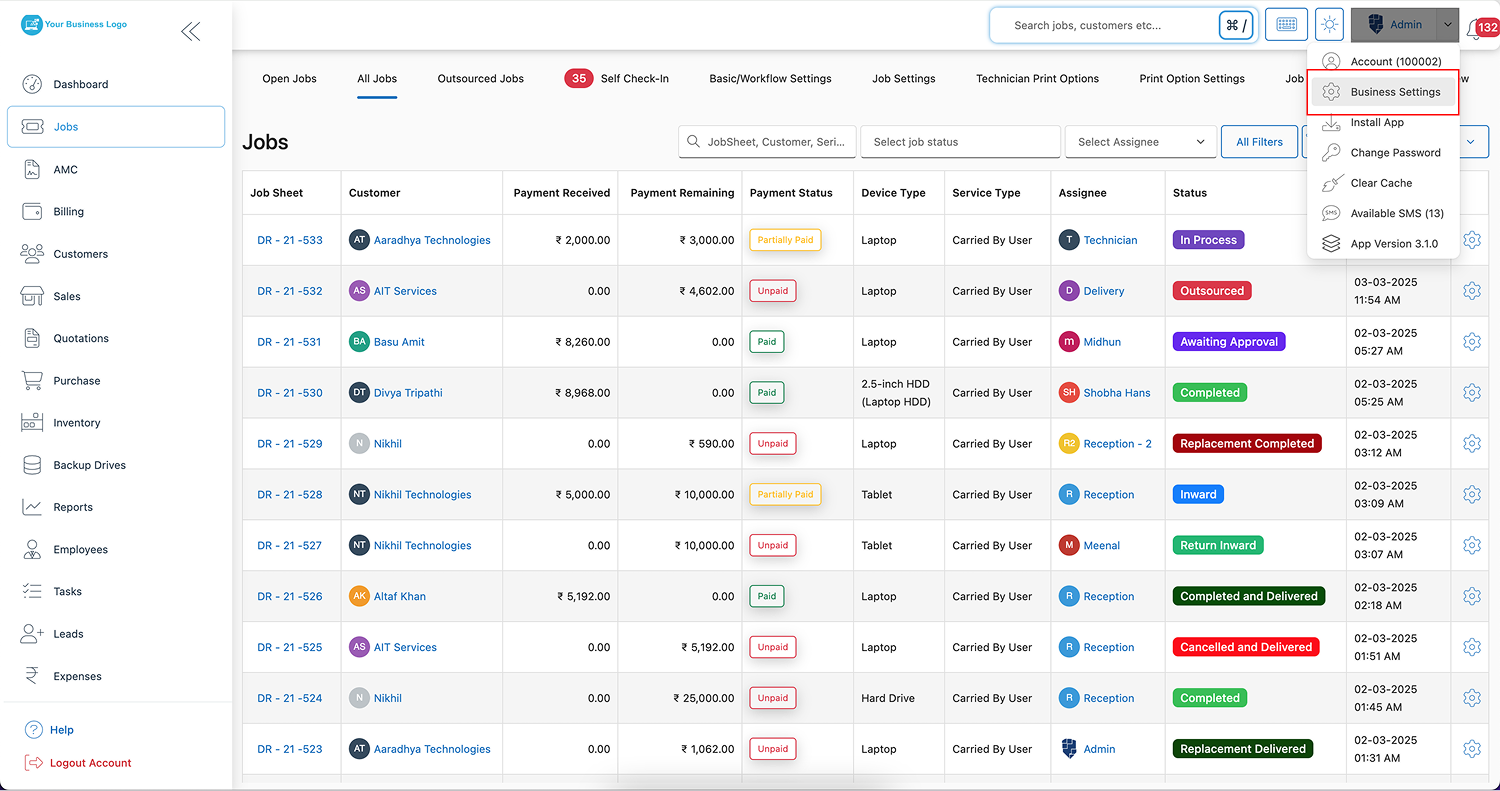
Click on your user profile icon at the top right of the dashboard. From the dropdown menu, select “Business Settings.”
Step 3: Go to Settings
-
On the left-hand menu, click on “Business Information” Next, select “Business Hours” from the available sections.
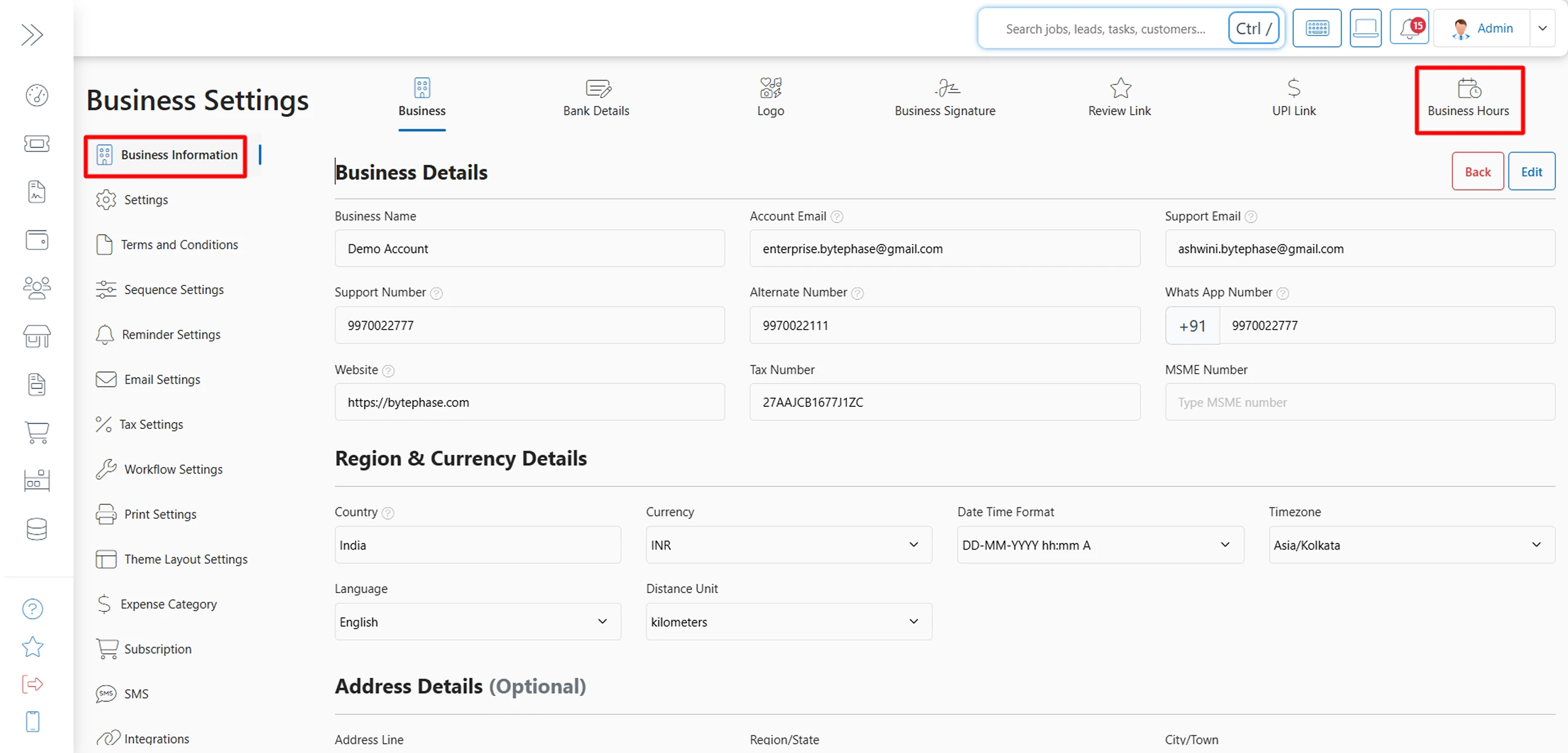
Step 4: Set Your Daily Working Hours
- Click on Edit and Select your start time and end time for each day.Example:Monday – Saturday: 10:00 AM to 7:00 PM Sunday: Closed .If your timings change day-to-day, simply set custom hours for each day.
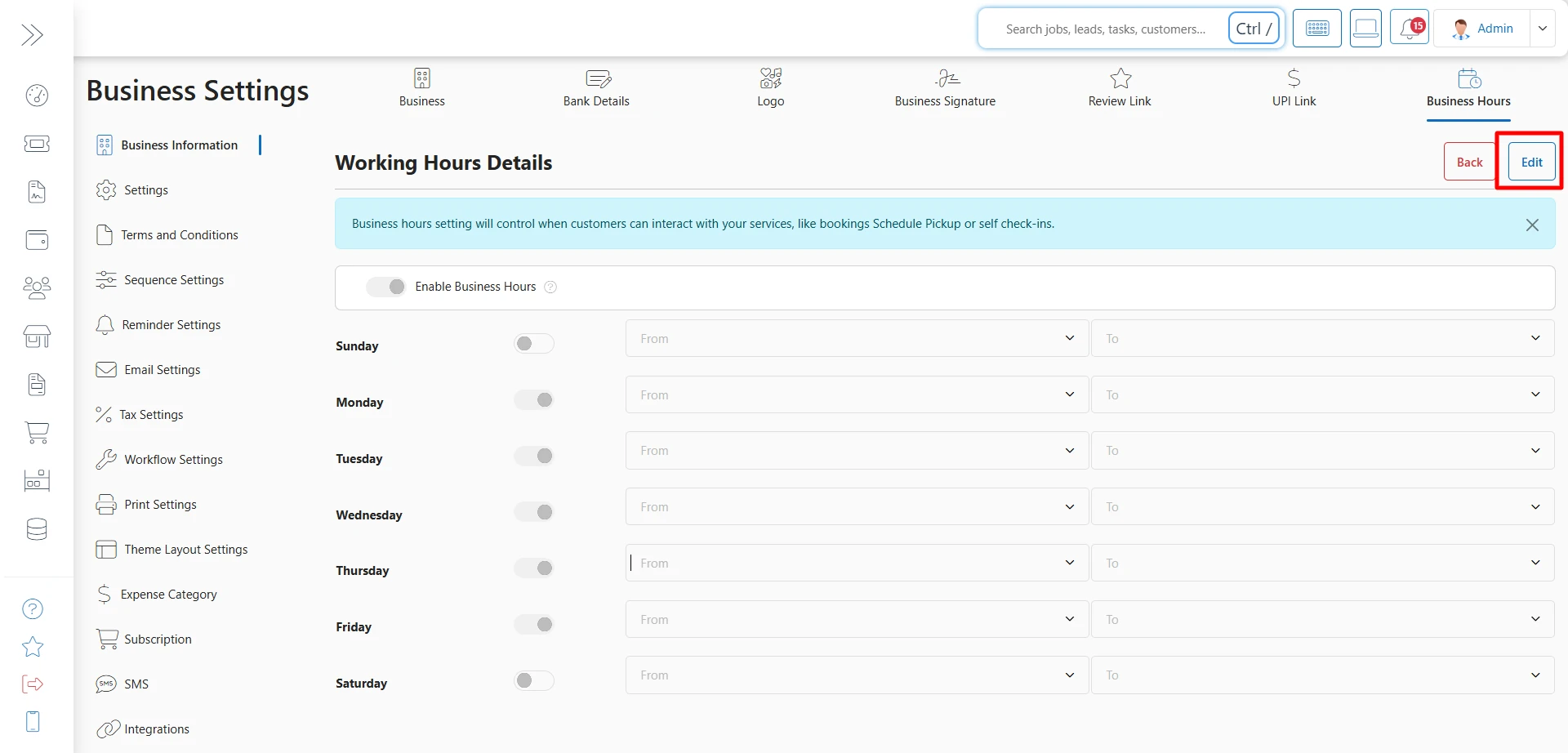
Step 5: Save Changes
- After entering all details, click Save to apply your working hours to your BytePhase CRM account.
Final Thoughts:
Managing your business becomes easier when your CRM settings match your real-world working hours. BytePhase CRM gives you full flexibility to set custom hours for each day and maintain a clean record of operations.
If you face any difficulty while updating working hours, you can always reach out to BytePhase support through the Help & Support section or Start your free trial here…