The BytePhase Pickup & Drop Process: A Complete Guide
The pickup and drop process in BytePhase turns a doorstep visit into a tracked, provable trip: you book a pickup or delivery against a job, sale or purchase, dispatch a field executive, follow them on a live map, and close the task with photos, an OTP and a signature at the door. The customer watches the whole thing on a live tracking link — no app, no login. This guide walks through the entire module as it ships today: the lifecycle, the nine statuses, the three screens, money handling, notifications, and every one of the 22 settings that shape it.
Looking for the feature overview instead? See Pickup & Drop software for repair shops.
What the pickup and drop process replaces
“Where is my device?” used to mean a phone call and a guess. “Who is doing what today?” was a spreadsheet and a WhatsApp group. “What did I hand over?” was word of mouth — followed, sometimes, by a dispute. The Pickup & Drop module replaces all four with a live map link for customers, a dispatch board with live counts for the desk, per-device photo and condition proof, and a one-tap missed-visit flow that reschedules on the spot.
One distinction before we start: BytePhase records a delivery and a trip separately. If the customer walks into the shop and collects their device, that’s a Job Delivery — nobody travels, and it carries its own OTP verification. A Pickup & Drop task exists only when somebody physically travels: a doorstep pickup, a doorstep return, or a courier leg. A doorstep return can create both records, joined by the job they share.
Every task is four choices
The pickup and drop process starts with one record, and that record is defined by four things: its type (Pickup — something comes to the shop; Drop — something leaves it), its mode (Doorstep — your own executive travels, with live GPS; Courier — a third party carries it, with a provider and tracking number), its source, and its current status.
Every booking needs a source record — it decides the direction and autofills the customer, address and device:
| Source | What the trip means | Direction |
|---|---|---|
| Job | Collect from or return to the customer | Either |
| Self check-in | Collect from a prospect who booked online | Pickup |
| Sale | Deliver sold goods | Drop |
| Purchase | Collect parts from a supplier | Pickup |
| Outsourced job | Send to or receive back from a vendor | Either |
Device details don’t sit on the task — they sit on lines, one per device, each with its own photos, condition tags and outcome (Collected, Not available, or Excluded). That’s what makes a partial pickup possible: “2 of 3 collected”, with the reason recorded against the third.
The lifecycle, start to finish
End to end, the pickup and drop process for a doorstep collection takes nine moves across three people:
- The desk books the trip — pick a source, confirm the address and time, choose an executive. The task is born Scheduled and promotes itself to Assigned the moment an executive is on it — nobody changes that status by hand.
- The executive sets off — one tap on “On the way” starts GPS and sends the customer a message with the live tracking link. At the address, the app checks the executive is actually near the door (geofenced) before “Arrived”.
- The handover — photos and condition tags per device, an OTP read out by the customer, a signature on screen. Complete the handover and GPS stops, proof attaches to each device line, and the customer gets a confirmation.
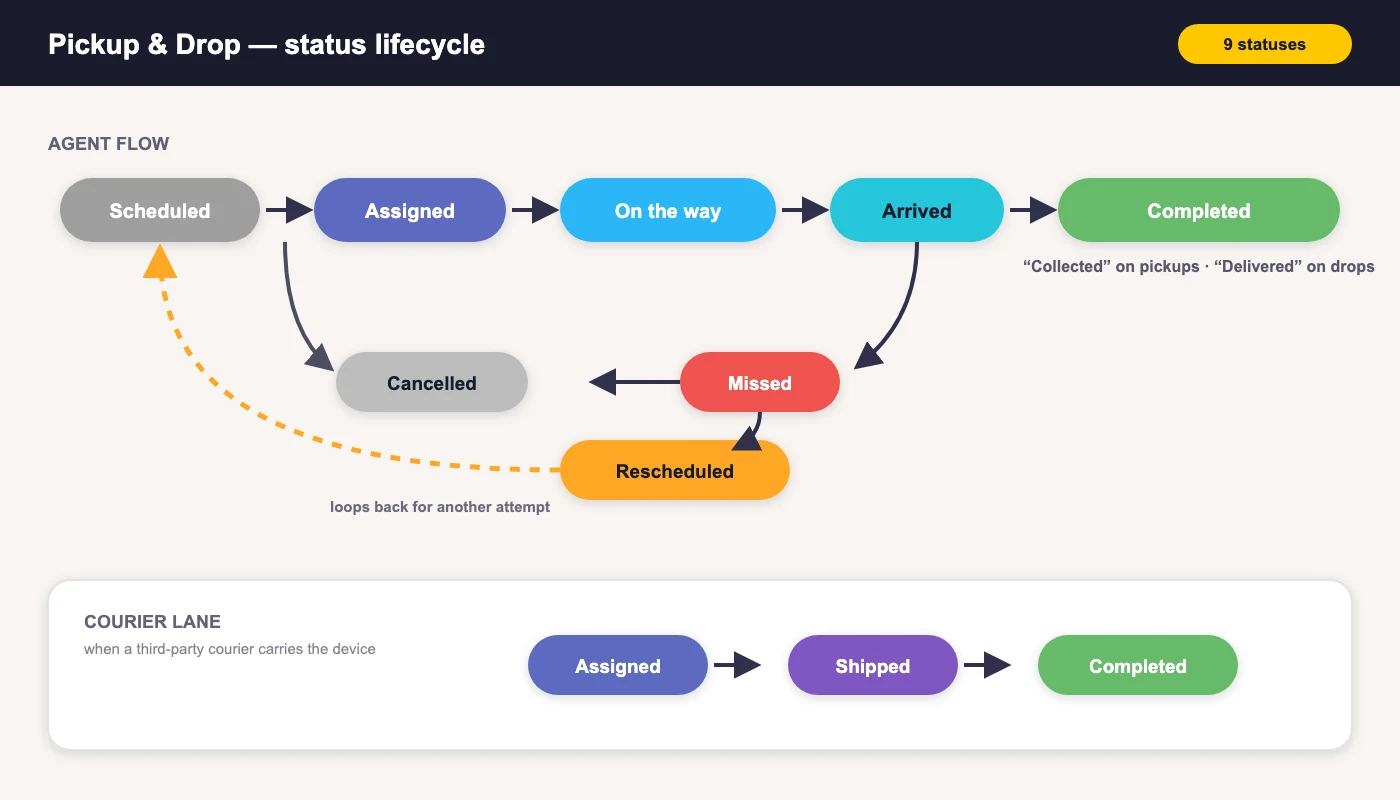
The nine statuses: Scheduled, Assigned, On the way, Arrived, Shipped (courier only), Completed, Missed, Rescheduled, Cancelled. Labels adapt to direction — a pickup on the move reads “On the way” and completes as Collected; a drop reads “Out for delivery” and completes as Delivered. You can rename and recolour statuses, but you can’t invent a move the map doesn’t allow — the server refuses illegal transitions, a doorstep task can never be “Shipped”, and Completed and Cancelled can never be reopened. Every move writes a timeline entry with who, when, why and where.
When nobody is home
A miss never strands a task. The executive taps “Couldn’t complete”, picks a reason (customer not answering, wrong address, asked to come later, device not ready, payment not arranged) and chooses a path: reschedule now — the customer is right there to agree a slot — or just log it, which lands the task in the dispatch board’s attention queue. Either way the miss is counted exactly once, GPS-stamped.
The courier path
A courier task skips the travel steps: Scheduled → Assigned (needs a provider) → Shipped (tracking number recorded) → Completed. No GPS, no arrival check, no live link.
Proof at the door
Proof is the part of the pickup and drop process that ends disputes. Before a task can close, the handover wizard walks the executive through whatever your settings require — and the server checks it all again:
- OTP verified — single-use codes that expire in 30 minutes
- Signature captured on the executive’s screen
- Every device line resolved — Collected, Not available or Excluded, no blanks
- At least two photos per collected device (doorstep pickups), in four named slots: front, back, screen on, serial/IMEI
- At least one condition tag per collected device — scratches, dents, cracked screen, no power, box included, charger included
- Money collected — a drop cannot close with a balance outstanding
A device you never received skips the photo and tag rules — you can’t photograph something you weren’t handed.
Money — COD and transport charges
Cash on delivery is the linked record’s live outstanding balance — the job or sale total minus everything already paid, computed at the moment of handover, never a stale figure. It’s only ever non-zero on a Drop linked to a Job or Sale; pickups, purchases and outsource trips always show zero. The wizard opens your normal payment popup — cash, UPI, card.
Transport charges are off by default. Switch them on and you can add a fee with GST, entered tax-inclusive (the tax is carved out of the amount you typed) or tax-exclusive (added on top). The fee is recorded on the task.
Three people, three screens
- The desk: Dispatch Board — live KPI tiles (scheduled today, on the way, missed, overdue — click to filter — and COD on the road: the cash your riders are carrying right now), a “Needs attention” queue of missed and unassigned tasks, source tabs with live counts, and the task grid with per-row actions: assign, reschedule, track, copy tracking link, print receipt.
- The executive: My Route — today’s stops in order with the next one highlighted, per-stop Navigate and Call links, total COD to collect, and only the legal actions ever tappable. Runs in the BytePhase mobile app with background GPS; an in-flight trip even survives an app restart.
- The customer: the tracking page — a secure link, no login, refreshing every 15 seconds: live map with the agent moving along real roads (the route and travel time come from Google’s Directions service, not a straight line), arriving-in ETA, a verified agent card with call button, journey timeline, and the handover photos once taken.
Who hears what
Every step of the pickup and drop process sends a message, on the channels you’ve toggled: booking confirmations for pickups and drops, an assignment alert to the executive, the “on my way” message carrying the tracking link, the handover OTP by email or SMS, a completion confirmation, and reschedule/cancellation emails. There’s also a daily due-date reminder you can switch on in reminder settings. (In India, remember SMS templates must be DLT-registered — don’t edit an approved template’s wording.)
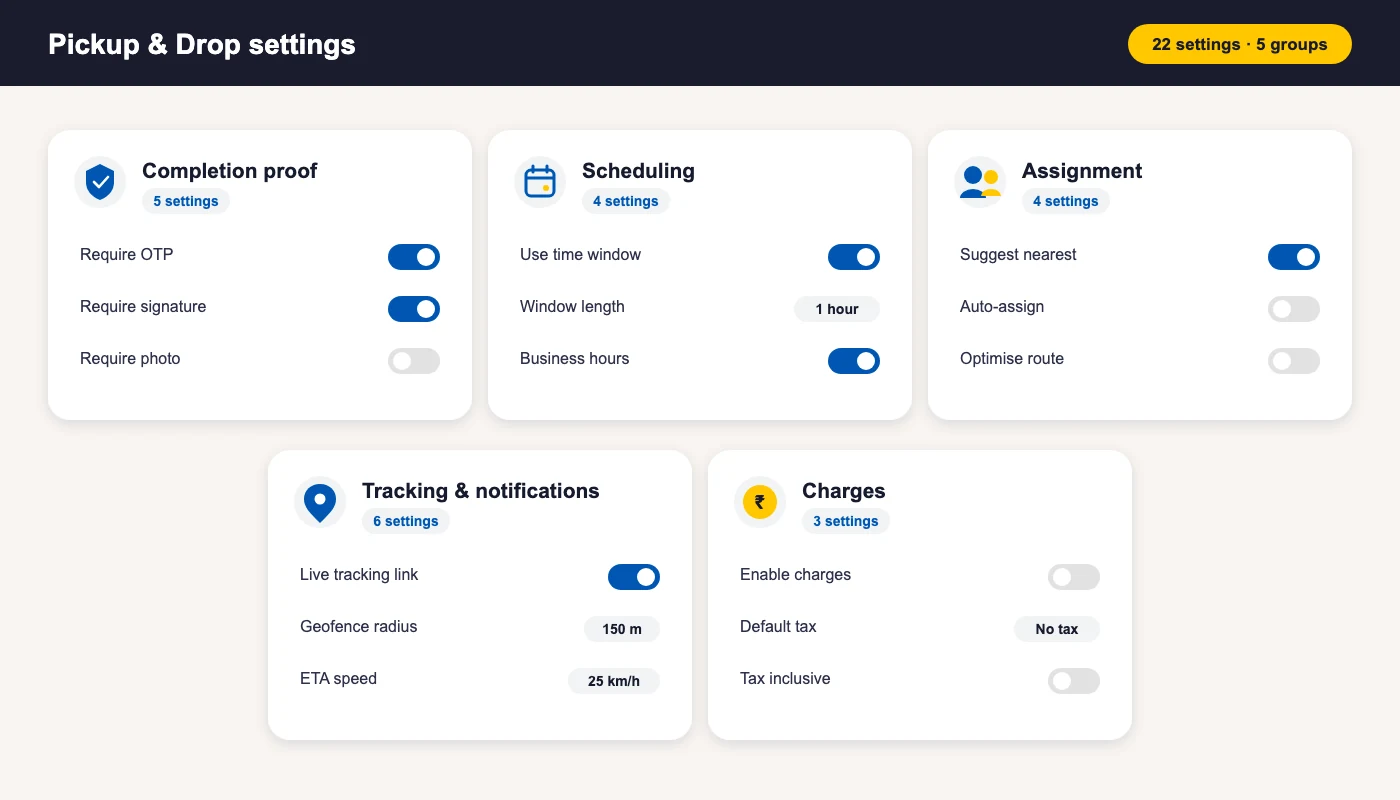
All 22 settings, explained
Every stage of the pickup and drop process described above is shaped by 22 settings under Settings → Pickup & drop. Set them once — they apply to every task your shop books. Defaults in brackets.
Completion proof (5)
| Setting | What it does | Default |
|---|---|---|
| Require OTP | Customer reads out a one-time code to confirm handover | On |
| Require signature | Capture a signature on completion | On |
| Require photo | Executive must photograph the device — at least 2 photos per collected device | Off |
| Require condition checklist | Tag visible condition (scratches, dents, box…) | Off |
| Require COD collection | Block completing a drop until the pending COD on the linked job or sale is collected | On |
Scheduling (4)
| Setting | What it does | Default |
|---|---|---|
| Use time window | Book a slot window (e.g. 2–4 PM) instead of an exact time | On |
| Default window length | How wide the booked slot is — 30 min to 2 hours | 1 hour |
| Respect business hours | Only allow slots within the shop’s working hours | On |
| Slot capacity per executive | Max stops one executive can be booked into per day; 0 = unlimited | Unlimited |
Assignment (4)
| Setting | What it does | Default |
|---|---|---|
| Suggest nearest executive | Rank executives by real distance when assigning — executives whose location is stale are dropped from suggestions rather than wrongly ranked | On |
| Auto-assign | Assign new pickups automatically without manual dispatch | Off |
| Optimise route order | Order an executive’s day by nearest stop instead of scheduled time — leave off if you promise time windows | Off |
| Executive can reassign | Let executives hand a task to a colleague | Off |
Tracking & notifications (6)
| Setting | What it does | Default |
|---|---|---|
| Share customer tracking link | Send the live tracking page on WhatsApp / SMS | On |
| Notify on “On my way” | Ping the customer the moment the executive sets off | On |
| Geofence auto-arrive | Mark “Arrived” automatically when near the address | On |
| Geofence arrival radius | How close counts as “at the door” — 20 to 2,000 metres | 150 m |
| Show ETA | Compute and display estimated arrival time | On |
| ETA average speed | Speed used for the fallback estimate; lower it for dense-traffic cities | 25 km/h |
Charges (3)
| Setting | What it does | Default |
|---|---|---|
| Enable pickup / drop charges | The master switch for transport fees — off, and no fee can be saved at all | Off |
| Default tax | The GST rate pre-filled on a new transport fee | No tax |
| Tax inclusive | Treat the typed amount as already containing tax | Off |
Six habits that make the pickup and drop process work
- Photograph before you leave the door — front, back, screen, serial ends almost every condition argument.
- Clear the attention queue first — missed and unassigned tasks cost more than a day of new bookings.
- Type addresses properly — clean addresses become clean coordinates, which is what the map, ETA and arrival check all run on.
- Reschedule from the field — the customer is right there; set the new slot before you ride away.
- Send the link, save the phone call — customers who can see the map stop ringing the shop.
- Read the timeline before you argue — every move is stamped with who, when and where.
The whole pickup and drop process is available in BytePhase on all plans above Lite, on web and the mobile apps. If you’re evaluating doorstep service for your shop, start with the Pickup & Drop feature page or Book a Demo.