
How to integrate Google Calender in BytePhase CRM?
Introduction
Managing appointments, job schedules, and follow-ups efficiently is essential for any repair shop that aims to deliver excellent customer service. With the integrate Google Calender in BytePhase, you can now sync your schedules, track jobs, and stay organized effortlessly — all in one place.
Furthermore, whether you’re managing multiple technicians or scheduling daily repairs, this integration helps ensure no appointment is missed and every task stays on track.
This Blog explains how the Scheduler integrates with Google Calendar and guides employees on setting up their individual calendars for seamless event synchronization.
Why Integrate Google Calendar with BytePhase CRM?
Integrating Google Calendar with BytePhase CRM brings automation and visibility into your daily operations.
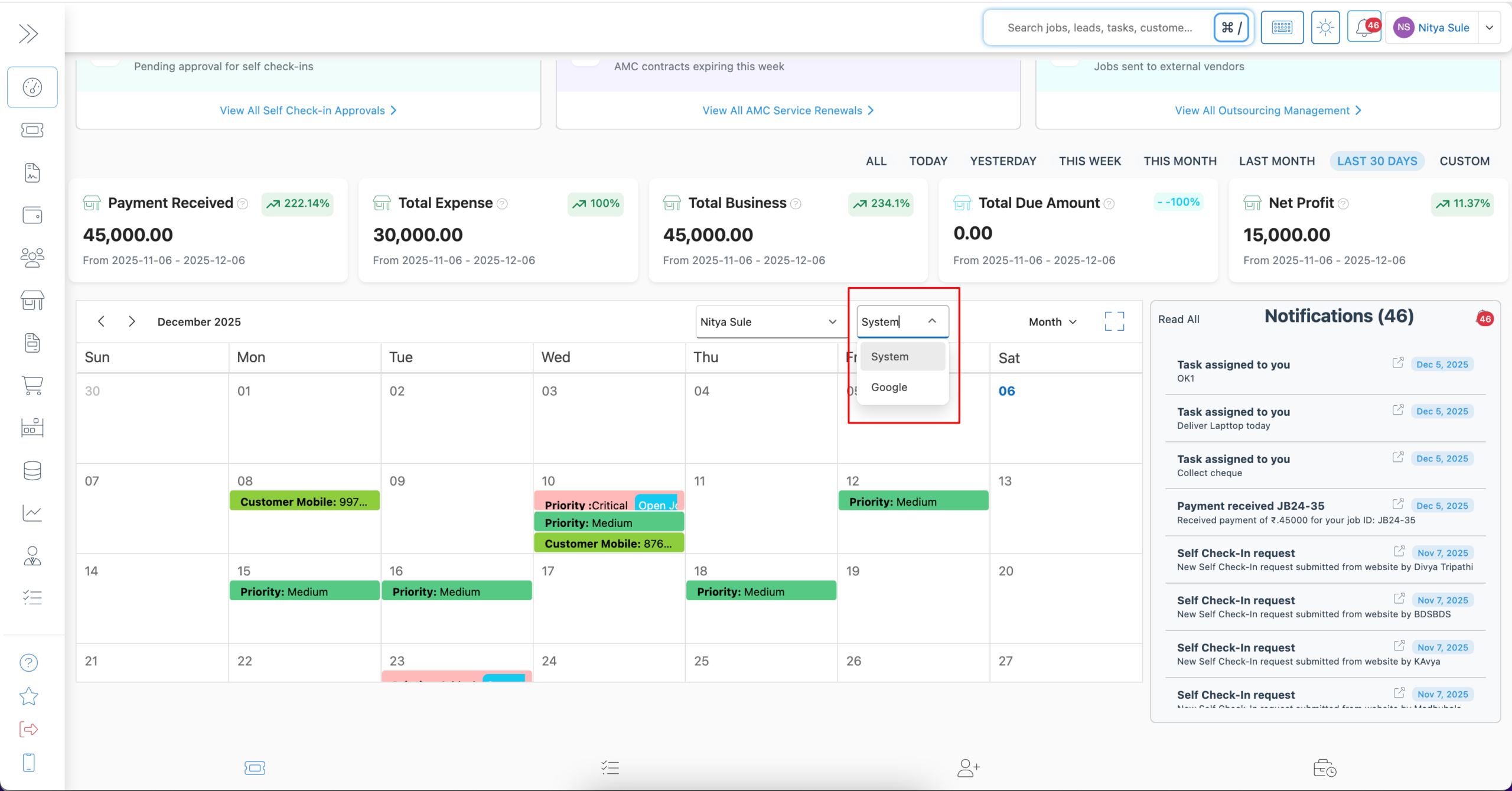
Previously, the Scheduler on our dashboard displayed only system events such as Jobs, Tasks, and Pickups/Drops. However, now each employee can integrate their personal Google Calendar and easily switch between:
- System Events, or
- Google Calendar Events from their configured calendar.
How Google Calendar Integration Works?
Additionally, each employee can configure their Google Calendar by entering their Calendar ID within the Scheduler settings.
Step-by-Step Guide: How to Integrate Google Calendar.
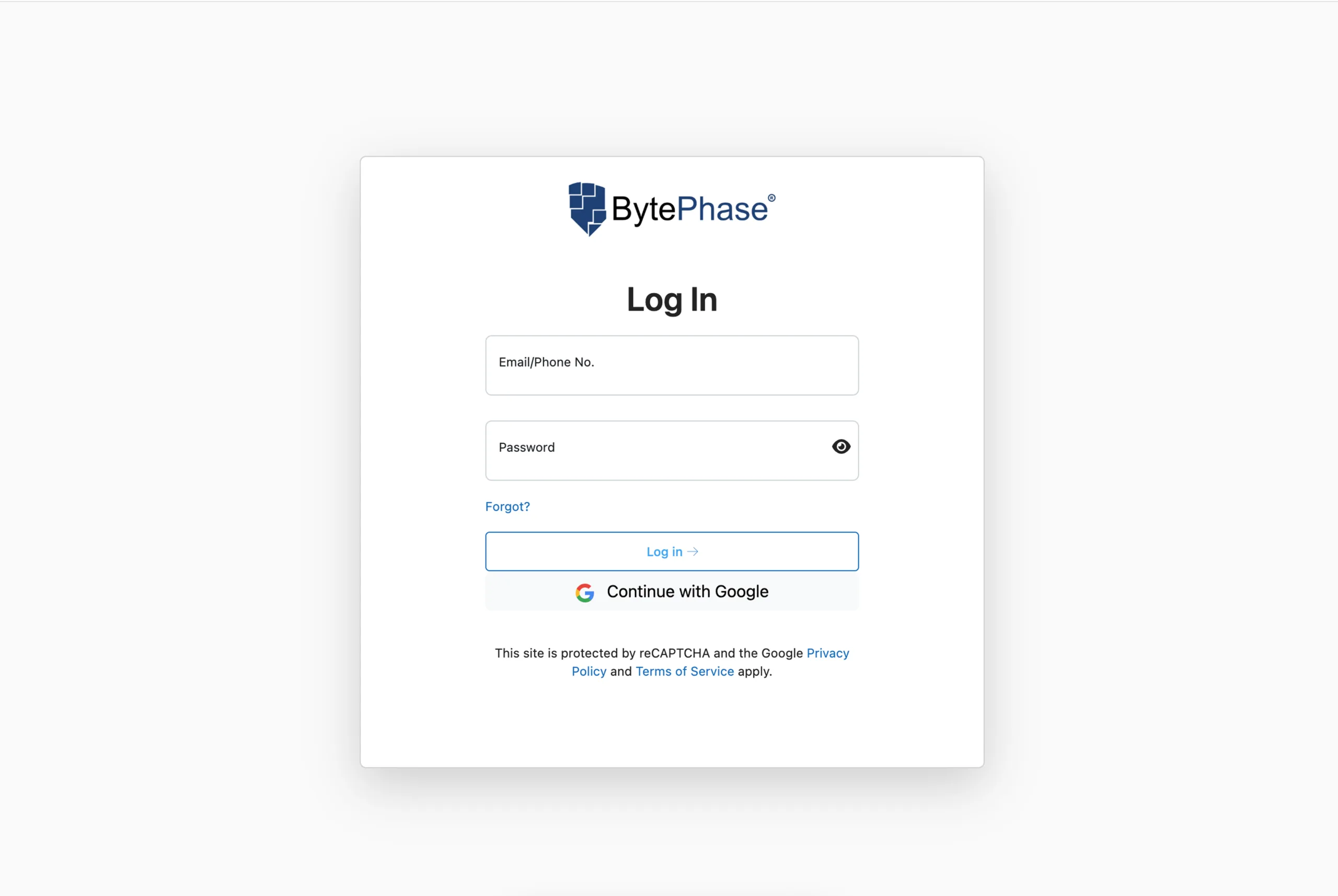
Step 1: Log in to BytePhase Portal
- Start by visiting the BytePhase login account using your email or phone number and password
Step 2: Navigate to the Dashboard
-
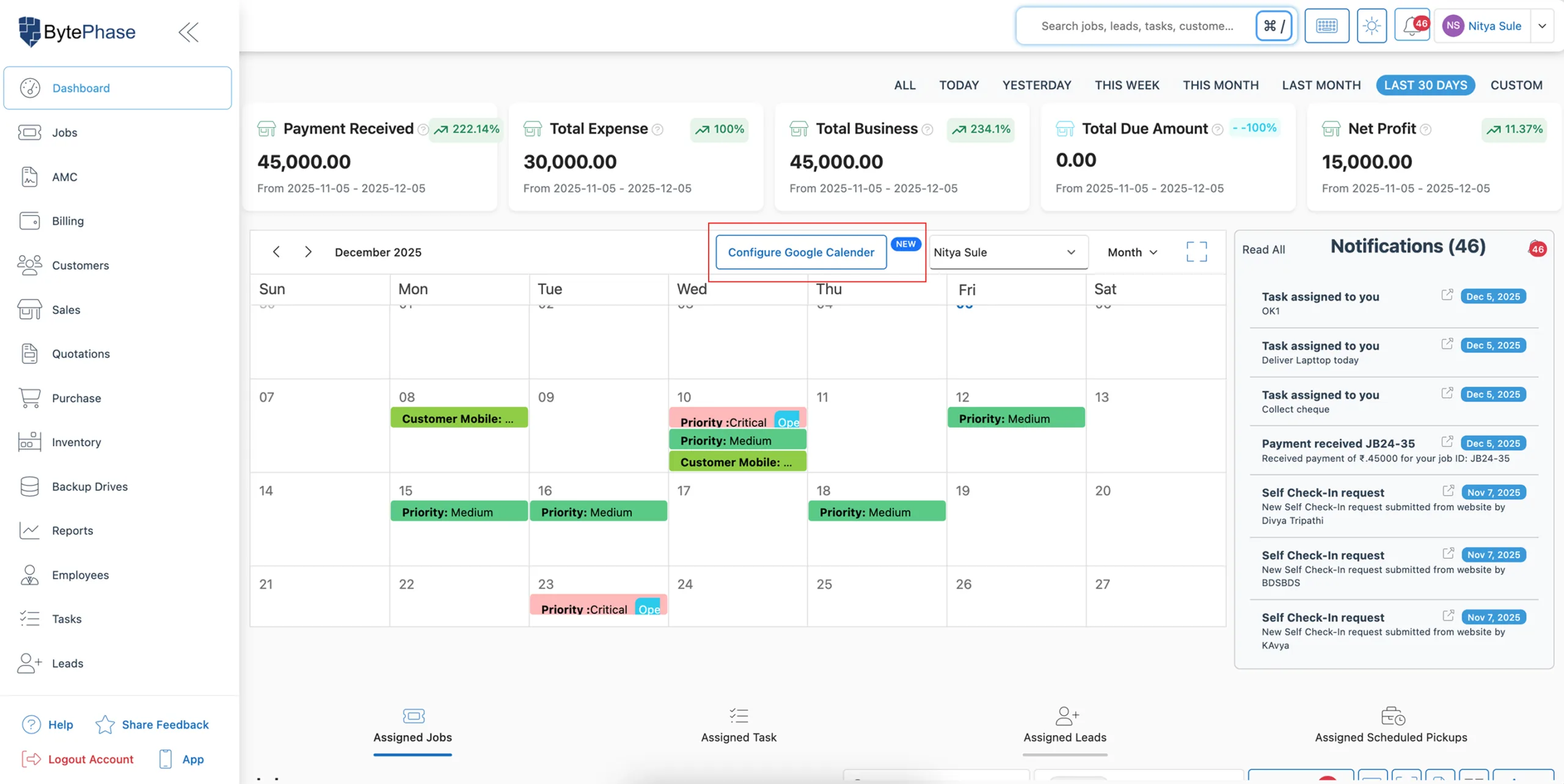
First, once you’re logged in, go to the Dashboard section.
-
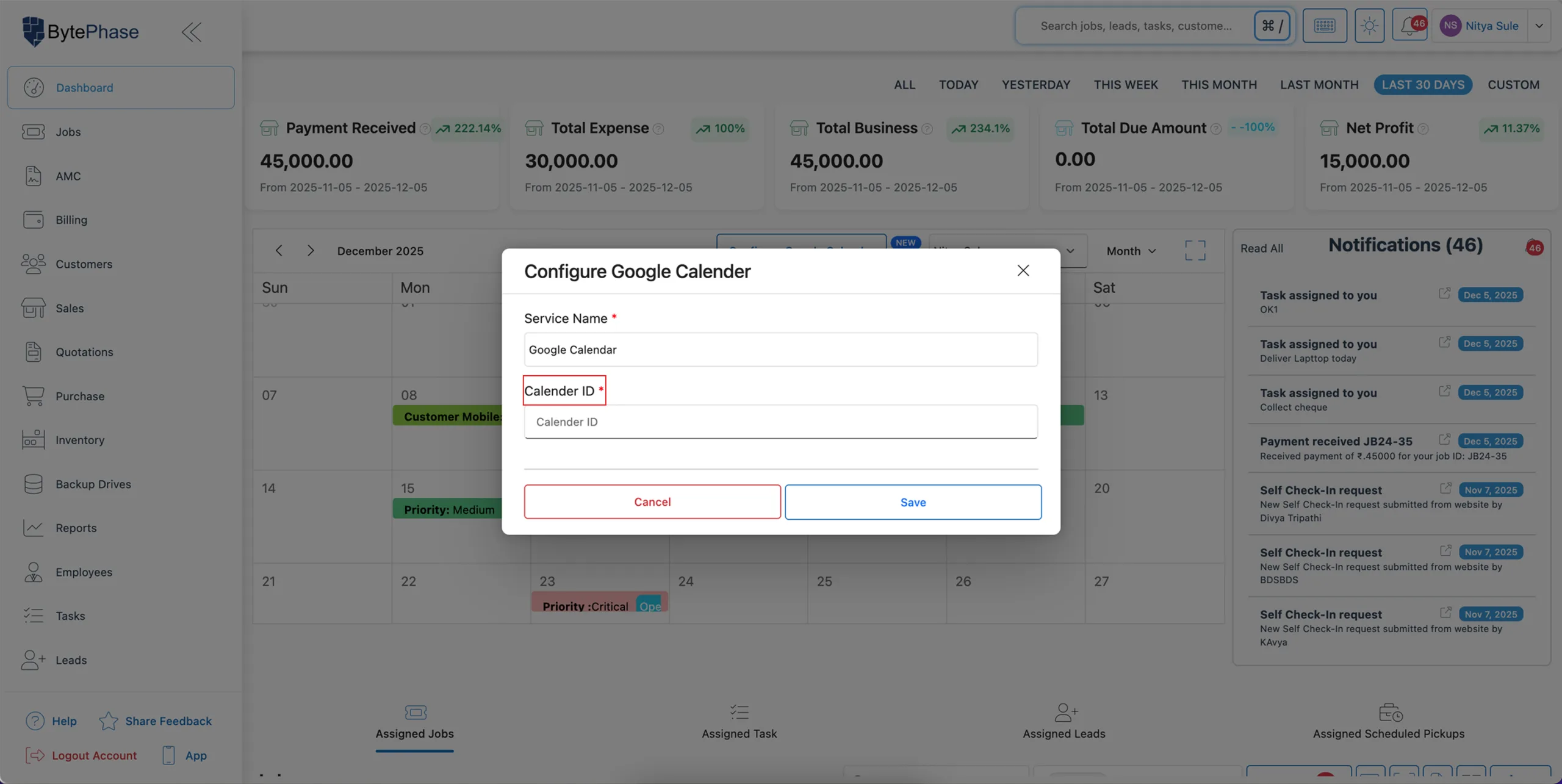
Then, you will see an option labeled “Configure Google Calendar,” and you can click on it to begin the setup process.
Step 3: Add Your Google Calendar ID
BytePhase requires your Google Calendar ID to sync your events and appointments. So, to find it, follow the steps below.
How to Find Your Google Calendar ID
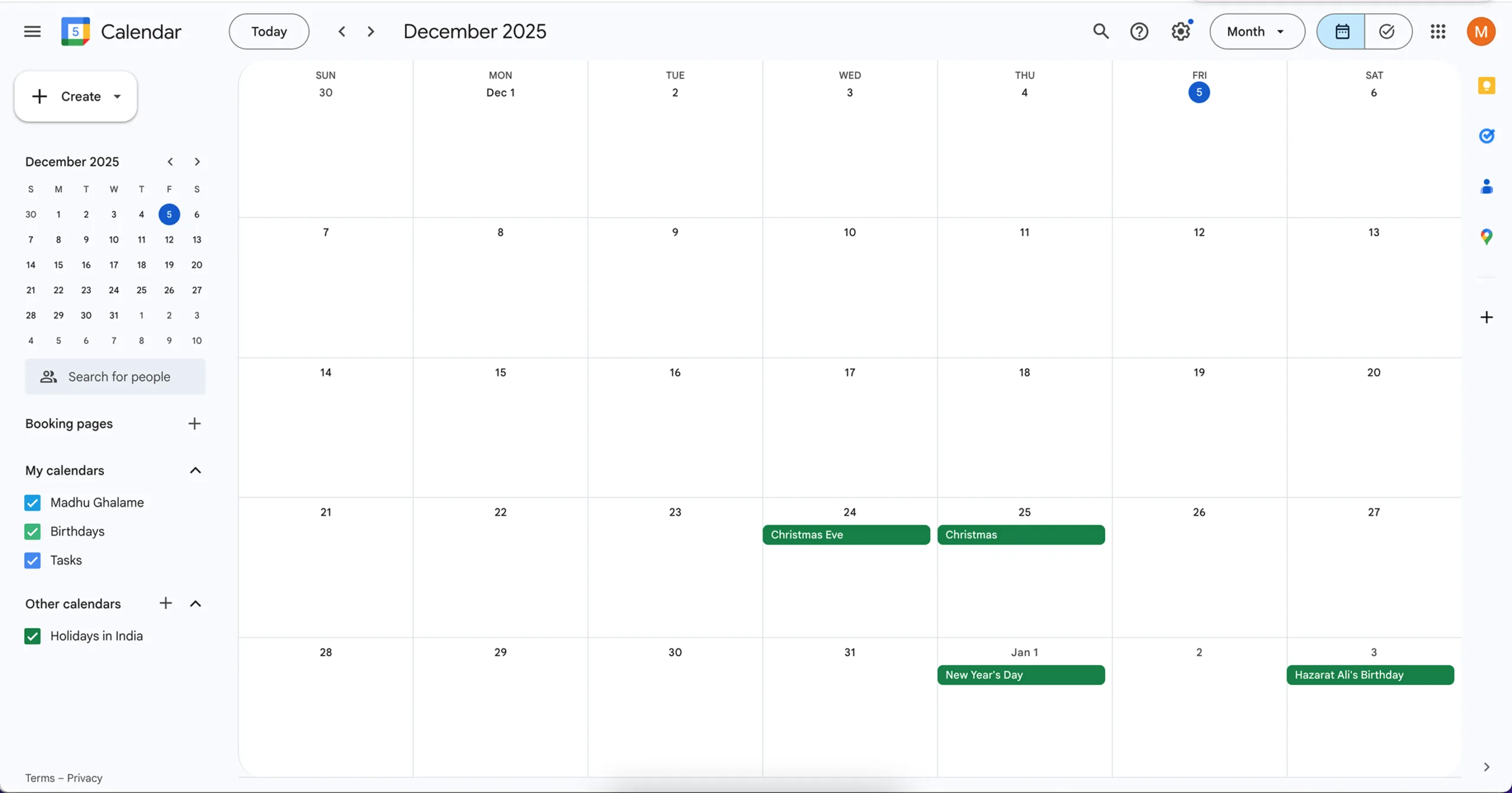
Step 1: Open Google Calendar
Go to Google Calendar on your desktop or mobile browser.
Step 2: Log in to Your Google Account
Use your Google credentials to sign in.
Step 3: Select the Calendar You Want to Integrate
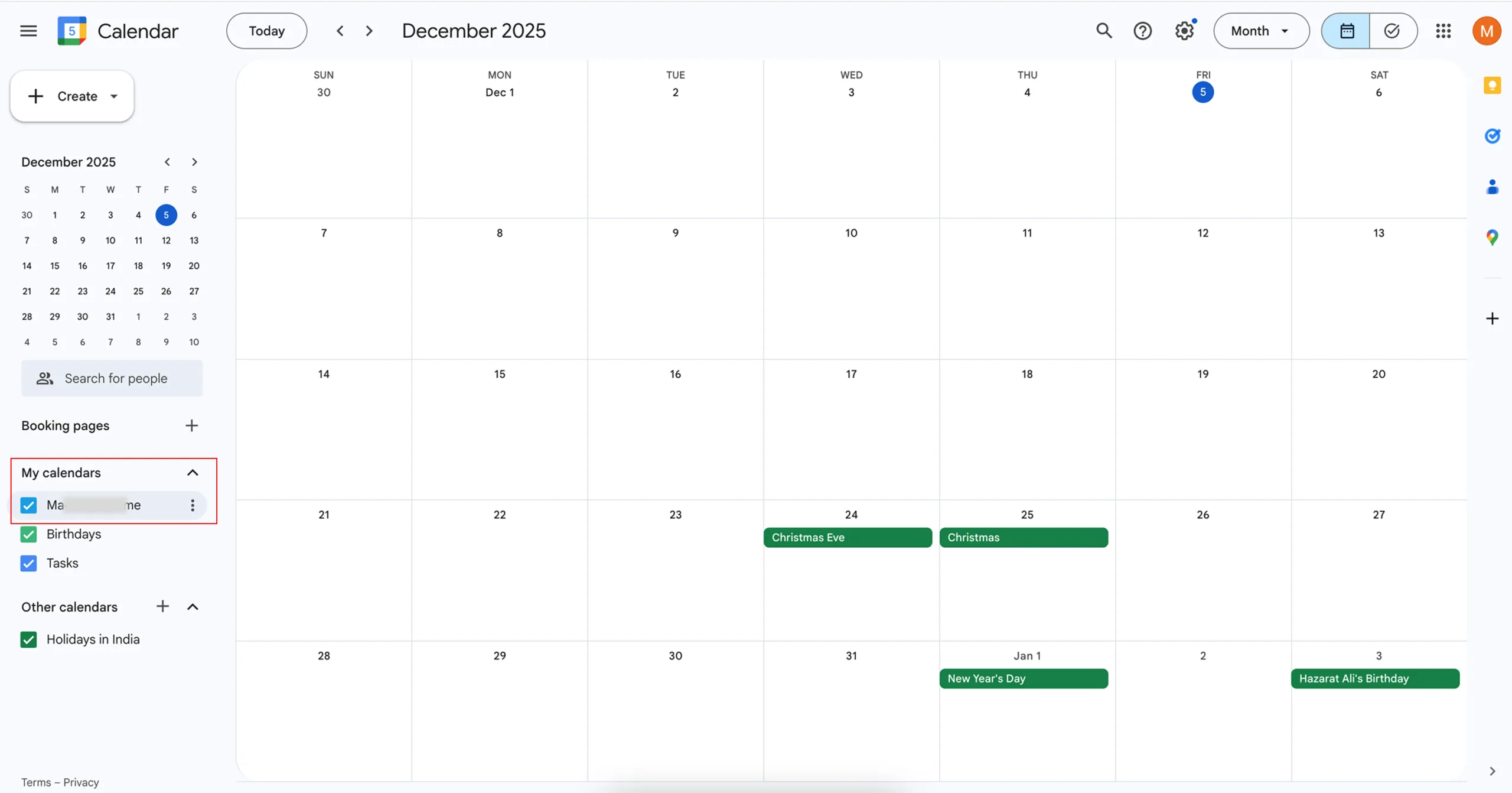
On the left sidebar, look for My Calendars.
Hover over the calendar you want to use and click on the ⋮ (three dots) menu.
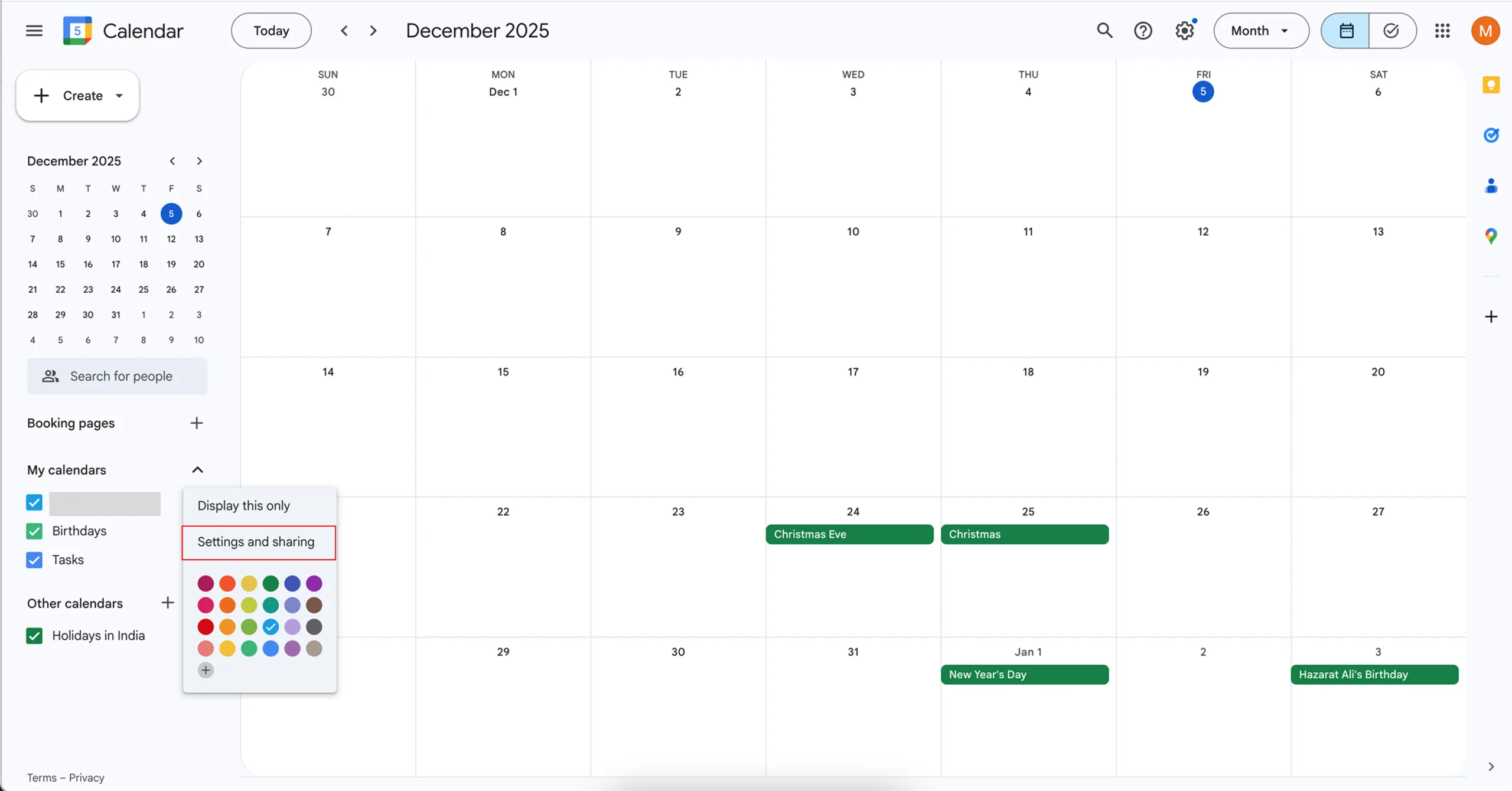
Step 4: Open Settings and Sharing
Click Settings and Sharing from the dropdown options.
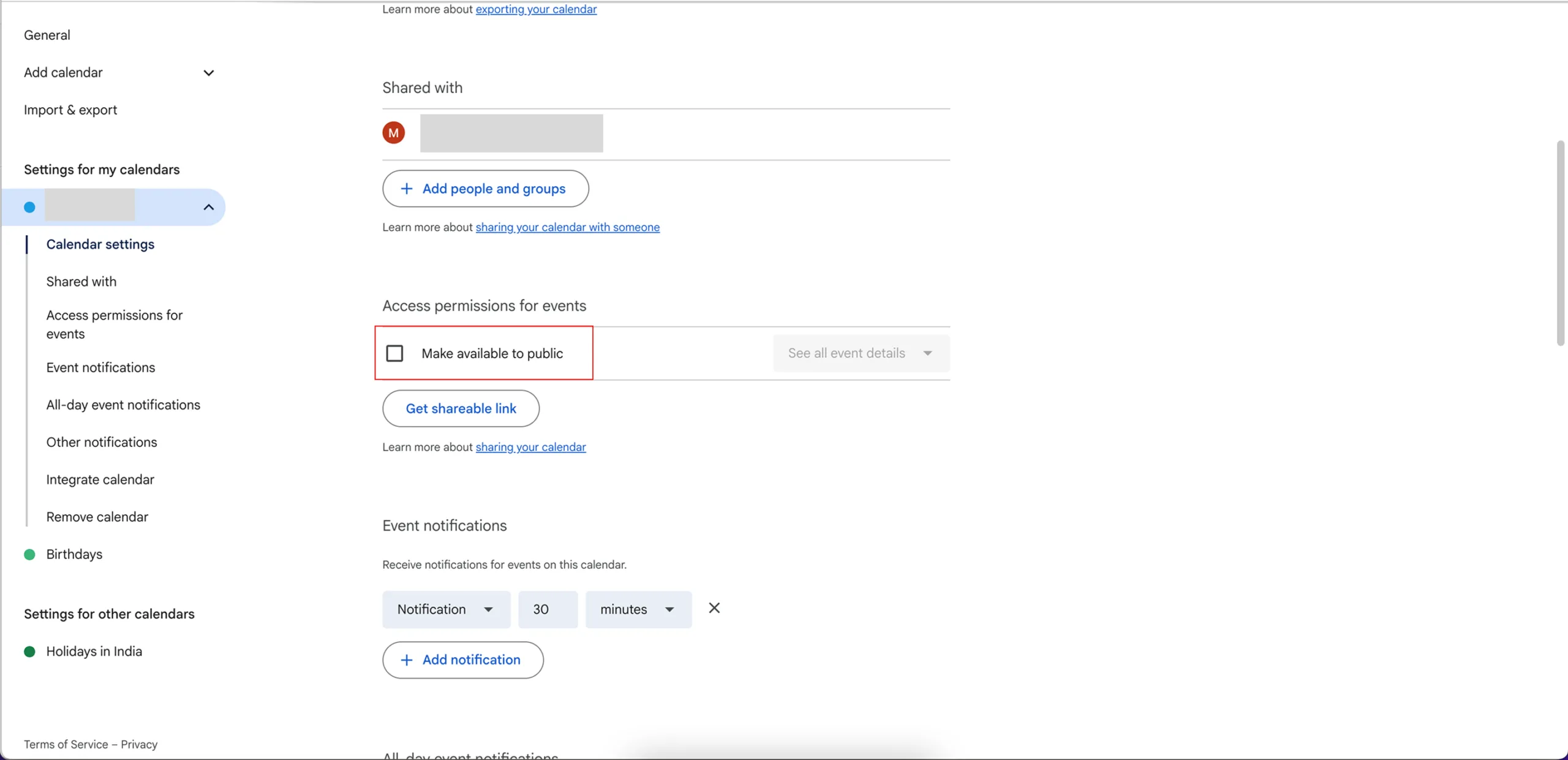
Step 5: Enable Public Access
Under Access Permissions for Events, tick the checkbox “Make available to public.”
Note: This step is necessary to allow the system to retrieve event details using public API access.
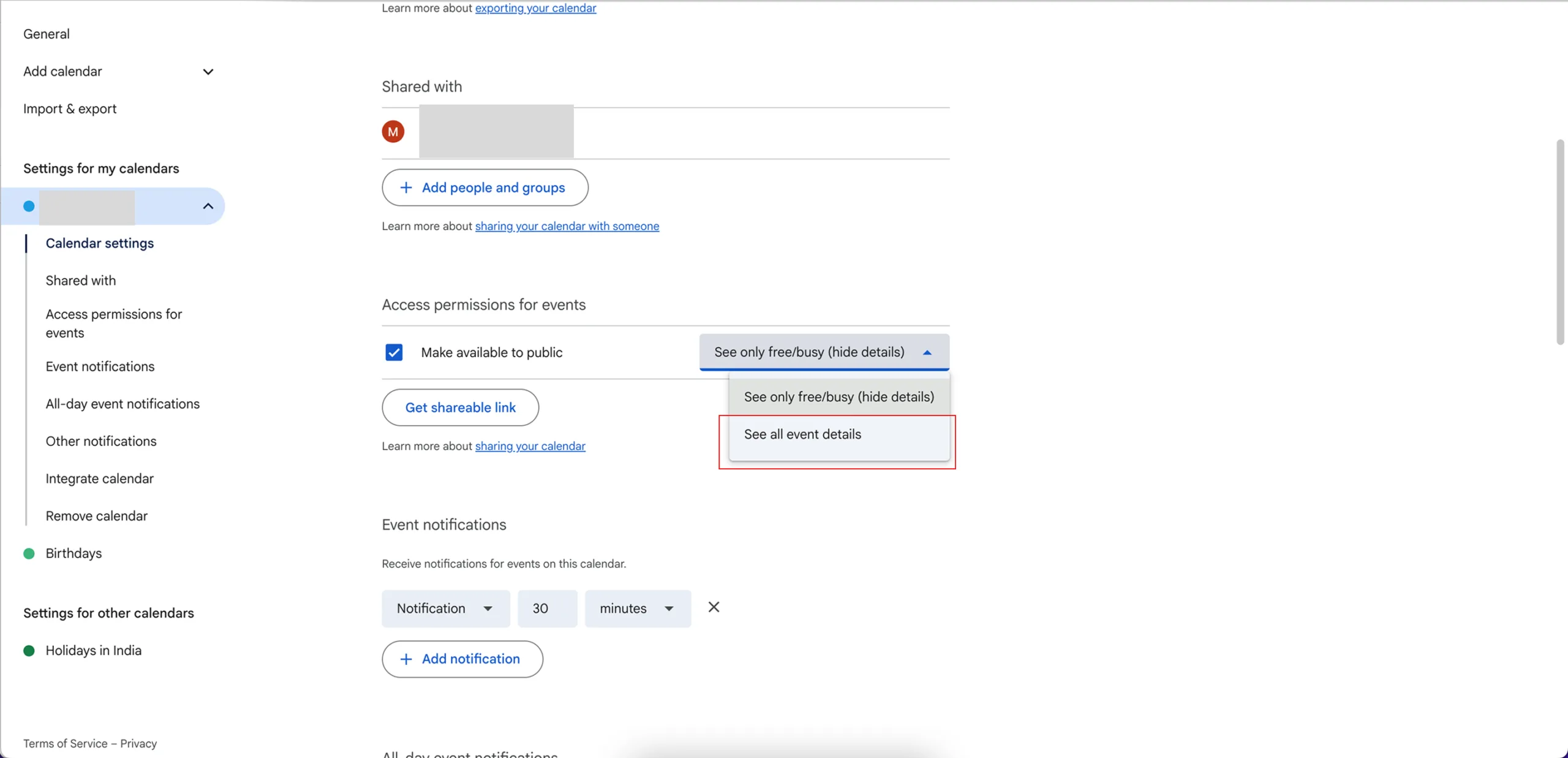
Then, choose “See all event details.” This ensures that BytePhase can access your calendar events for seamless synchronization.
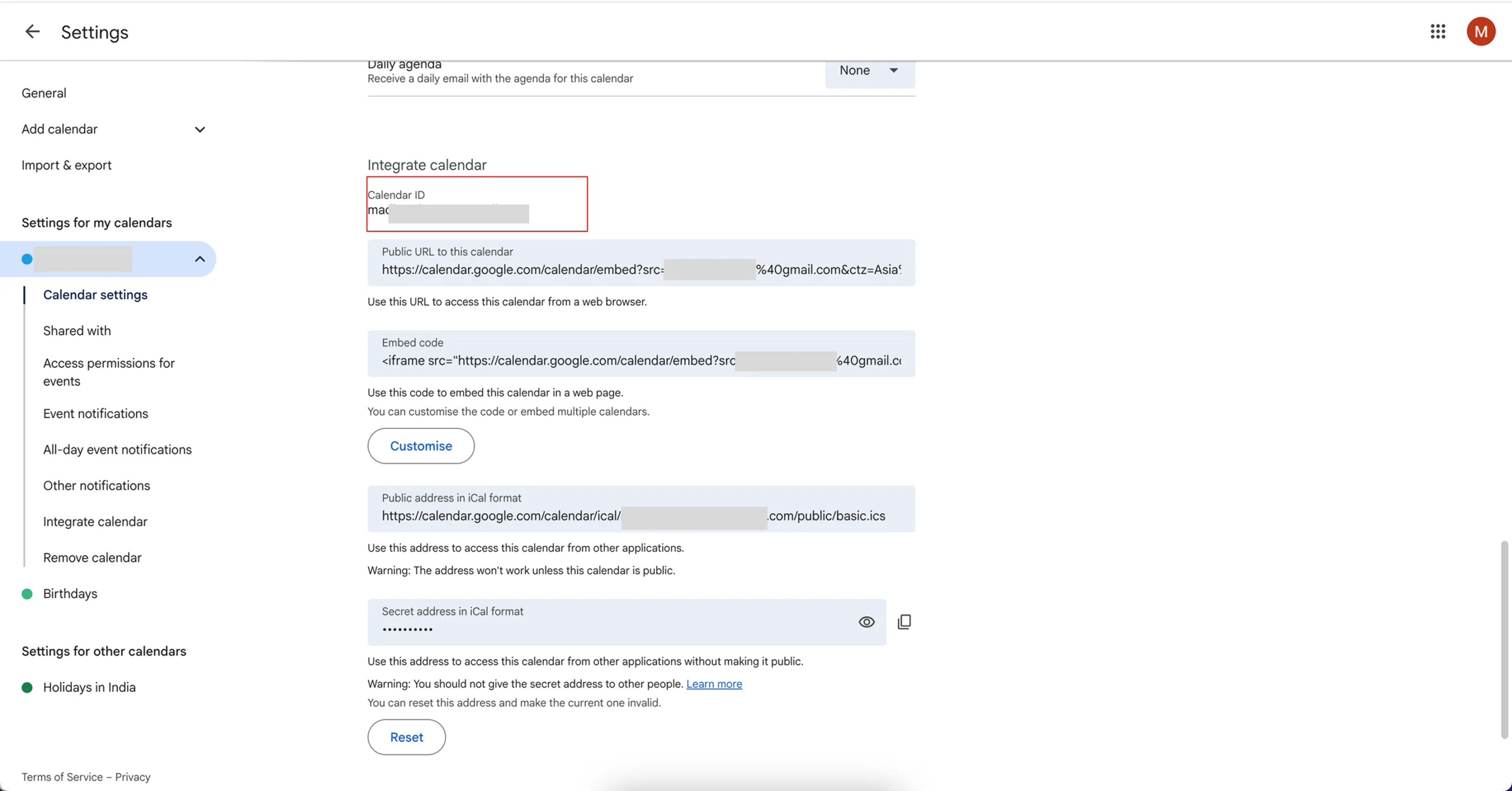
Step 6: Copy Your Calendar ID
Scroll down until you find your Calendar ID — it will look like an email address (e.g., example@gmail.com or random-id@group.calendar.google.com).
Copy this Calendar ID for the next step.
Step 4: Configure Google Calendar in BytePhase Scheduler
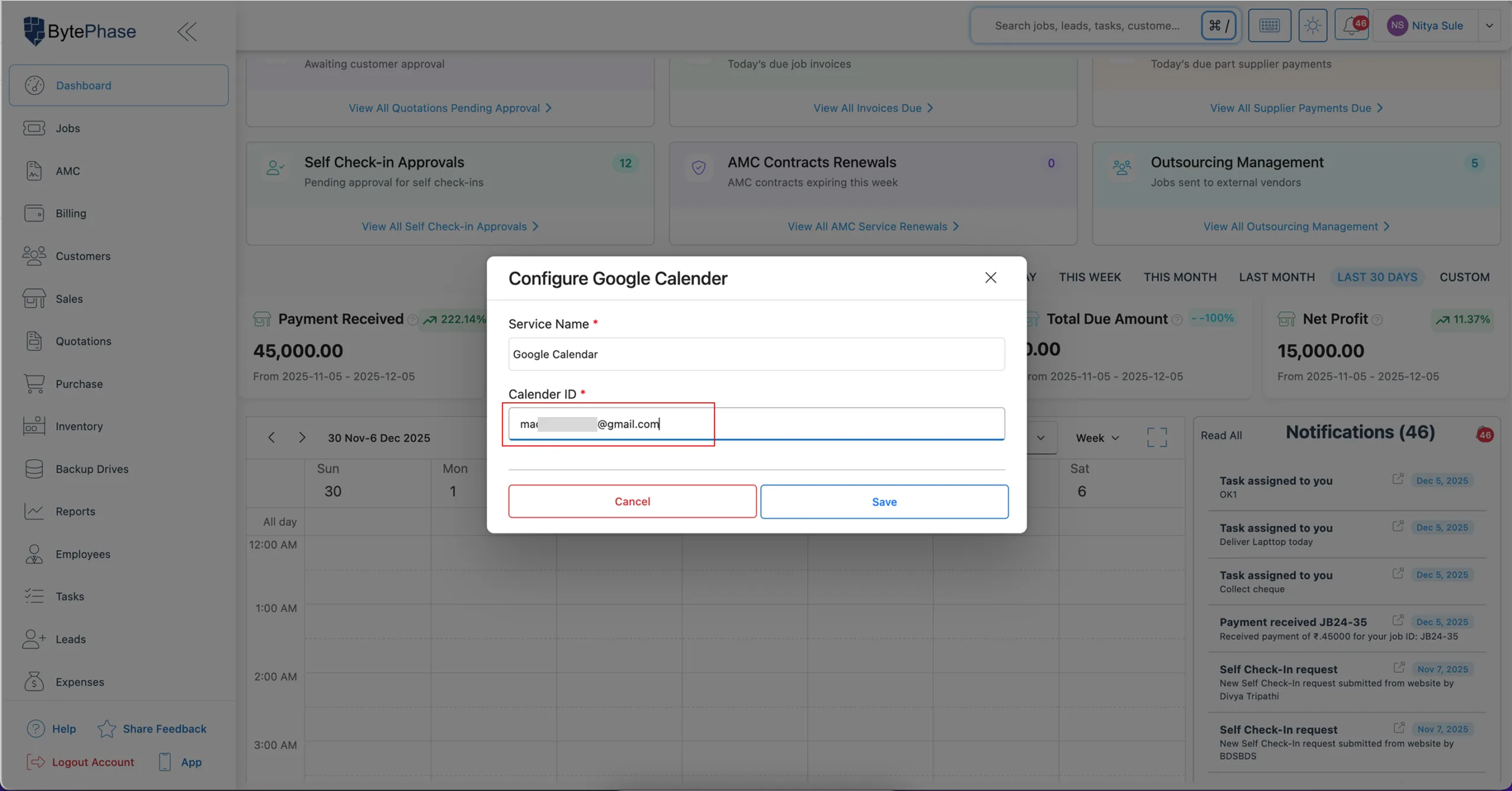
Now that you have your Calendar ID, you can configure it inside BytePhase CRM so the system knows which calendar to sync.
-
Go to your BytePhase Dashboard → Scheduler.
-
Click on Configure Google Calendar.
-
Paste the Calendar ID you copied earlier.
-
Click Save.
Once done, your Google Calendar will be connected to your BytePhase CRM account and ready to sync your events.
Step 5: Verify the Integration
Then, after saving, check your BytePhase Scheduler.
Consequently, you should now see your Google Calendar events synced automatically. If the Google Calendar are not synced, please refresh the page.
Optional: Share Your Calendar with the BytePhase CRM Account
If your system requires Create / Update / Delete access for calendar events, you’ll need to share your Google Calendar with the BytePhase backend service account.
Steps to Share Your Calendar:
Open Google Calendar Settings.
Go to the Share with specific people or groups section.
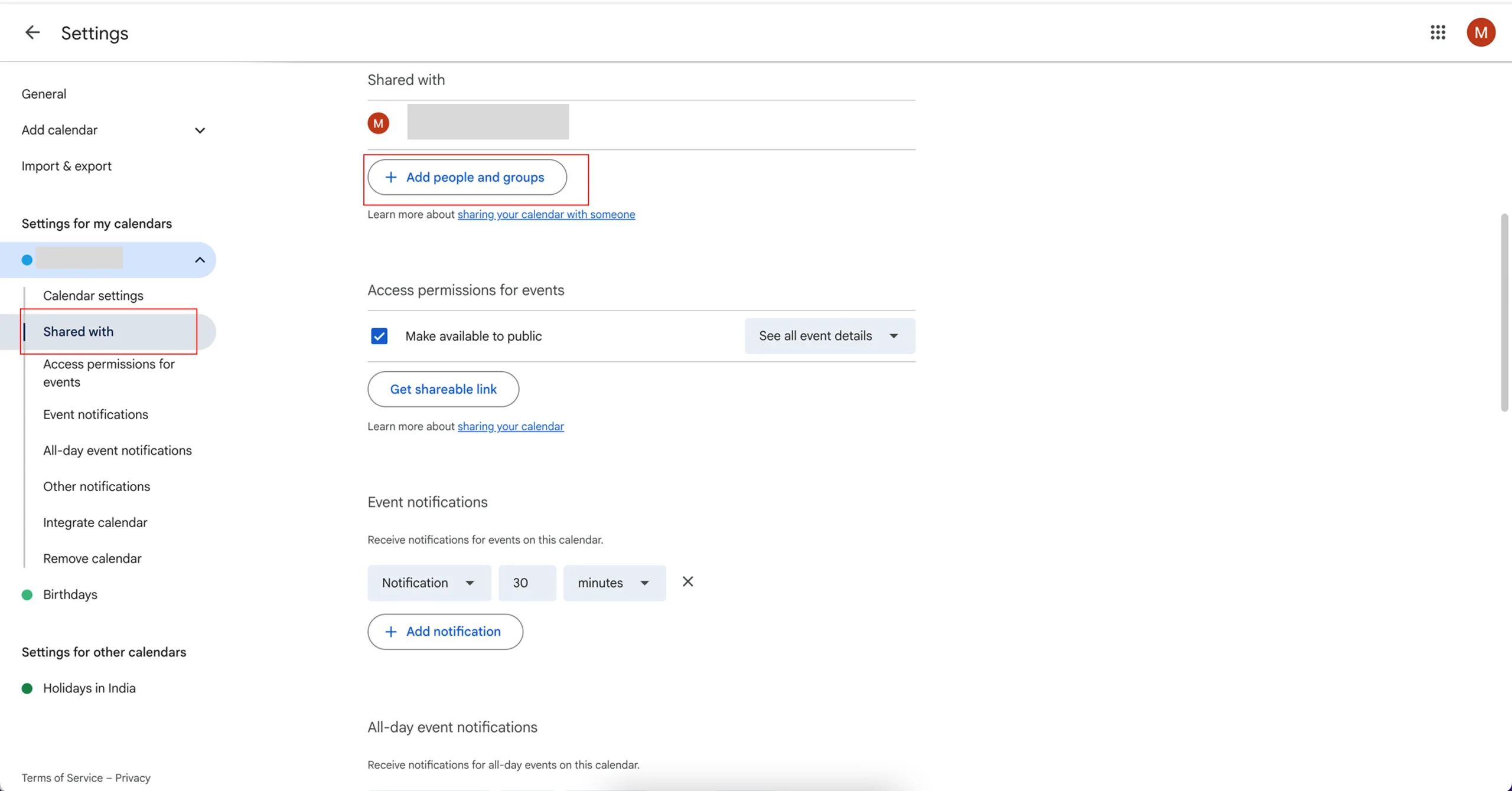
Click on Add people and groups.
Paste this service account email:
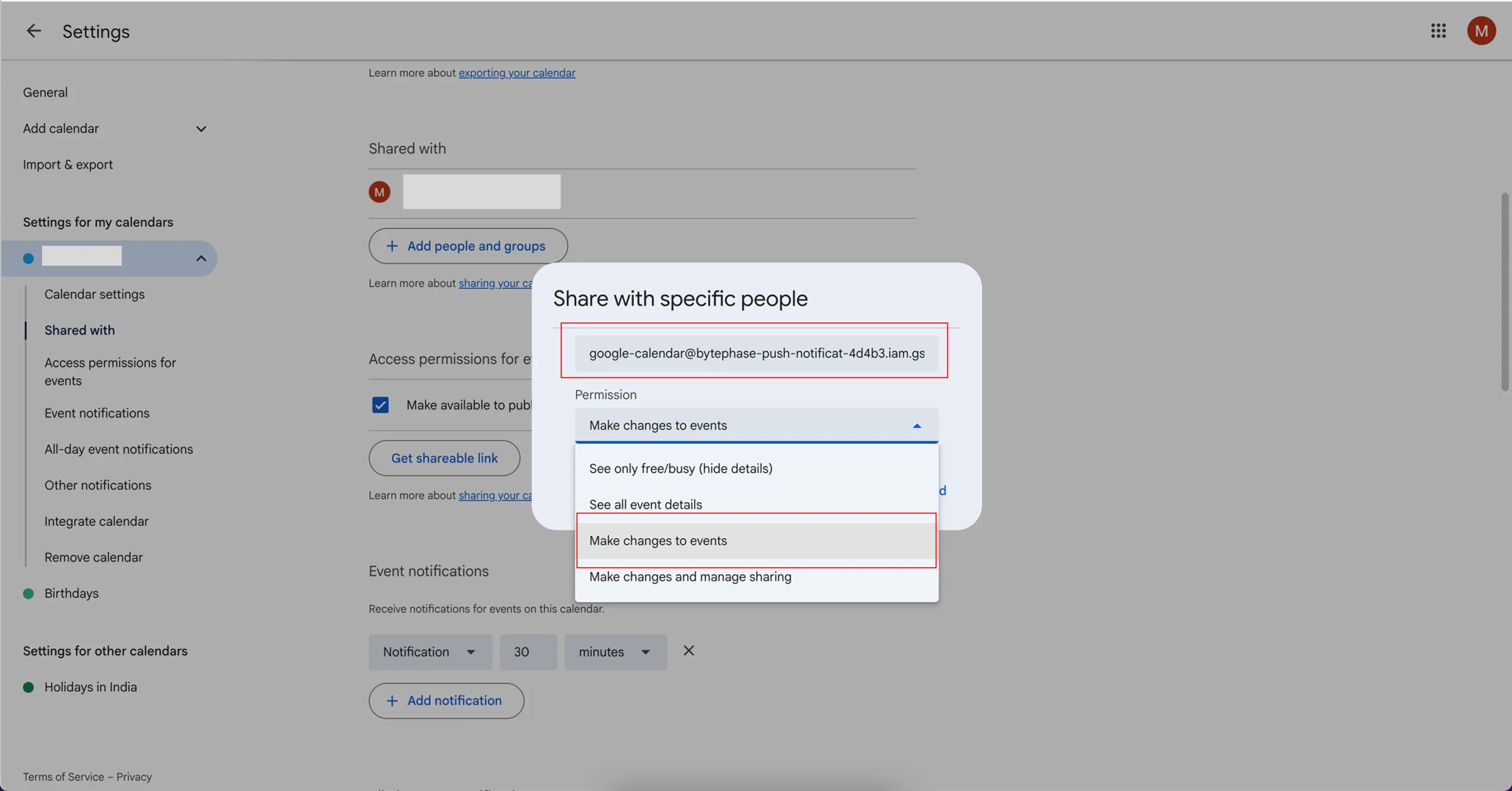
Next, under permissions, select Make changes to events.
Click on the Send button to save changes.
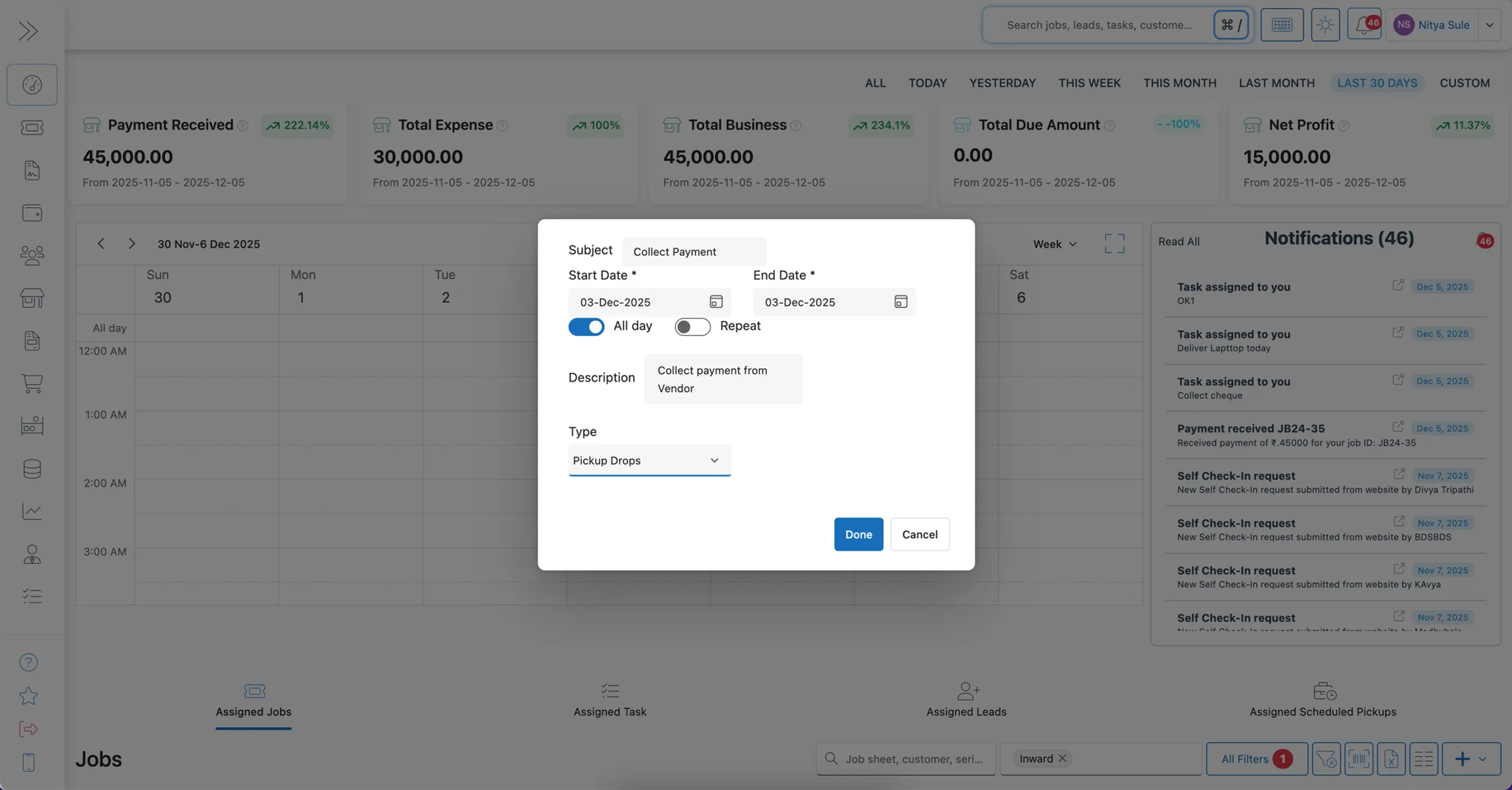
Now, in your BytePhase system, choose the Google option to enable one-click event updates.
For G Suite Users
Sign in to your Google Admin Console at admin.google.com.
From the left sidebar, click on Apps.
Select Google Workspace → Calendar.
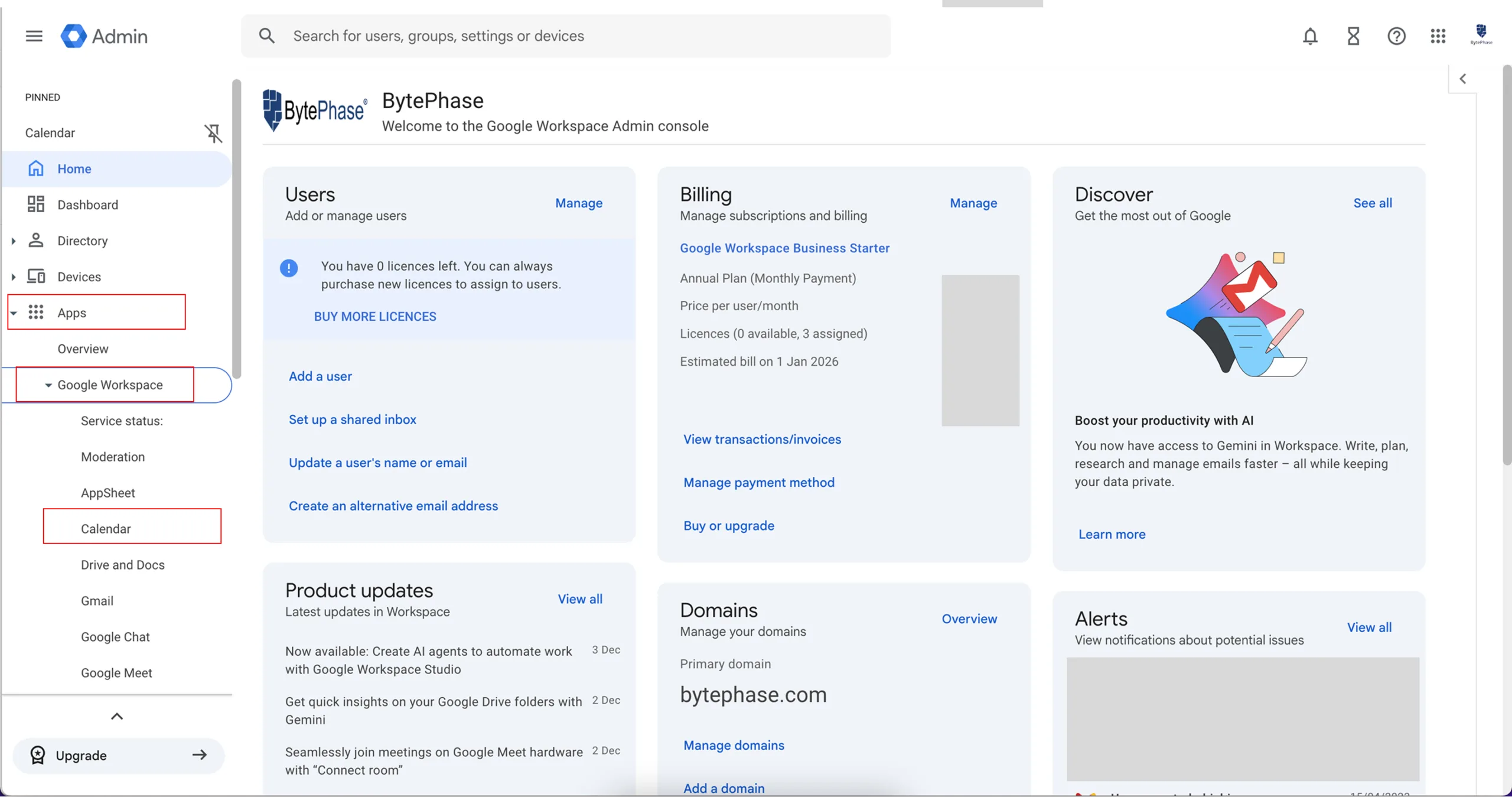
Next, click on Sharing settings.
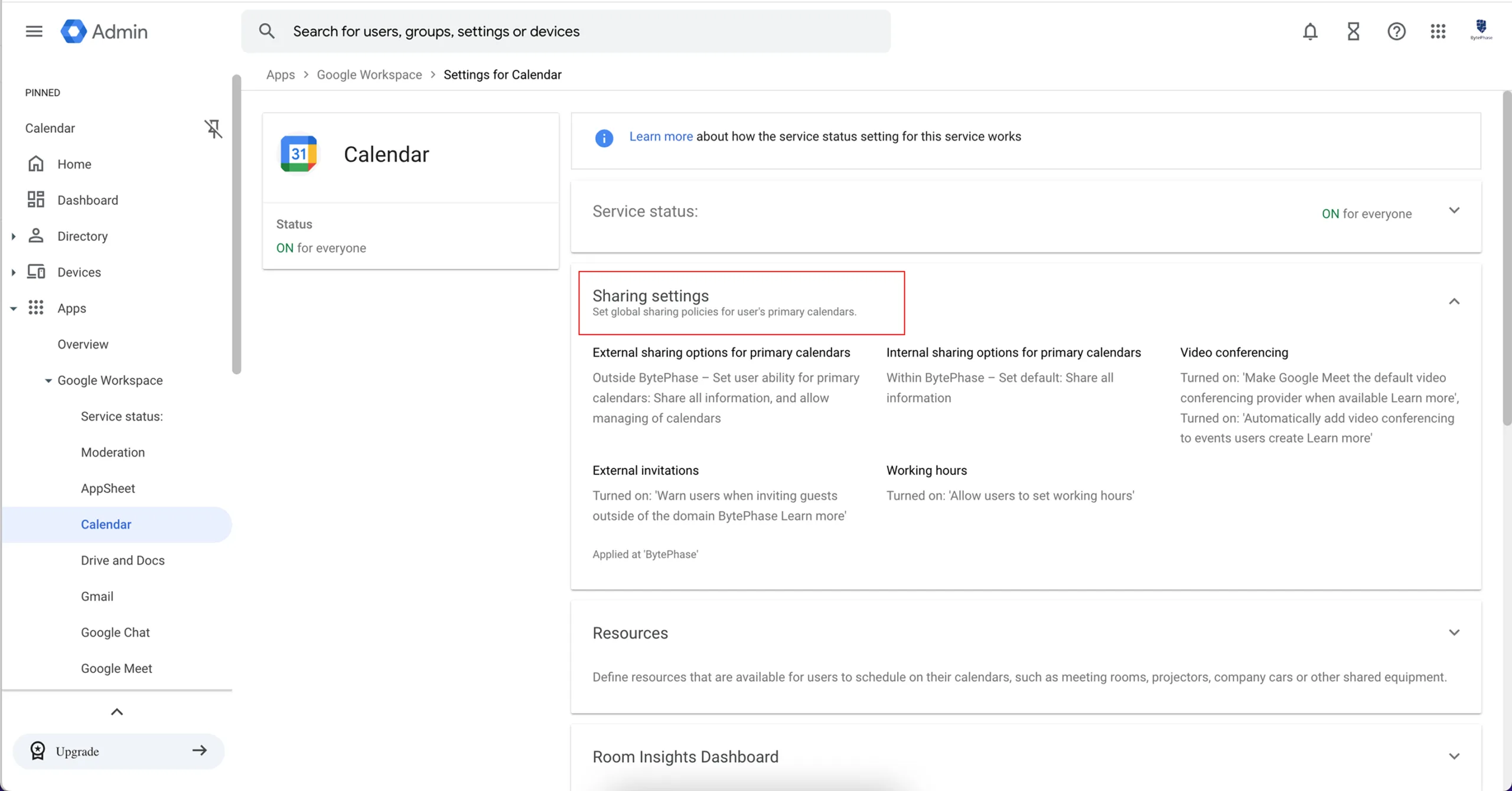
Next, under External sharing options for primary calendars, choose:
“Share all information and allow managing of calendars.”
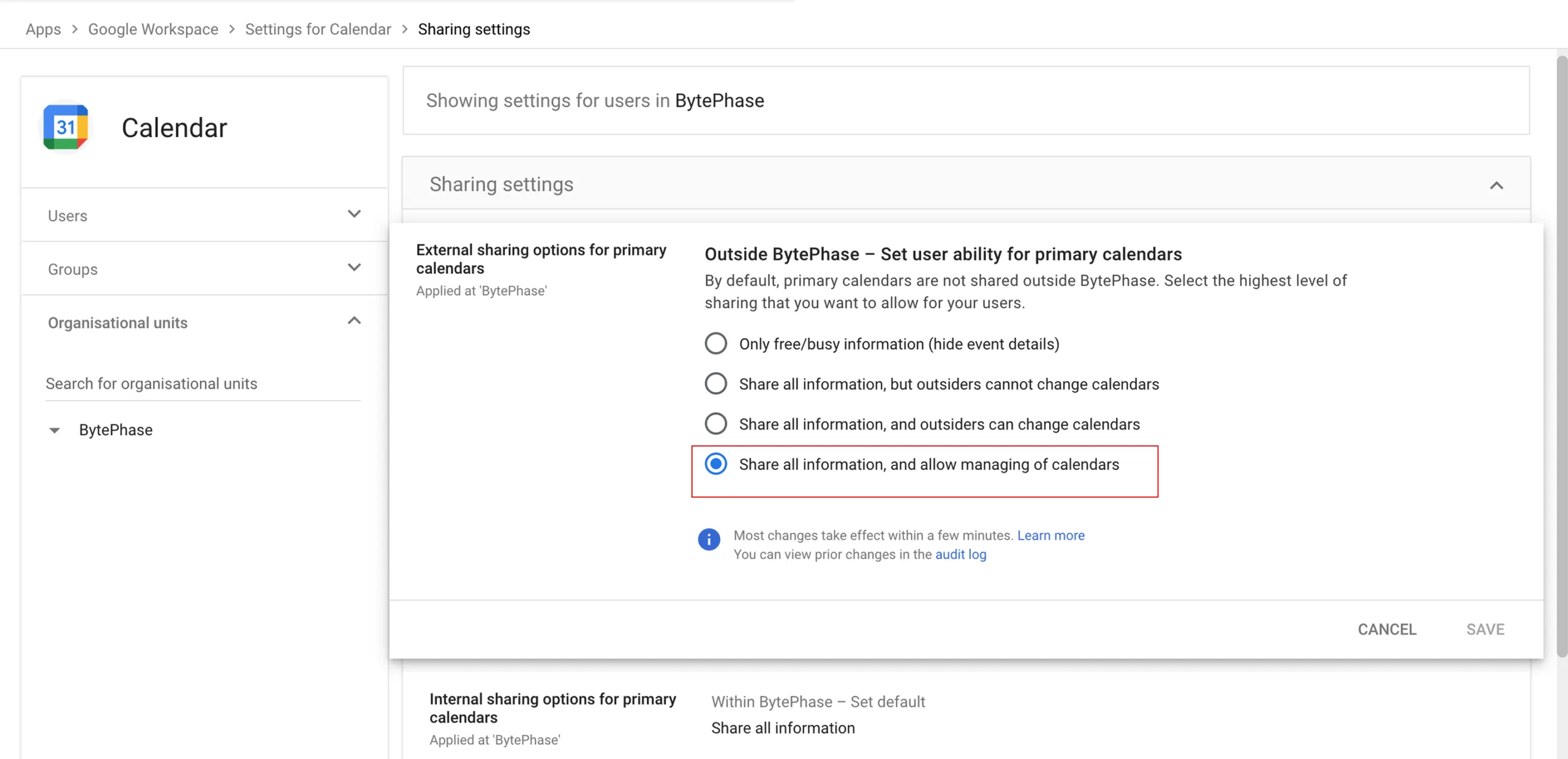
Finally, click on Save to apply the settings.
🎯 Conclusion: Sync Smarter, Work Faster with BytePhase and Google Calendar
Integrate Google Calender in BytePhase empowers repair shops to stay organized, save time, and deliver faster service. Moreover, it brings automation, visibility, and efficiency to your daily operations—ensuring you never miss a job or appointment again.
📲 Log in to BytePhase CRM today, configure Google Calendar, and take complete control of your repair scheduling process!
Watch more here