How to Configure Reminder Settings in BytePhase Portal (Quick Setup)
Introduction
Missed a job deadline, an AMC renewal, or an overdue invoice? A single skipped follow-up can cost you a customer. BytePhase, a repair shop management software, includes built-in Reminder Settings that automate alerts for jobs, payments, tasks, and AMC contracts — so nothing slips through the cracks.
This is the quick version: follow the 7 steps below to configure Reminder Settings in the BytePhase Portal in under five minutes. For best-practice intervals, real-world examples, and a deeper look at each alert type, see our complete guide to Reminder Settings in BytePhase.
Why Configure Reminder Settings?
- Prevent missed deadlines — catch overdue payments, service renewals, and pending jobs before they slip.
- Reduce late payments — automated invoice due alerts keep collections and cash flow on track.
- Keep customers informed — timely AMC, pickup, and drop-off updates build trust.
- Save staff time — reminders run in the background once configured, with no manual follow-up.
Step-by-Step: Configure Reminder Settings in BytePhase
Step 1: Log in to BytePhase Portal
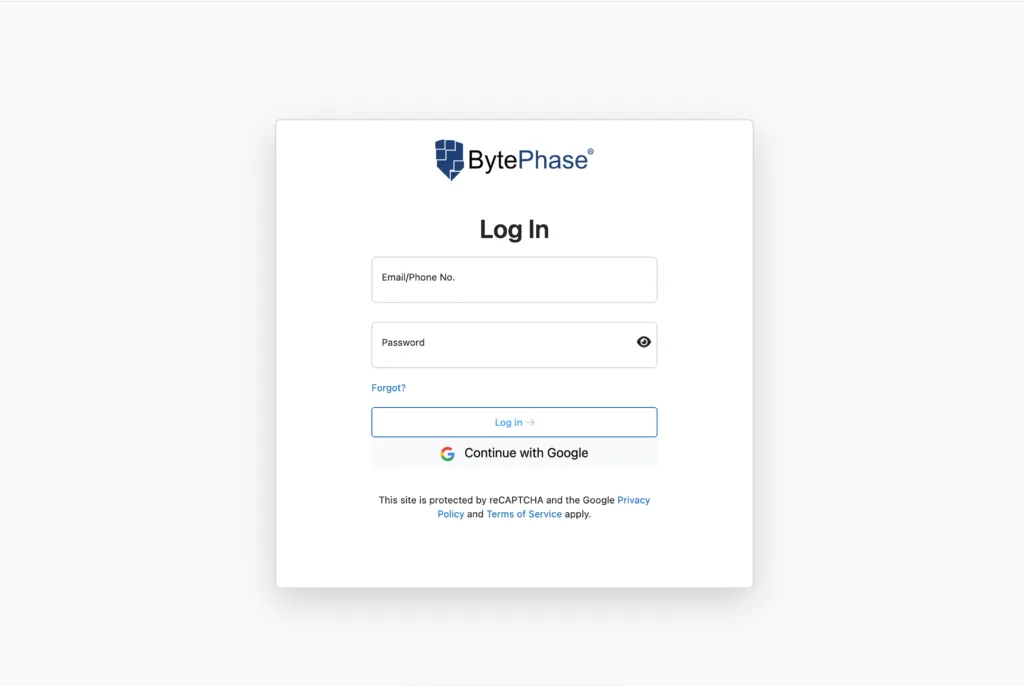
- Visit the BytePhase login page and enter your email/phone number and account password to access your dashboard.
Step 2: Navigate to Business Settings
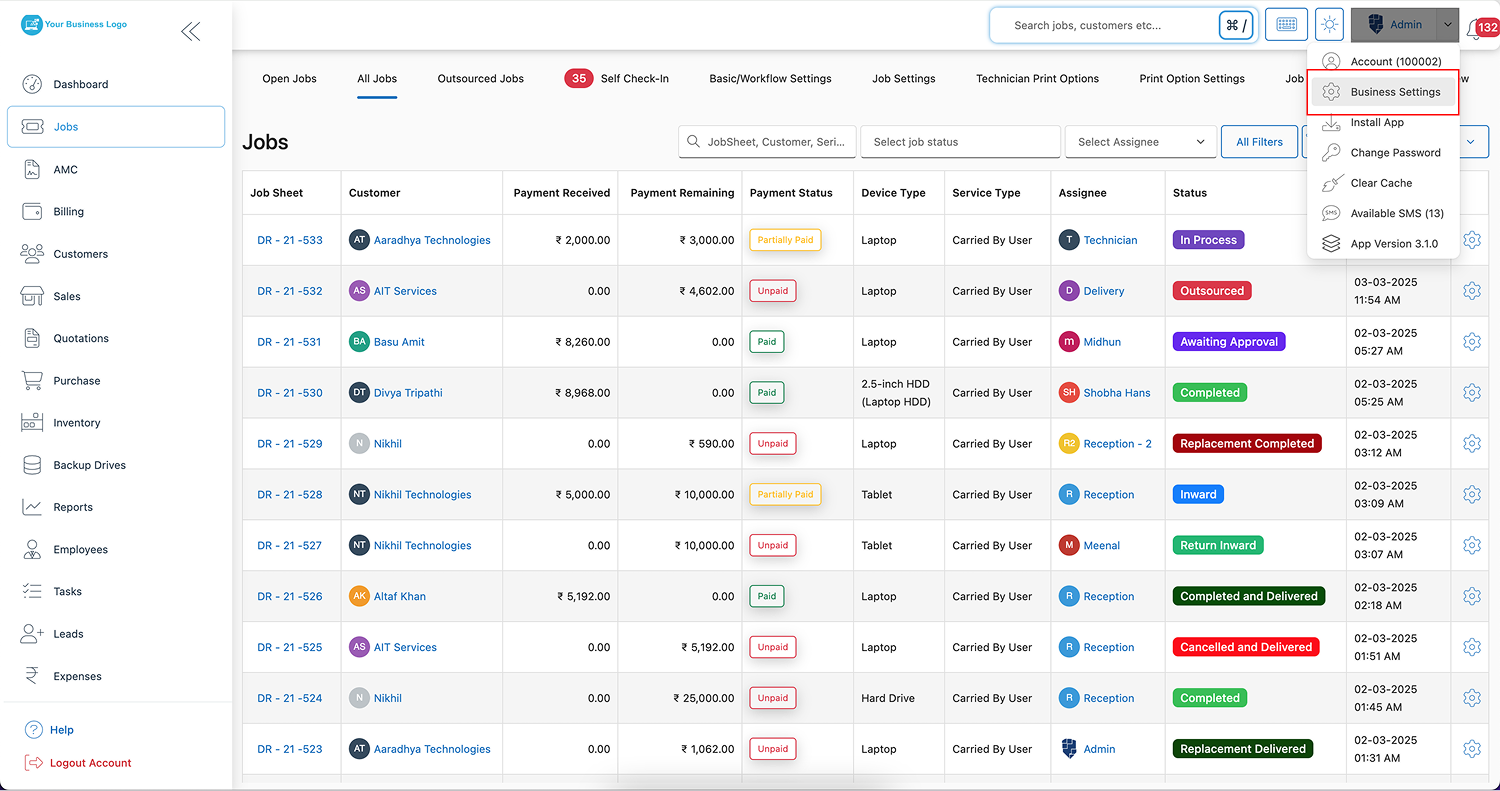
- Once logged in, click the user icon in the top-right corner and select “Business Settings” from the dropdown menu.
Step 3: Open the Reminder Settings Tab
- Inside Business Settings, click on “Reminder Settings” to access the notification options.
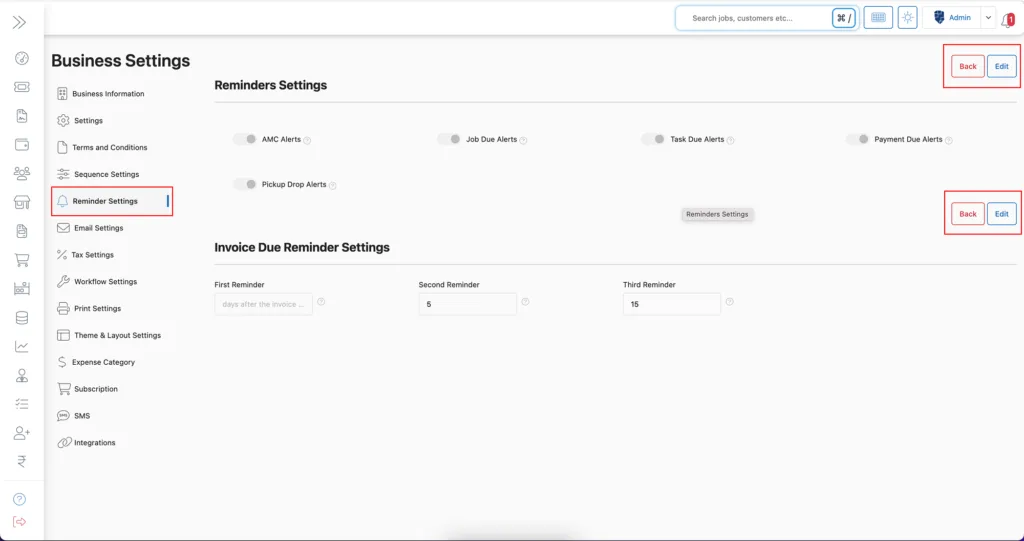
Step 4: Click on the Edit Button
- Click the “Edit” button to begin configuring your reminder preferences.
Step 5: Enable the Reminder Types You Need
Toggle on the alerts relevant to your business:
- AMC Alerts — notify customers before their Annual Maintenance Contract expires.
- Job Due Alerts — reminders when a job is approaching its due date.
- Task Due Alerts — keep employees on top of pending tasks.
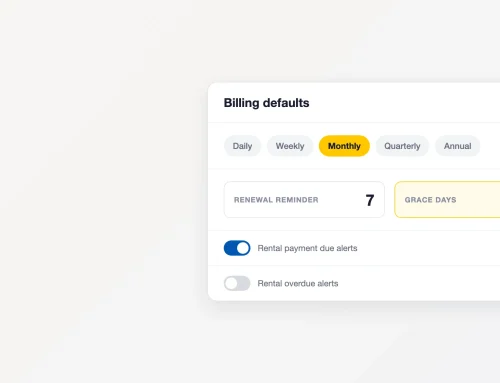
- Payment Due Alerts — automated reminders for outstanding invoices.
- Pickup & Drop Alerts — keep customers informed about scheduled pickups and deliveries.
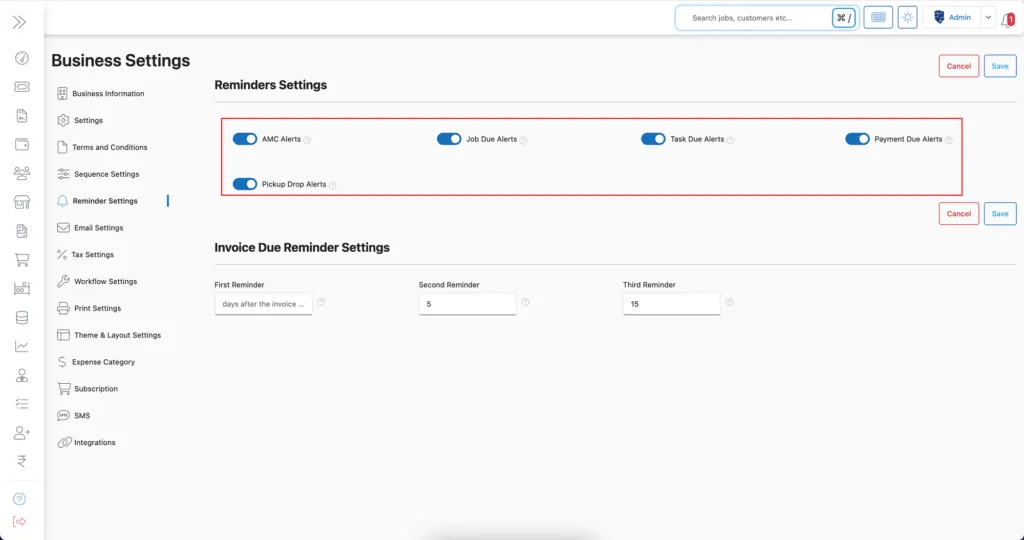
Step 6: Configure Invoice Due Reminder Timing
- Set up to three reminder alerts for invoices, timed before their due date.
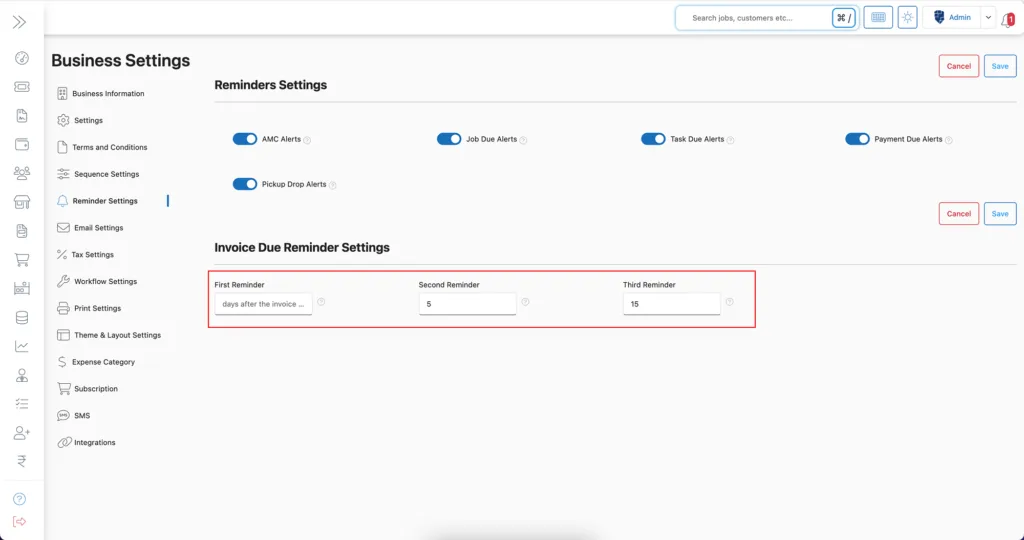
Step 7: Save Your Settings
- Once you’ve enabled the reminders you need, click “Save” to apply the changes.
✅ BytePhase will now automatically send alerts to customers, employees, and admins according to your configured settings.
Start Automating Your Reminders
Configuring Reminder Settings in BytePhase takes a few minutes and pays off immediately: fewer missed deadlines, faster payment collection, and less manual follow-up for your team. Want the longer version with tested reminder intervals and a real repair-shop example? Read the complete Reminder Settings guide.
New to BytePhase? Start a 15-day free trial and set up Reminder Settings on your own account today.
Need help? Contact BytePhase Support for personalized assistance.