How to Integrate Microsoft 365 / Outlook Calendar in BytePhase CRM
If your team already runs on Outlook, your repair shop is quietly keeping two schedules: customer meetings and personal appointments live in Microsoft 365, while jobs, pickups and AMC renewals live in BytePhase. Two schedules is how people get double-booked.
Connecting the two takes about thirty seconds. This guide walks through how to integrate Outlook Calendar with BytePhase, what happens behind the scenes, and how to fix the two things that occasionally go wrong.
Why integrate Outlook Calendar with BytePhase?
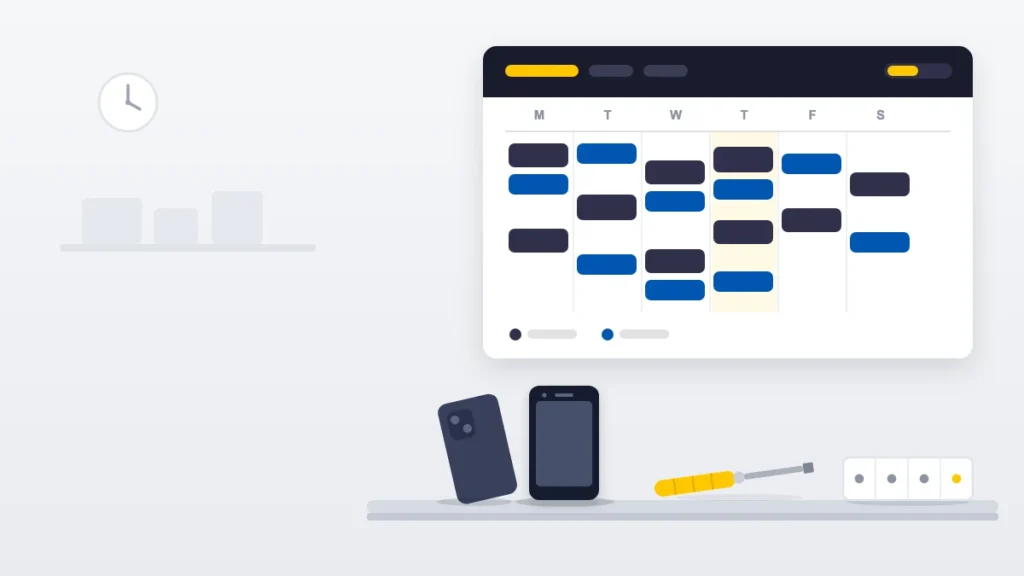
Because a repair shop’s day is already fragmented. Technicians work from job queues, managers work from meetings, and the two only collide when someone is double-booked. Putting both in one grid removes the guesswork.
What the integration actually does
| Capability | What it means day to day |
|---|---|
| Outlook events inside BytePhase | Your Microsoft 365 events are merged with jobs, tasks, pickups and renewals in the Day, Week, Month and Agenda views. |
| Two-way sync | Create, edit or delete an event in BytePhase and it writes straight to your Outlook calendar — and shows up on every device using that account. |
| Stays connected | BytePhase refreshes the connection in the background a few minutes before it expires, so you are not signing in every few days. |
| No password shared | Sign-in happens on Microsoft’s own page using OAuth 2.0. BytePhase never sees or stores your Microsoft password. |
| Both account types | Personal Outlook.com, Hotmail and Live accounts, and Microsoft 365 work or school accounts. |
Before you start
Everything you need to integrate Outlook Calendar with BytePhase:
| You need | Detail |
|---|---|
| A Microsoft account | Personal (Outlook.com / Hotmail / Live) or a Microsoft 365 work or school account. Both work. |
| To be signed in to BytePhase | In the same browser you will use for the Microsoft sign-in. |
| Nothing else | No Azure app registration, no client ID, no secret, no calendar ID to copy and paste. |
How to connect, step by step
Step 1 — Open the Calendar
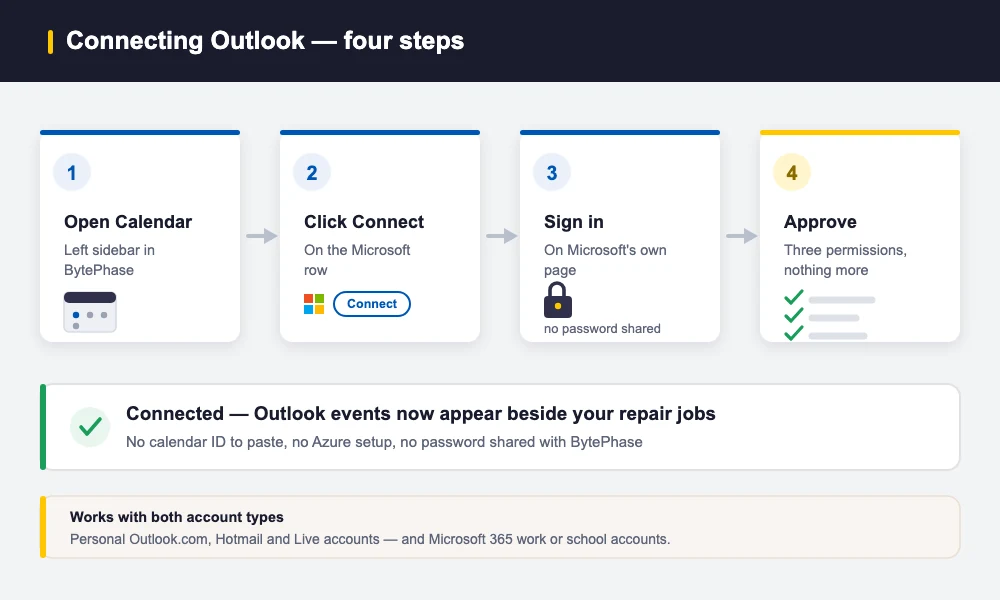
Click Calendar in the left sidebar of BytePhase (or go to yourshop.bytephase.com/calendar). In the left panel you will see a Connected calendars section listing three sources: Internal, Google and Microsoft. Internal is always connected — it is your BytePhase data and needs no setup.
Step 2 — Click Connect on the Microsoft row
Find the Microsoft row and click Connect. That single button is the whole setup. Unlike the Google flow there is no configuration popup and no calendar ID to paste, which is why it takes seconds to integrate Outlook Calendar rather than minutes.
Step 3 — Sign in with Microsoft
You are redirected to Microsoft’s own sign-in page at login.microsoftonline.com. Sign in with the account whose calendar you want to use. This page belongs to Microsoft, not BytePhase.
Step 4 — Approve the permissions
Microsoft shows a consent screen listing exactly what BytePhase is asking for. Click Accept and you are returned to BytePhase with the connection stored.
The permissions BytePhase requests
Three, and no more. It is worth knowing what each one is for:
| Permission | Why it is needed |
|---|---|
| Sign you in and read your profile | So BytePhase can show which Microsoft account is connected. |
| Read and write your calendars | To display your Outlook events and to create events from BytePhase. |
| Maintain access to data you have given it access to | To refresh the connection in the background so you stay signed in. |
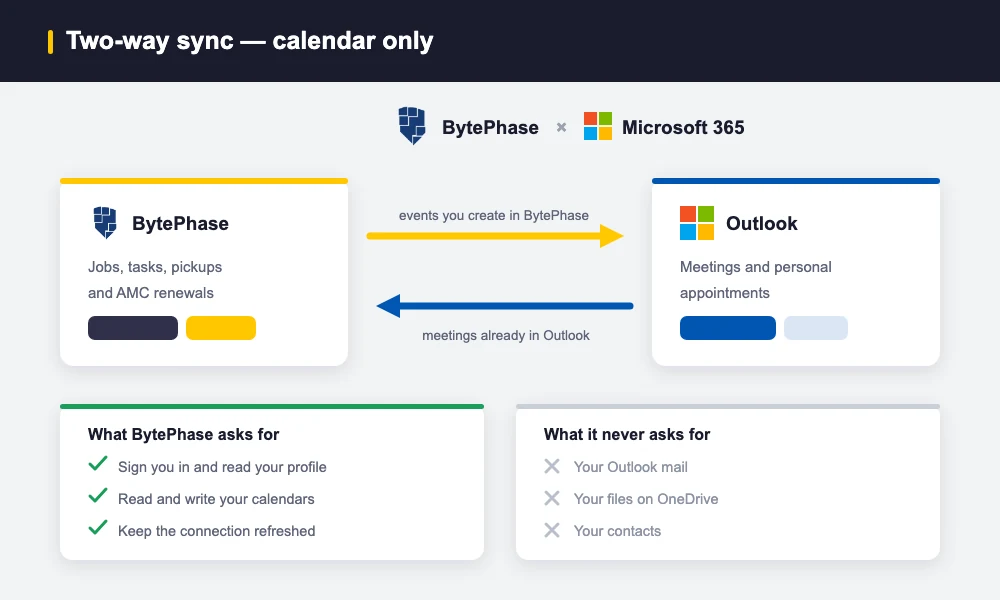
The consent screen lists the three calendar-related permissions above and nothing else. Access tokens are encrypted before they are written to the database, and each shop’s tokens live in that shop’s own isolated database.
Seeing your Outlook events
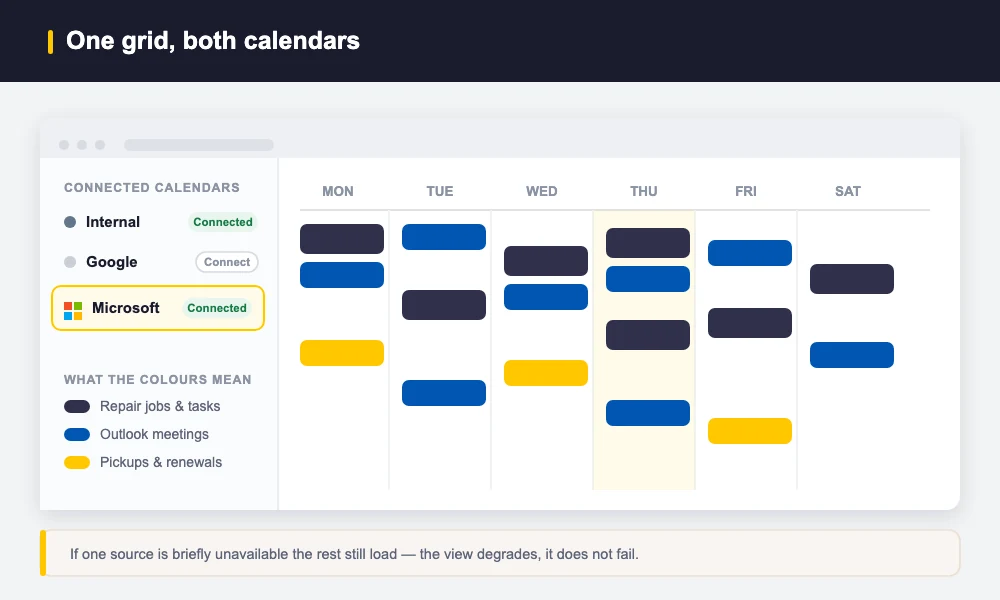
Once connected, the Microsoft row shows a Disconnect button instead of Connect — that is your confirmation it worked. Your Outlook events now appear in the calendar grid alongside your BytePhase jobs, colour-coded by source.
| View | Best for |
|---|---|
| Day | Working a single technician’s bench schedule hour by hour. |
| Week | Spotting collisions between meetings and promised delivery slots. |
| Month | Planning AMC renewals and longer-range commitments. |
| Agenda | The fastest morning run-through — the whole day as one chronological list. |
If one calendar source is briefly unavailable, the others still load rather than the whole screen erroring out.
Creating Outlook events from BytePhase
Use the Create button and choose Microsoft as the calendar. The event is written to your Outlook calendar through the Microsoft Graph API, so it appears everywhere you use that account — Outlook on the web, the desktop app, and your phone. Editing or deleting it in BytePhase updates Outlook the same way.
Staying connected
Microsoft access tokens are short-lived by design. BytePhase refreshes yours automatically a few minutes before expiry, so in normal use you sign in once and never think about it again. If a refresh fails repeatedly — usually because you changed your Microsoft password, or an administrator revoked the app’s access — BytePhase marks the connection as disconnected rather than failing silently.
Troubleshooting
| What you see | Why | Fix |
|---|---|---|
| An error on the way back from Microsoft | The secure hand-off between BytePhase and Microsoft is valid for about 15 minutes. Starting the sign-in and finishing it much later expires it. | Click Connect and run through it again. |
| “Connection expired” | Your Microsoft password changed, or an admin revoked access, and the background refresh could not recover. | Click Connect and sign in again. Your BytePhase jobs and tasks are never affected. |
| A work account will not connect | Some organisations restrict which third-party apps staff may authorise. | Ask your Microsoft 365 admin to approve the request, or connect a personal Outlook.com account instead. |
| Outlook events are not showing | The calendar source filter is set to a single source, or the connection dropped. | Check the Connected calendars panel — Microsoft should read Connected. |
Google or Microsoft — what is different?
You can run both at once, and the steps to integrate Outlook Calendar are the shorter of the two. The setup differs slightly:
| Microsoft 365 / Outlook | Google Calendar | |
|---|---|---|
| Setup | One click, then sign in | Configuration popup with a calendar ID |
| Sign-in | Microsoft’s own OAuth page | Google’s own OAuth page |
| Two-way events | Yes | Yes |
| Account types | Personal and work/school | Personal and Workspace |
Disconnecting
Click Disconnect on the Microsoft row and confirm. BytePhase deletes the stored connection and the calendar falls back to your internal BytePhase events. Your Outlook calendar itself is untouched — nothing is deleted on Microsoft’s side.
Wrap-up
That is all it takes to integrate Outlook Calendar with BytePhase. One sign-in puts your Outlook meetings and your repair jobs on the same screen, and keeps them there. No passwords shared, no manual re-entry, no double-booking.
Read more about the Microsoft 365 integration, see how the BytePhase Calendar builds your schedule automatically, or connect Google Calendar as well. Browse all BytePhase integrations.