Meta Lead Ads Integration: Send Facebook & Instagram Leads Straight Into BytePhase
Short answer: the Meta Lead Ads integration connects your Facebook Page to BytePhase, so every lead-ad submission — Facebook or Instagram — lands in your Leads list in seconds, already filled in. No CSV exports, no re-typing.
| At a glance | |
|---|---|
| Setup time | About two minutes, once |
| Where | Settings → Integrations → Meta Lead Ads |
| You need | A Facebook account with admin access to your Page |
| You don’t need | A developer, an API key, or a paid automation tool |
| What arrives | Name, phone, email and every custom answer |
The problem this solves is speed. Someone fills in your form on Instagram at 9pm; you spot it the next morning in Ads Manager, export a CSV, and copy the number across by hand. By the time you call, they have booked with the shop that called back in ten minutes.
Below: how to connect it, what happens to a lead the moment it is submitted, and how to fix the two errors people actually hit during setup.
What the BytePhase Meta Lead Ads Integration Does
The Meta Lead Ads integration links one Facebook Page to your BytePhase account. Once connected, Meta notifies BytePhase the instant someone submits one of your instant forms, and BytePhase creates a lead automatically.
Because Instagram lead ads are delivered through the same Facebook Page, ads running on either platform arrive the same way — you connect the Page once, not once per network.
What you get out of it:
- Leads appear in seconds, not the next morning.
- Every answer is captured — including the custom qualifying questions you added to the form, such as device type, brand or issue.
- Nothing is typed twice, so phone numbers don’t get transposed.
- Duplicates are filtered out before they clutter your pipeline.
- Every lead is attributed to a “Meta Lead Ads” source, so you can measure what your ad spend actually returns.
Before You Start
- A Facebook Page that runs (or is about to run) lead ads.
- A Facebook account with admin access to that Page — if your Page sits inside a Business portfolio, use the account that manages it there.
- Admin access to BytePhase.
How to Connect Meta Lead Ads to BytePhase
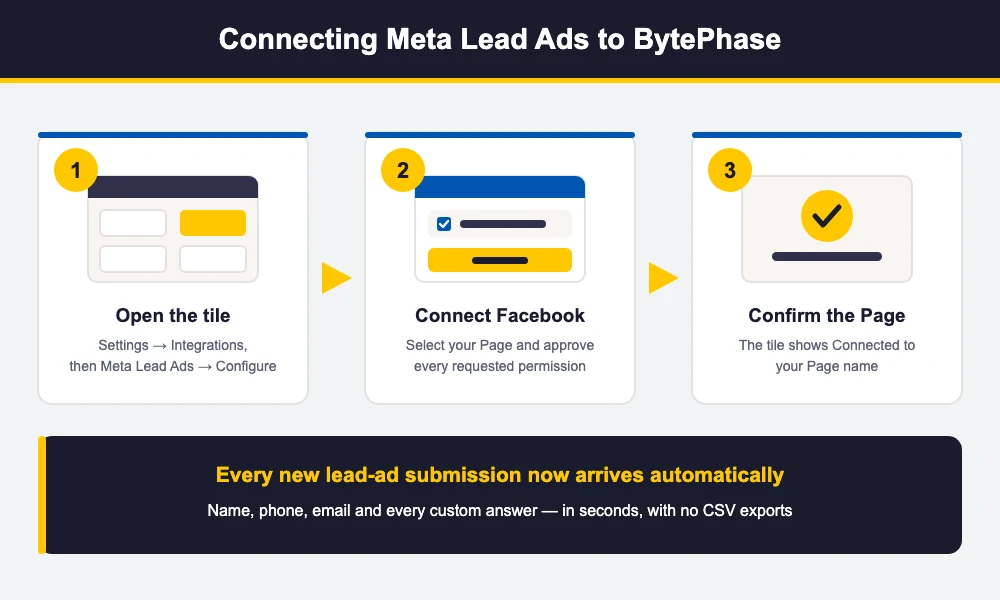
Setting up the Meta Lead Ads integration takes about two minutes.
Step 1 — Open the integration
- Log into BytePhase and go to Settings → Integrations.
- Find the Meta Lead Ads tile — it reads “Auto-import leads from Facebook & Instagram ads” — and click Configure.
- Set Service Status to Active.
Step 2 — Connect your Facebook Page
- Click Connect Facebook. BytePhase hands you over to Facebook’s own login screen.
- Log in and, when Facebook asks which Pages to allow, tick the Page your lead ads run on. This is the step people skip — if you don’t select the Page, the connection completes with nothing attached.
- Approve the permissions Facebook lists.
Those permissions are narrow and worth understanding before you click Approve:
| Permission | Why BytePhase asks for it |
|---|---|
pages_show_list |
Lists the Pages you manage so one can be selected |
pages_read_engagement |
Reads form submissions on that Page |
leads_retrieval |
Fetches the actual answers from each lead |
pages_manage_metadata |
Subscribes the Page so new leads are pushed in real time |
business_management |
Reaches Pages that live inside a Business portfolio |
None of these let BytePhase post, comment, or advertise as your Page. The integration only reads leads.
Step 3 — Confirm it worked
Facebook returns you to Settings → Integrations. You should see a confirmation that Meta Lead Ads is connected, and reopening the tile shows a green banner reading “Connected to <your Page name>”.
That banner is the real test. If it names your Page, leads will flow. The button also changes to Reconnect Facebook, which you use later if you switch Pages or Facebook expires the connection.
How It Works: From Form Tap to Lead in Your Pipeline
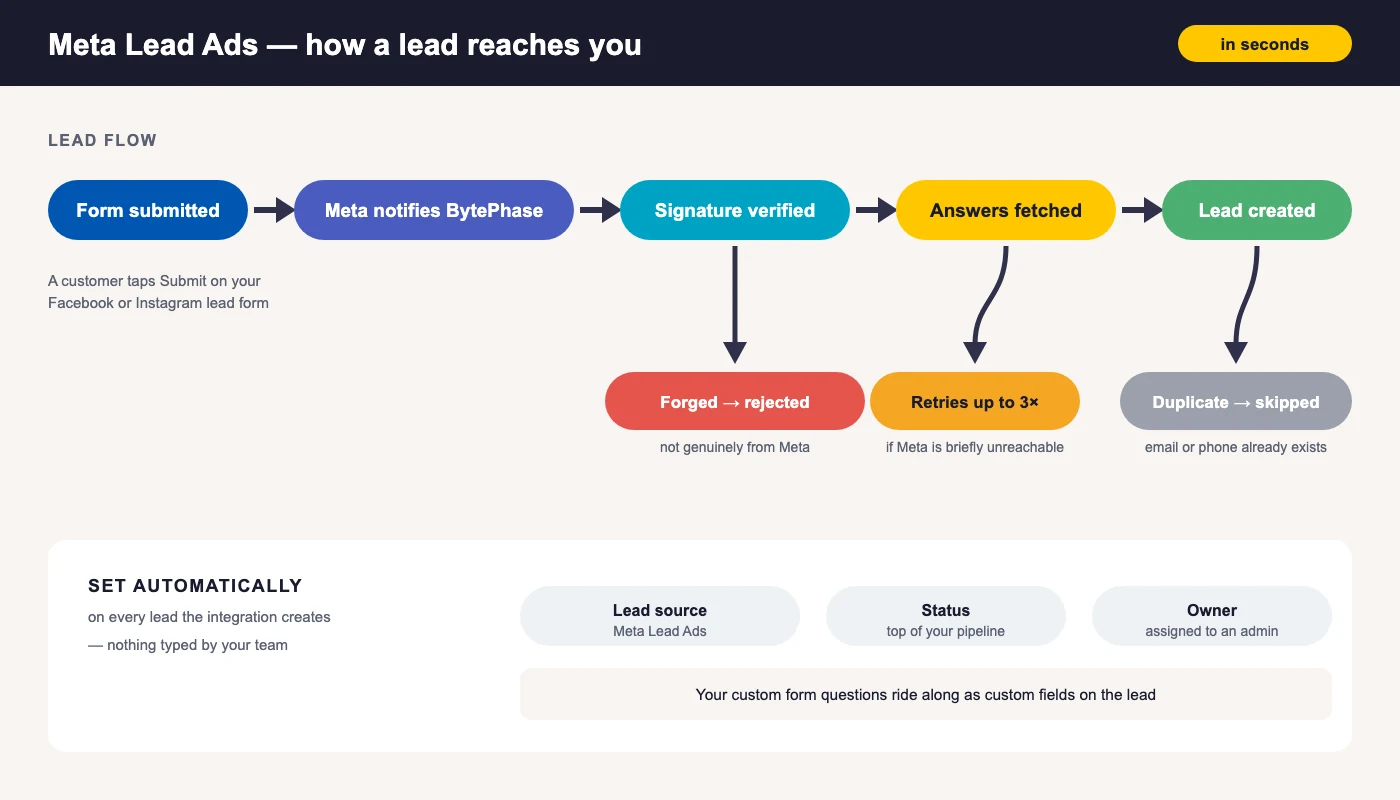
Here is the whole journey a lead takes, from the moment a customer taps Submit on Facebook or Instagram to the moment it appears in your pipeline with an owner attached.
Step by step, the moment a customer taps Submit:
- Meta sends BytePhase a notification about the new submission.
- BytePhase verifies the notification is genuinely from Meta and rejects anything that isn’t.
- A background job securely fetches the full set of answers from Meta.
- A lead is created in your account.
How form answers map to a BytePhase lead
| On your Meta form | Where it lands in BytePhase |
|---|---|
| Full name — or first name + last name | Lead name |
| Phone number (work, mobile and other variants are all recognised) | Mobile number |
| First + last name | Contact person name |
| Every other question you added | Custom fields on the lead |
That last row matters. If your form asks “Which device?” or “What’s wrong with it?”, those answers ride along with the lead instead of being lost — so whoever calls back already knows what the job is.
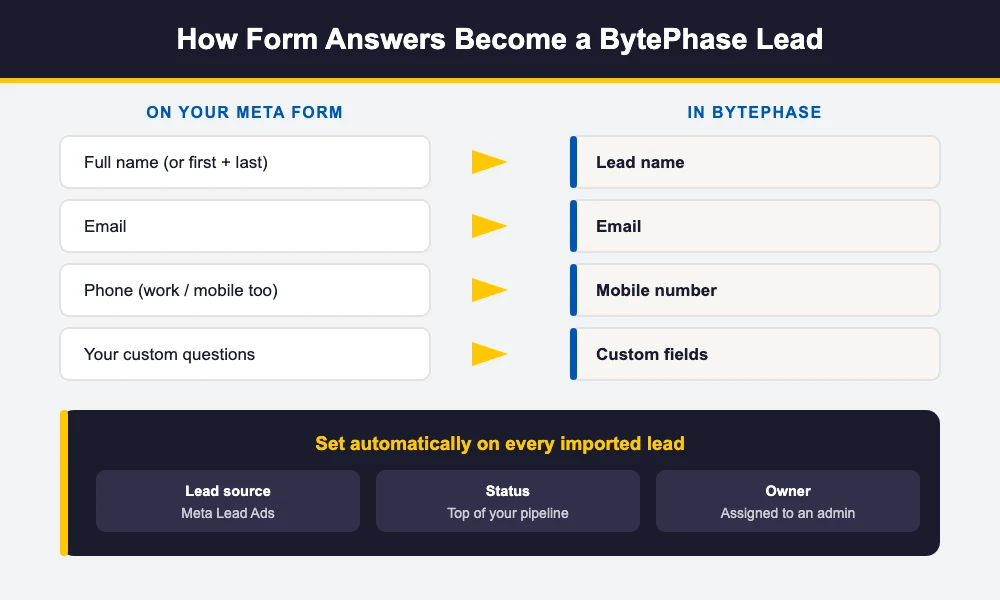
BytePhase also sets, without you doing anything:
- Lead source: Meta Lead Ads — created automatically the first time a lead arrives.
- Status: your first lead status, so it enters the top of your pipeline.
- Assigned to: an admin user, so it is never unowned.
- Note: “Auto-imported from Meta Lead Ads”.
- Meta’s own lead, form and Page identifiers, stored on the lead so you can reconcile against Ads Manager later.
Duplicate Leads Are Skipped Automatically
Anyone running paid social knows the pattern: the same person sees three of your ads over a week and fills in the form each time. Without protection your pipeline fills with the same customer.
BytePhase checks each incoming submission against your existing leads and skips it if the email or the phone number already exists. Your sales list stays one row per real person.
There is a second layer too: if Meta re-sends the same submission — which it does when it isn’t sure the first delivery landed — BytePhase recognises it and won’t create a second copy.
If Something Goes Wrong Behind the Scenes
If Meta is briefly unreachable when a lead arrives, BytePhase doesn’t drop it. The job retries up to three times, roughly a minute apart, before giving up and recording the failure. Short network blips resolve themselves without anyone noticing.
How the Connection Is Secured
The Meta Lead Ads integration is built around four safeguards:
- Your Page access token is encrypted where it is stored.
- Incoming notifications are signature-verified, so a forged request cannot inject fake leads into your account.
- The login handshake uses a single-use token that expires in 15 minutes, which blocks the common cross-site attack against OAuth connections.
- BytePhase cannot post as your Page. The permissions cover reading leads and nothing else.
Troubleshooting
“Facebook returned no Page for the account you authorised”
This means the login succeeded but no Page came back — almost always because the Page wasn’t ticked on Facebook’s Page-selection screen, or because you logged in with a personal account that doesn’t manage the Page.
Fix: click Reconnect Facebook, log in with the account that manages the Page, and make sure you select the Page when Facebook asks which Pages to allow.
“Connected, but lead delivery could not be enabled for this page”
The Page connected, but BytePhase couldn’t subscribe to its lead notifications — normally because one of the requested permissions was declined during login. Leads will not arrive until this is resolved.
Fix: click Reconnect Facebook and approve all requested permissions rather than unticking any.
Connected, but no leads are showing up
Work through these in order:
- Confirm the tile shows Connected to your Page, and that Service Status is Active.
- Send a test submission using Meta’s Lead Ads Testing Tool, then check your Leads list.
- If the test lead doesn’t appear, check whether that email or phone number already exists as a lead — duplicates are skipped by design.
- Confirm the ad is actually running on the Page you connected. Connecting Page A while advertising from Page B is a common mix-up in multi-brand accounts.
You changed your Facebook password or switched Pages
Open the tile and click Reconnect Facebook. Reconnecting replaces the stored connection cleanly — there is nothing to delete first.
Should You Use This or Zapier?
BytePhase also supports lead capture through Zapier, and both routes work. The difference is that the Meta Lead Ads integration is a direct connection: there is no third-party account to maintain, no per-task usage to budget for, and one less service that can break between Meta and your CRM.
Use Zapier when a lead has to travel somewhere else on the way — a spreadsheet, a Slack channel, an email tool. For getting Meta leads into BytePhase, the Meta Lead Ads integration is the shorter path.
Turning Ad Spend Into Booked Jobs
A lead ad is only worth what you do with it in the first hour. Getting the submission into the same system your team already works in — where it has an owner, a status and a follow-up — is what turns advertising spend into repair jobs.
Full details of the Meta Lead Ads integration live on the Meta Lead Ads integration page. To see how those leads then move through quotes, jobs and invoices, take a look at lead management in BytePhase or browse all BytePhase integrations.