How to Connect Tally.so to BytePhase (Repair Shop Setup Guide)
Tally.so is a free form builder a lot of repair shops use for a “book a repair” or “get a quote” form. This guide connects it to BytePhase so every response lands in your CRM by itself — as a Self Check-in that opens a job, or a Lead for your team to follow up — without anyone re-typing it.
Tally.so is not TallyPrime
Worth clearing up first, because it trips up Indian shops: Tally.so is the online form builder at tally.so. It has nothing to do with TallyPrime, the accounting software. Wherever this guide says Tally.so, it means the form builder. The integration card in BytePhase is named Tally.so with the dot for exactly this reason.
What You’ll Need
- A BytePhase account with access to Settings → Integrations
- A Tally.so account and at least one published form
- About 10 minutes
What the Tally.so Integration Does
A Tally.so submission creates a record in BytePhase: a Lead (an enquiry for your team to chase) or a Self Check-in (a pending check-in your team converts into a repair job when the device physically arrives). It is one-way — a submission flows into BytePhase, but nothing flows back to Tally.so, and editing the record later does not change the original response.
Re-deliveries are safe. BytePhase keys each submission by Tally.so’s own submission ID, so if Tally.so retries a webhook you do not get a second record.
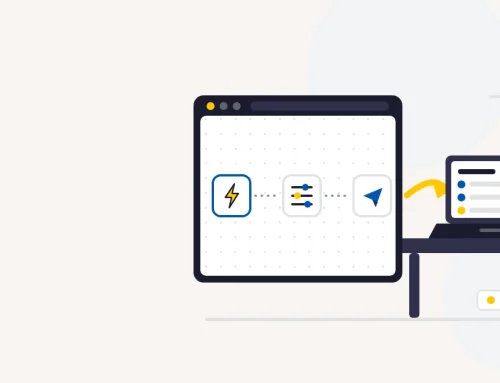
How the Tally.so Integration Works
Someone submits your form
A customer fills in the Tally.so form you already use — nothing changes for them.
Tally.so calls your webhook
Tally.so posts the submission to your BytePhase webhook URL and signs it with a shared secret.
Your field map is applied
Each answer is matched to a BytePhase field. Anything you did not map is kept as a custom field.
The record is created
It lands as a Lead or a Self Check-in — whichever destination that form is set to — and is written to the Activity log.
Step 1: Open the Tally.so Card in BytePhase
Log into BytePhase and go to Settings → Integrations. Under Website & Forms you’ll find a Tally.so card. Click Connect to start the setup wizard.
Step 2: Choose Where Submissions Land
The wizard opens on Destination, and it comes first because everything after it depends on the answer: the webhook URL you copy in the next step has the destination pinned into it. Choose Self Check-in if the form should open a job for a device that is coming in, or Lead if it should raise an enquiry. You are not choosing once and for all — see running both side by side below.
Step 3: Copy Your Webhook URL and Signing Secret
The wizard’s Connect step generates a webhook URL in the form:
https://<tenant>.api.bytephase.com/api/<tenant-slug>/integrations/ingest/tally-so?token=YOUR_KEY&destination=self_checkin
The key embedded in that URL is shown once — copy it now. There is also an optional signing secret: generate one and BytePhase verifies every request against a Tally-Signature header (a base64 HMAC-SHA256 of the raw request body) and rejects anything that does not match. Skip it and BytePhase still accepts submissions — it simply is not checking they genuinely came from Tally.so. Generate the secret unless the form is trivial.
Step 4: Add the Webhook Inside Tally.so
In Tally.so, open your form and go to Integrations → Webhooks:
- Click Connect and paste the webhook URL from Step 3
- Turn on Signing secret and paste the same secret you generated
- Save the webhook
Tally.so’s own reference is here if you want the full detail: Tally webhook guide.
Step 5: Send a Test Submission and Map Your Fields
Submit your own Tally.so form once. Back in the wizard, click Check now (it also polls by itself every few seconds). BytePhase reads the test submission and lists every field it found, using each question’s label as the source key — so name your Tally.so questions the way you want to see them here. Any dots in a label become spaces.
Mapping is required for Tally.so, not optional: review each row and map at least one of email or mobile before you can continue. Nothing is guessed — whatever you don’t map is preserved as a custom field rather than dropped.
Step 6: Set the Duplicate Policy and Activate
Choose how repeat submissions are handled. Lead defaults to skip a repeat submission (matched by email OR mobile + country code); Self Check-in defaults to create a new record even for a returning customer (matched by mobile against any check-in still open). Review the summary and click Activate integration. Nothing goes live until you do.
Run Self Check-in and Lead Side by Side
You do not have to pick one for the whole account. A single integration can serve several forms at once, and each carries its own destination and field map. BytePhase keys every entry by form and destination together, and the destination pinned in the URL is absolute — a Self Check-in URL will never fall through to a Lead entry or borrow its field mapping.
So a “book a repair” form can open a Self Check-in while a “get a quote” form raises a Lead, from the same Tally.so account, running in parallel. Add the second form in the wizard, choose the other destination, and give it its own URL. The Activity log records which destination each submission was routed to.
Field Mapping Reference
Lead and Self Check-in are two different record types, so they accept two different sets of fields. Map as many as your Tally.so form collects — anything left over is kept as a custom field, not discarded. Pick the table that matches the destination you chose in Step 2.
Lead fields
Use this table when the destination is Lead — an enquiry to follow up, before any device is handed over.
| BytePhase Field | Required? | Notes |
|---|---|---|
name |
Yes | Max 60 characters |
email |
One of email or mobile | Max 255 characters |
mobile_number |
One of email or mobile | Max 20 characters |
mobile_country_code |
No | Max 10 characters; paired with mobile_number for duplicate matching |
phone_number |
No | Secondary phone number, max 20 characters |
contact_person_name |
No | Max 60 characters — for enquiries raised on behalf of a business |
source |
No | Max 100 characters; matched to an existing lead source by name |
role_id |
No | One of 7, 8 or 9; defaults to End User when omitted |
next_follow_up |
No | Date — schedules the first follow-up |
comment |
No | Free text |
device_type |
No | Max 100 characters; matched to an existing device type by name |
device_brand |
No | Max 100 characters; an unmatched value is kept as a custom brand name |
device_model |
No | Max 100 characters; an unmatched value is kept as a custom model name |
address.address_line |
No | Max 200 characters |
address.city |
No | Max 100 characters |
address.state |
No | Max 100 characters |
address.zip_code |
No | Max 20 characters |
Duplicate handling: Leads default to Skip. BytePhase looks for an existing lead with the same mobile_number and mobile_country_code, or the same email, and reuses it instead of creating a second one.
Self Check-in fields
Use this table when the destination is Self Check-in — a customer handing in a device, so the record carries serial numbers, accessories and pickup details a Lead has no place for.
| BytePhase Field | Required? | Notes |
|---|---|---|
name |
Yes | Max 255 characters |
email |
One of email or mobile | Max 255 characters |
mobile_number |
One of email or mobile | Max 20 characters |
mobile_country_code |
No | Max 10 characters |
device_type |
No | Max 255 characters; matched to an existing device type by name |
device_brand |
No | Max 255 characters; an unmatched value is kept as a custom brand name |
device_model |
No | Max 255 characters; an unmatched value is kept as a custom model name |
serial_number |
No | Max 255 characters |
serial_number_2 |
No | Max 191 characters — a second serial or IMEI |
device_password |
No | Max 191 characters — unlock code or device password |
accessories |
No | A list, or a comma-separated string — split into individual items |
comment |
No | Free text — the reported fault |
is_recovery |
No | Boolean — flags the job as a data-recovery case |
is_pickup_booked |
No | Boolean — marks that a pickup was requested |
scheduled_on |
No | Date — the requested pickup or drop-off date |
custom_fields |
No | Object; each value max 1,000 characters |
address.address_line |
No | Max 255 characters |
address.city |
No | Max 255 characters |
address.state |
No | Max 255 characters |
address.zip_code |
No | Max 20 characters |
Duplicate handling: Self Check-ins default to Create, so every submission becomes its own check-in — the right behaviour when the same customer brings in a second device. Only if you change the policy to Skip does BytePhase look for a match, and it then matches on mobile_number against open check-ins only.
Testing & Monitoring Your Submissions
Every submission — successful, duplicate, failed, or simply received — shows up on the integration’s Activity screen, with both the raw payload Tally.so sent and the mapped version BytePhase saved. Use Send test to fire a synthetic submission without touching your live form, and the one-click Retry action to replay anything that failed after you’ve fixed the underlying cause. If an integration racks up 3 failures in a row you’ll see a warning banner in the app; at 5 in a row BytePhase also emails your tenant’s support address. Submission logs are kept for 90 days.
Security
Your API key is sha256-hashed at rest — BytePhase can verify it but can’t display it again, so store the URL somewhere safe when you copy it. Rotate the key any time from the integration card; the old one stops working the moment you do. When you set a Tally.so signing secret, every request is verified with HMAC-SHA256 against the Tally.so-Signature header before it’s processed. Submissions are isolated per tenant — a webhook URL only ever writes into your own BytePhase account, never another tenant’s data.
Troubleshooting
- Nothing arrives. Check the webhook is saved and enabled in Tally.so, and that you pasted the full URL including the
tokenanddestination. - Submissions rejected. If you turned on a signing secret, the value in Tally.so must match the one in BytePhase exactly — a mismatch fails the
Tally-Signaturecheck and the request is refused. - Fields look wrong. Source keys come from question labels, so renaming a question in Tally.so changes the key. Re-run the test submission and re-check the mapping.
- Marked duplicate. That is the duplicate policy from Step 6 doing its job; the Activity log shows what it matched against.
Start Capturing Tally.so Responses in BytePhase
Once it is live, every Tally.so response becomes a Lead or a Self Check-in in BytePhase automatically, with the device details attached and nobody re-typing a form into the CRM. Open Settings → Integrations and connect the Tally.so card to get started.