Xero Settings in BytePhase: Every Option, Explained
Connecting Xero to BytePhase takes about two minutes. Deciding how it should behave takes a little longer, and those choices are the ones you live with: whether invoices land in Xero already approved or wait for your bookkeeper, whether Xero tracks your parts stock or leaves that to BytePhase, and which accounts every sale, part cost and payment posts against.
This guide walks through every option on the Xero integration screens, what each one actually does, and the four limitations worth knowing before you switch it on. If you only want to know what the integration does at a high level, the Xero integration overview covers that; come back here when you are ready to configure it.
Where the Xero settings live
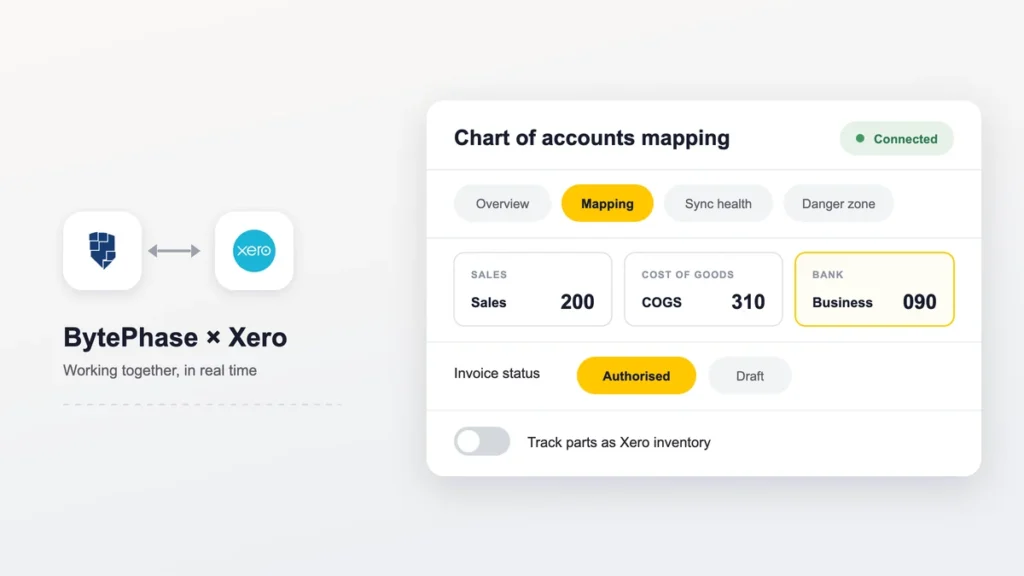
Everything is under Settings → Integrations → Xero. Once connected, the integration splits across four tabs, and it helps to know which one you want before you go looking.
| Tab | What it is for |
|---|---|
| Overview | Connect or reconnect your Xero organisation, and see the connection status at a glance. |
| Mapping | The real settings screen: invoice behaviour, part sync type, chart-of-accounts mapping and the sync actions. |
| Sync health | Records whose most recent push to Xero failed, with a retry button per row. |
| Danger zone | Disconnect the integration. Nothing else lives here. |
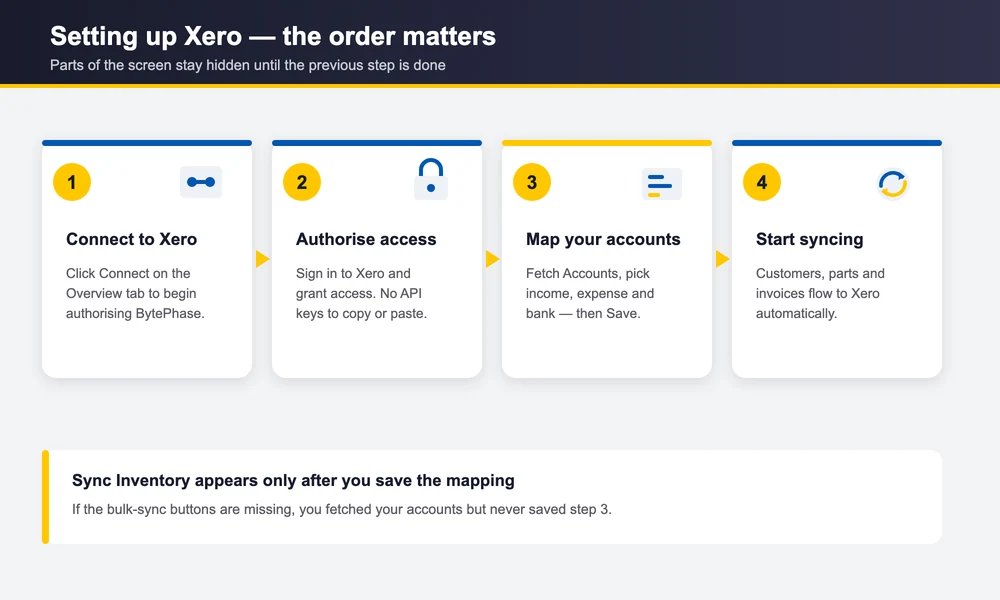
The four-step setup, in order
The sequence matters more than people expect, because parts of the screen do not appear until earlier steps are done.
| Step | What happens |
|---|---|
| 1. Connect to Xero | From the Overview tab, click Connect to begin authorising BytePhase with your Xero account. |
| 2. Authorise BytePhase | You sign in to Xero and grant BytePhase access to your organisation. There are no API keys to copy or paste. |
| 3. Map accounts | On the Mapping tab, click Fetch Accounts to pull your live Xero chart of accounts, then choose which accounts BytePhase posts to, and click Save. |
| 4. Start syncing | Customers, parts, repair services and invoices created in BytePhase sync to Xero automatically from here on. |
Invoice behaviour
Two settings, and between them they decide how invoices arrive in Xero and whether Xero is responsible for your stock levels.
| Setting | What it does | Default |
|---|---|---|
| Invoice status on sync | Whether new invoices post to Xero as Authorised (counting as accounts receivable straight away) or as Draft for someone to review and approve in Xero first. | Authorised |
| Part sync type | Whether parts sync to Xero as plain items with price and accounts only, or as tracked inventory where Xero maintains stock levels. | Without stock tracking |
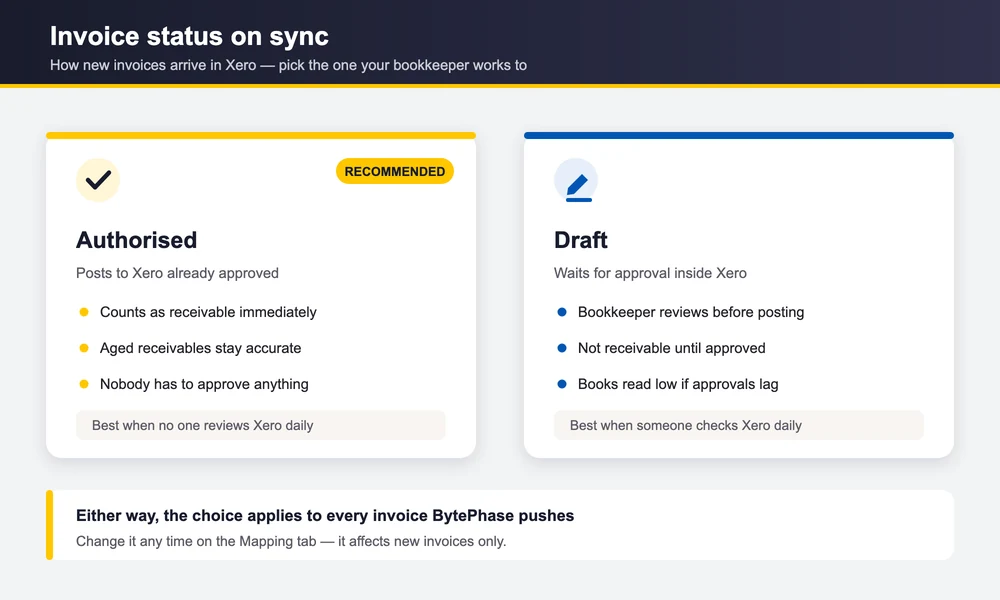
Authorised or Draft — pick the one that matches your bookkeeper
Send as Authorised is the recommended default. An invoice raised in BytePhase lands in Xero already approved and counts as receivable immediately, so your aged-receivables report is accurate the moment you hand the device back.
Send as Draft suits shops whose bookkeeper wants a look before anything hits the ledger. Invoices arrive in Xero as drafts and someone approves them there. The trade-off is that until they are approved, they are not receivable — so if nobody is checking Xero daily, your books will read low.
Part sync type — the setting most worth getting right
This is the one that causes real problems if it is chosen carelessly.
Sync parts without stock tracking is the recommended default. Parts sync to Xero with their price and their income and expense accounts. Stock levels stay in BytePhase, which is where your team is actually counting them. It works on every Xero plan.
Track parts as Xero inventory hands stock levels to Xero. It needs an INVENTORY-type asset account and a Xero plan that supports inventory — and it comes with a real obligation: every stock movement has to reach Xero, or invoices start failing with Insufficient stock.
Chart of accounts mapping
This tells BytePhase which Xero accounts to post income, cost of goods, inventory value and payments to. Click Fetch Accounts first — the dropdowns are populated from your live Xero chart of accounts, and BytePhase filters each one to the account types Xero will actually accept.
| Setting | What it does | Required? |
|---|---|---|
| Account for sales | Where invoice income posts. Filtered to Xero REVENUE, SALES and OTHERINCOME accounts. | Yes |
| Account for cost of goods | Where part costs post. Filtered to Xero DIRECTCOSTS accounts. | Yes |
| Account for inventory assets | Where inventory value sits. Filtered to Xero INVENTORY accounts. Only shown — and only required — when you have chosen to track parts as Xero inventory. | Only in tracked mode |
| Bank account for payments | Where payments land in Xero. Must be an account of type BANK, because Xero’s Payment API will not accept CURRENT or FIXED asset accounts. Leave it blank to skip payment sync entirely. | No |
The four sync actions
These are buttons rather than settings, but they are on the same screen and it is worth knowing what each one does before you press it.
| Action | What it does |
|---|---|
| Fetch Accounts | Pulls your Xero chart of accounts into BytePhase so the mapping dropdowns have something to show. Run it again whenever you add accounts in Xero. |
| Test Mapping | Verifies the accounts you picked are usable before you rely on them. Cheap insurance — run it after any mapping change. |
| Sync Inventory | A one-time bulk push of your existing parts and repair services to Xero. Runs in the background and may take 20–30 minutes. Items created after this sync automatically. |
| Sync Customers | A one-time bulk push of your existing customers to Xero as contacts. Also runs in the background. |
Both bulk syncs show you a preview before they start — how many records and roughly how long — and both run in the background, so you can leave the page. BytePhase notifies you by email and in-app when they finish.
What syncs automatically once you are connected
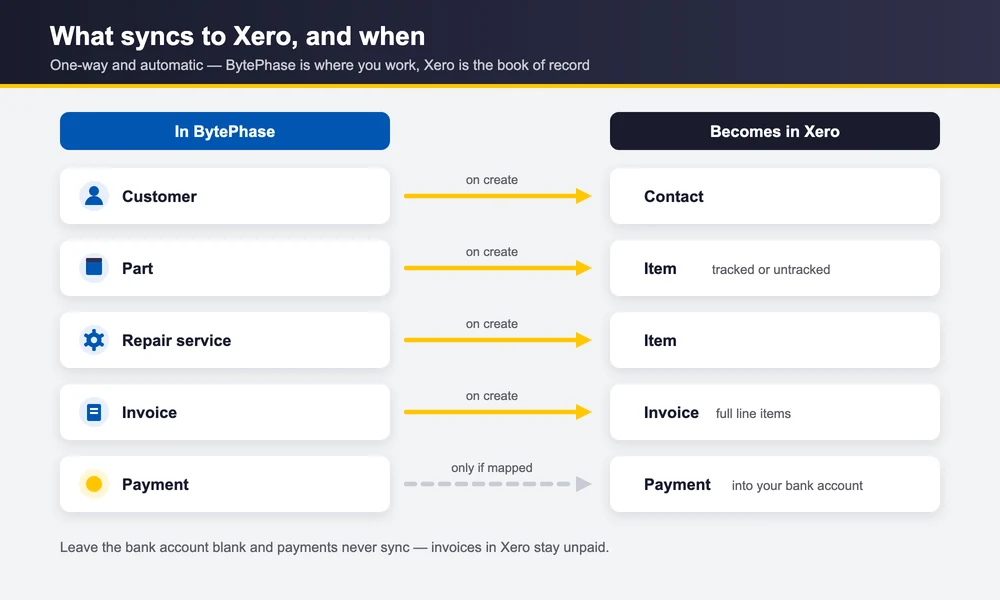
After the initial bulk push, the integration is automatic and one-way: BytePhase is where you work, Xero is the book of record.
| In BytePhase | Becomes in Xero | When |
|---|---|---|
| Customer | Contact | On create |
| Part | Item (tracked or untracked, per your setting) | On create |
| Repair service | Item | On create |
| Invoice | Invoice with full line items, posted to your mapped income account, as Draft or Authorised | On create |
| Payment | Payment against the parent invoice, into your mapped bank account | On create, if a bank account is mapped |
Sync status is visible where the records themselves live — customer, part, invoice and sale lists each carry a Xero column showing Synced, Syncing, Failed or Not synced, so you do not have to go hunting through the settings screen to see whether a particular invoice made it.
How it works: the life of one record
Every record BytePhase pushes moves through the same four statuses, and you can see which one it is in from the record’s own list — no need to open the settings screen. Most records go straight across the top row and are never thought about again.
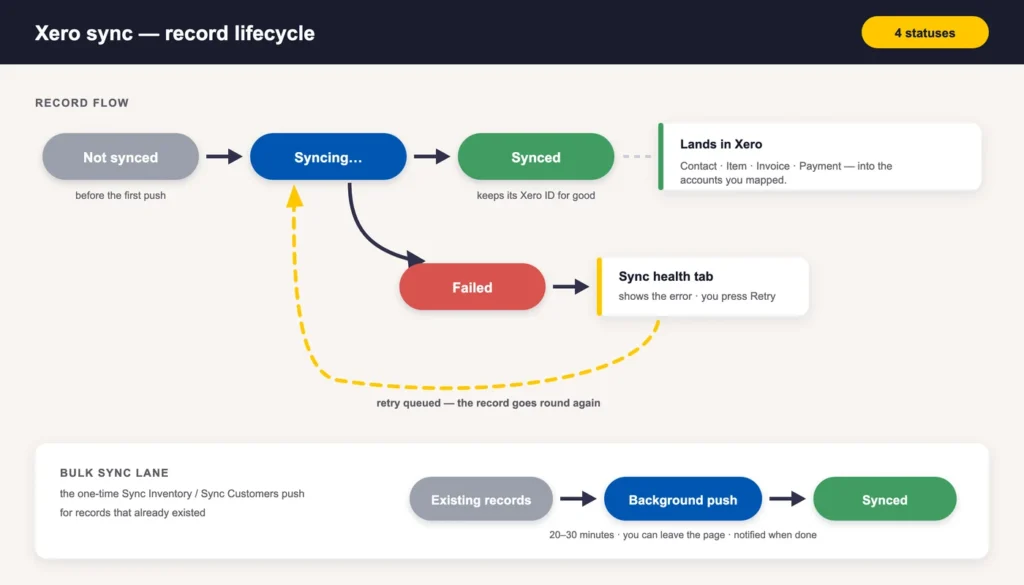
| Status | What it means |
|---|---|
| Not synced | The record exists in BytePhase but has never been pushed — either it predates the integration, or you have not run the bulk sync yet. |
| Syncing… | Queued and being pushed in the background. This is normally brief. |
| Synced | It is in Xero and holds its Xero ID from now on. That ID is what lets a disconnect and reconnect resume cleanly instead of duplicating. |
| Failed | The last attempt was rejected. It appears on the Sync health tab with the error Xero returned. |
The only branch that needs you is Failed. It drops the record onto the Sync health tab; you fix the underlying data or retry directly, and the record re-enters the loop. Nothing is lost in the meantime — a failed push leaves the BytePhase record untouched.
The bottom lane is the one-time catch-up. Sync Inventory and Sync Customers push everything that already existed before you connected, in the background, and then you never run them again.
Sync health — when a record fails
The Sync health tab lists only records whose most recent push to Xero failed. When everything is fine it says All caught up, which is the state you want it in.
Each failed row shows the record, its type, when the attempt was made, and the error Xero returned. From there you either fix the underlying data and retry, or — if it was a transient error such as a timeout or a rate limit — retry directly. Retries are queued rather than run instantly, so the list refreshes a moment later.
Four limitations, stated plainly
These are documented inside the product too, in the setup guide on the mapping screen. They are worth reading before you go live rather than after.
| Limitation | What it means for you |
|---|---|
| Stock quantity does not sync | Xero’s API will not accept opening stock when an item is created. In tracked mode you set opening stock manually in Xero after each part is created. |
| Invoice edits do not propagate | Once an invoice is pushed to Xero, later changes in BytePhase — line items, cancellations, refunds — do not flow through. Fix those directly in Xero. |
| Payment edits do not propagate | Only newly recorded payments push to Xero. Editing or deleting a payment in BytePhase after it has synced will not update it in Xero. |
| Xero Starter has a low API limit | Xero’s Starter plan caps daily API calls. A bulk sync of a large catalogue can exhaust the quota, so run big syncs when you are not relying on Xero for anything else that day. |
The through-line is that the integration is one-way and create-time. It is excellent at making sure nothing has to be typed twice; it is not a two-way reconciliation tool, and corrections belong in Xero.
Disconnecting cleanly
The Danger zone tab does exactly one thing, and it is less frightening than the name suggests. Disconnecting stops all future syncs and clears your saved mapping. Specifically:
- New invoices, items, customers and payments stop syncing to Xero.
- BytePhase’s access to Xero is revoked.
- Your saved account mapping and the cached chart of accounts are cleared — you will re-pick them on reconnect.
- Records already pushed stay in Xero and keep their sync IDs, so reconnecting to the same organisation resumes cleanly rather than creating duplicates.
That last point is the important one. Disconnecting is not destructive to your Xero data, and reconnecting to the same organisation picks up where you left off.
Wrap-up
Two decisions carry almost all the weight: post invoices as Authorised or Draft, and let Xero track stock or leave it to BytePhase. Get those two right for how your shop actually works, map four accounts, run the two bulk syncs once, and the integration mostly disappears into the background — which is the point.
If Xero is not your accounting package, BytePhase connects to QuickBooks in much the same shape, and there is a step-by-step QuickBooks setup guide as well. For the wider picture, see the Xero integration overview, inventory management for the parts side, and repair ticket management for the jobs those invoices come from.