Reliable Global SMS for Repair Shops: Integrating BulkGate SMS with BytePhase
Introduction
In today’s interconnected world, efficient and reliable communication is crucial for every repair shop. Your customers want to know when their device has been checked in, when the repair status changes, and the moment it is ready for pickup — without having to call in or stop by. BytePhase automates all of that, but it needs a trusted SMS gateway to carry those messages. BulkGate SMS integration slots into that role seamlessly. Headquartered in the Czech Republic, BulkGate is a multichannel messaging platform with broad global coverage and a particularly strong reach across Europe — making it a natural fit for repair shops that serve customers beyond the US or India. Its prepaid, credit-based pricing keeps costs transparent, and its clean portal makes credential management straightforward.
Step 1: Generate Your BulkGate API Credentials
Before you touch BytePhase, you need an Application ID and an Application Token from the BulkGate portal. Here is exactly how to get them.
- Visit portal.bulkgate.com and create an account — or log in if you already have one. The sign-up process is quick, and you will land on the main dashboard once complete.
- Top up your account from the Credit section. BulkGate operates on a prepaid model, which means your balance must be positive before any SMS can leave the platform. Navigate to the credit section in the portal and add funds. No credit means no messages, so take care of this before you configure anything in BytePhase.
- Open Modules & APIs in the left sidebar. This is the section that manages all programmatic access to your BulkGate account. You will see a list of any APIs you have already created, or an empty state if this is your first time here.
- Click Add API — or open an existing record if you have already created one — and give it a recognizable name such as BytePhase CRM. A descriptive name helps you identify the connection at a glance, especially if you later add other integrations to the same BulkGate account.
- Copy the Application ID (APPLICATION_ID) and Application Token (APPLICATION_TOKEN) from the API detail view. Both values are displayed on the record page. Keep this browser tab open — you will paste them into BytePhase in the next step.
- You now have everything you need to connect BytePhase.
Pro-Tip: Treat the Application Token like a password. Anyone who has it can send SMS messages on your BulkGate account. If you ever suspect the token has been exposed, return to Modules & APIs, disable or regenerate it immediately, and then re-enter the new token in BytePhase. BulkGate makes both actions available from the same screen.
Step 2: Configure BulkGate SMS in BytePhase
With your credentials in hand, the BytePhase side of the setup takes only a few minutes.
- Log in to your BytePhase admin account.
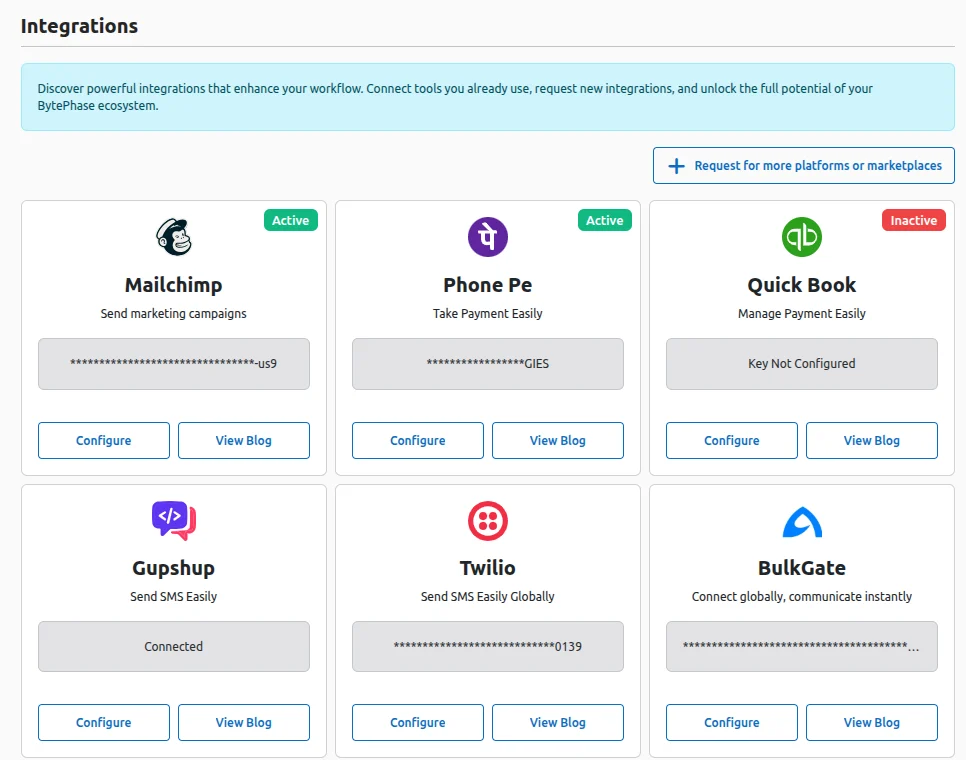
- Open Business Settings → Integrations. You will find this in the main navigation. The Integrations page lists all the third-party services BytePhase supports.
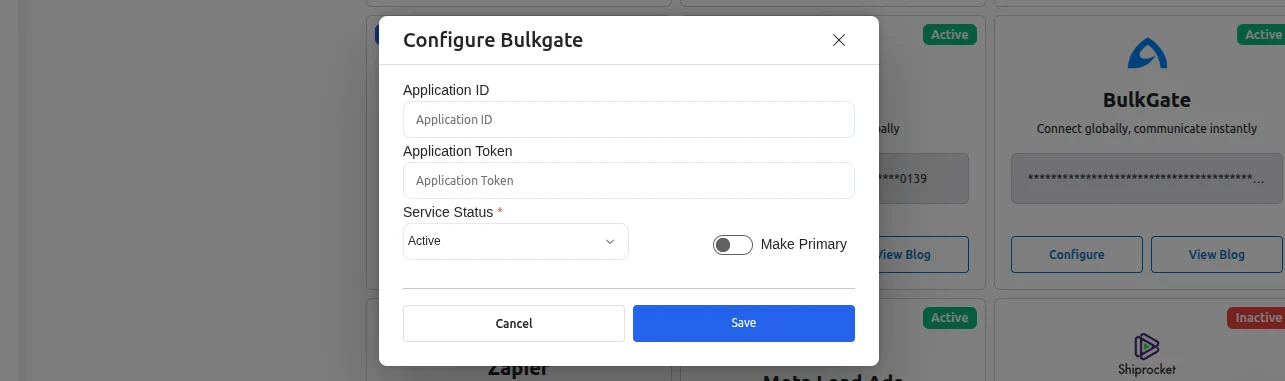
- Locate the BulkGate tile and click Configure. The configuration panel opens with fields for your credentials and a few toggle controls.
- Paste the Application ID into the BulkGate Application ID field and the Application Token into the BulkGate Application Token field. BytePhase stores these securely on the backend and uses them to authenticate every outbound SMS request to BulkGate.
- Set Service Status to Active. If you have more than one SMS provider configured — for example, if you also use Gupshup or Twilio — turn on Make Primary to designate BulkGate as the default provider. BytePhase will route all automated messages through whichever provider carries the primary flag.
- Click Save. From this point on, every job status update, pickup-ready alert, payment confirmation, appointment confirmation, and invoice due reminder in BytePhase routes through BulkGate automatically.
When to Choose BulkGate as Your BytePhase SMS Provider
BytePhase supports multiple SMS providers, and the right choice depends on where your customers are. If most of your repair-shop customers are based in India, Gupshup’s strong domestic carrier network makes it an excellent choice. If you need a single provider with broad coverage in the United States along with powerful developer tools, Twilio is a solid option. For repair shops serving customers across Europe or multiple countries, BulkGate stands out with its global network, custom sender ID support, two-way SMS capabilities, detailed delivery reports, and prepaid pricing model that helps you control costs without unexpected monthly bills.
You Are Ready to Go
Setting up the BulkGate SMS integration in BytePhase is genuinely that simple — a few minutes in the BulkGate portal, a quick copy-paste into your BytePhase settings, and you are live. From here, you are not just sending messages — you are keeping every customer in the loop, automatically. Every repair status change, every pickup-ready notification, every payment confirmation lands in your customer’s pocket without you lifting a finger. If you have not yet explored BytePhase’s other integrations, now is a great time — there are more ways to streamline how your shop communicates and operates waiting for you in the Business Settings → Integrations panel.
Frequently Asked Questions
Which SMS provider should I choose in BytePhase — BulkGate, Gupshup, or Twilio?
It depends on where your customers are. Gupshup suits India with its strong domestic DLT carrier network; Twilio suits the US with deep developer tooling; BulkGate suits Europe and multi-country shops with broad global coverage, custom sender IDs, two-way SMS, and prepaid pricing. You can configure more than one and change which is primary at any time.
Does BulkGate require payment upfront?
Yes. BulkGate uses a prepaid, credit-based model — top up your balance in the BulkGate portal before any SMS can send. There are no surprise monthly bills; you spend only what you load.
Which BytePhase messages are sent through BulkGate?
Once BulkGate is set as your primary provider, every automated message routes through it — repair check-in and status updates, pickup-ready alerts, payment confirmations, appointment confirmations, and invoice-due reminders.
Can I switch SMS providers later without redoing my setup?
Yes. BytePhase keeps each provider’s credentials saved. Open Business Settings → Integrations, configure another provider, and toggle Make Primary — BytePhase re-routes all automated SMS to the new primary immediately.