Rental Settings in BytePhase: Every Option, Explained
Rental settings are easy to skip on the way to creating your first contract. That is a mistake, because twenty-one of them quietly decide how every future rental behaves: how often your customer is billed, what happens when the contract reaches its end date, how long an unpaid charge sits before it is flagged, and whether anyone on your team is told about any of it.
This guide walks through all twenty-one rental settings with their defaults, then the handful you will actually change. If you are new to the module, start with the device rental management software overview and come back here once you have a contract or two.
Where rental settings actually live
This trips people up, so it is worth being precise. Rental configuration is spread across three places, and only the first one is called “settings”:
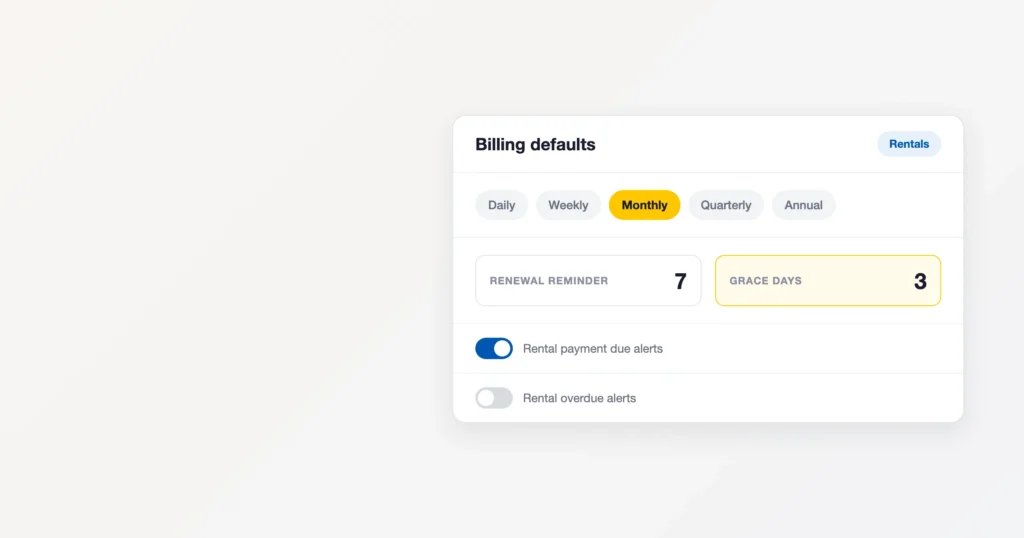
- Rentals → Settings — four shop-wide defaults. You need the manage-rental-settings permission to open this tab, and write access to edit it.
- Settings → Reminder settings — two toggles that decide whether your team is alerted about rentals at all. Both ship switched off.
- The contract and device forms themselves — where the real per-rental decisions are made. The shop-wide defaults only set the starting position; you can override them on any individual contract.
The settings screen itself is deliberately short. Most of the twenty-one settings below are sensible defaults you will never need to touch, and most of the day-to-day flexibility lives on the contract itself.
All 21 rental settings, explained
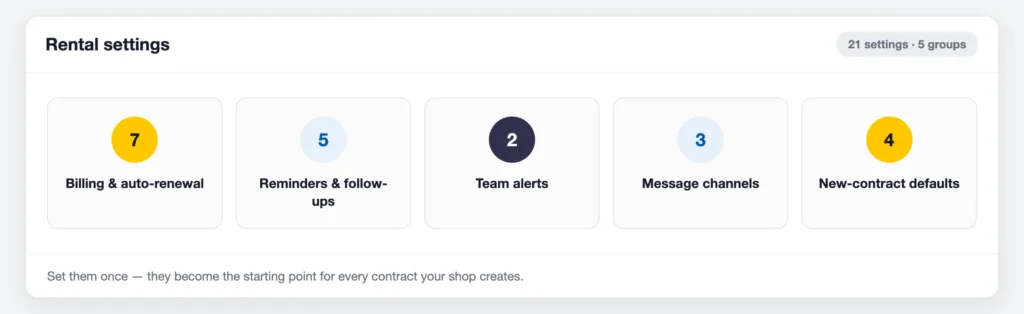
Twenty-one rental settings shape how every contract behaves, in five groups. Four of them sit on the Rentals → Settings screen today and two more on Settings → Reminder settings; the rest are applied to your account behind the scenes. Set them once and every new contract starts from them. Defaults are in the last column.
Billing and auto-renewal (7)
| Setting | What it does | Default |
|---|---|---|
| Renew rental contracts automatically | Starts a new rental period automatically when a contract ends, so rentals continue without a gap. | Off |
| How rental bills are created | Whether BytePhase creates the bill on each billing date, or your staff create each one by hand. | Automatic |
| Add rent every billing cycle | On every billing date the rent is added to the contract so you can collect it. Applies to contracts set to automatic billing. | On |
| Automatically charge saved payment method | Collects rent from the customer’s saved payment method on each billing date. Coming soon — not active yet. | Off |
| Bill customers on | The day the bill is created each month: the 1st, the 5th, or the same day of the month the rental started. | Same day as start |
| Extra days before marking overdue | How many days after the billing date a customer can still pay before the rental shows as Overdue. | 3 |
| Maximum automatic renewals | The most times a contract renews on its own. Keep 0 to renew until the customer cancels. | 0 (unlimited) |
Reminders and follow-ups (5)
| Setting | What it does | Default |
|---|---|---|
| Remind customers before renewal | Messages the customer before their rental ends, so the renewal is not a surprise. | On |
| Send reminder (days before end) | How many days before the rental ends the reminder goes out. | 7 |
| Remind customers on billing day | Sends the customer a payment reminder on each billing date if they have not paid yet. | Off |
| Follow up on late payments | Sends a polite follow-up message when a rental payment becomes overdue. | Off |
| Deposit refund reminder | Reminds your staff to return the security deposit when the customer brings the device back. | Off |
Team alerts (2)
| Setting | What it does | Default |
|---|---|---|
| Rental payment due alerts | Alerts your team when rental payments or renewals are coming up. | Off |
| Rental overdue alerts | Alerts your team when a customer’s rental payment is late. | Off |
Message channels (3)
| Setting | What it does | Default |
|---|---|---|
| Send rental WhatsApp messages | Prepares rental messages in WhatsApp for your staff to review and send with one tap. | On |
| Send rental SMS | Sends rental reminders and updates to customers by text message. | On |
| Send rental emails | Emails rental bills, reminders and agreements to customers. | On |
New-contract defaults (4)
| Setting | What it does | Default |
|---|---|---|
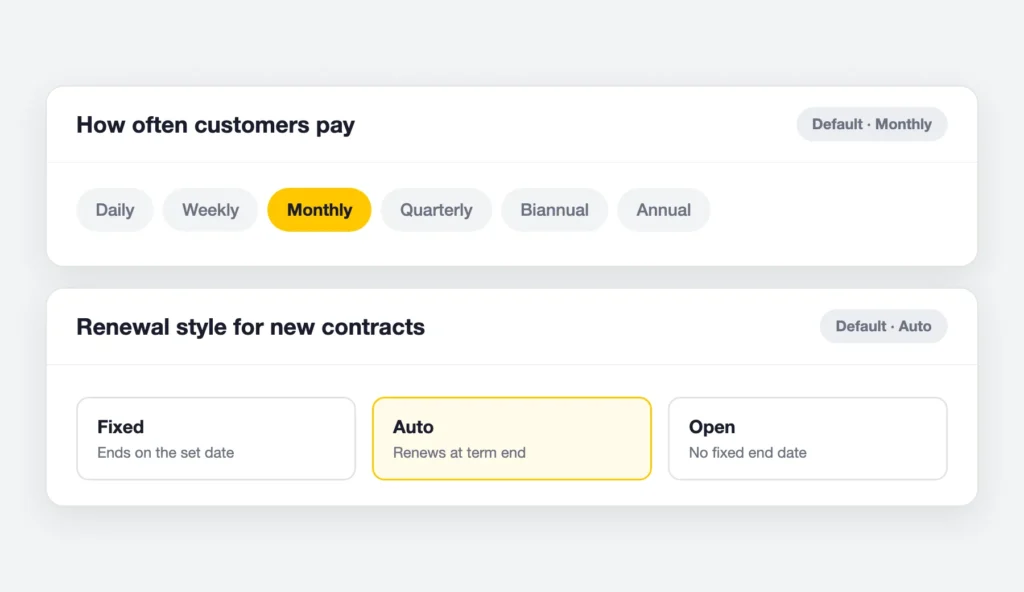
| Default payment schedule | How often customers pay — the schedule pre-selected for new contracts. Change it on any contract. | Monthly |
| Default renewal method | Whether new contracts renew automatically or wait for you to renew them. | Auto |
| Ask for a security deposit | New rental contracts include a security deposit by default, returned when the device comes back safely. | On |
| Billing while a rented device is in repair | If a rented device comes in for repair, whether the customer keeps paying rent or billing pauses until it is back. | Continue billing |
The four you will actually change
Most of the list above you will set once and forget. These four are the rental settings worth thinking about properly, and they are the ones on the Rentals → Settings screen.
How often customers pay
Pick the frequency you use most, not the one you use occasionally. If nine rentals in ten are monthly and one is a weekend hire, set Monthly and change that one contract by hand. Frequency drives the billing cycle, so on a daily rental the system adds a charge every day the contract is active — usually right for short hires, almost never right for a long-term loaner.
Renewal style: Fixed, Auto or Open
Auto suits ongoing arrangements — a corporate client with a laptop out indefinitely. Each cycle extends the end date, so the contract never silently lapses. Fixed suits a rental with a genuine return date. Open suits the case where you truly do not know when the device is coming back; leave the end date empty and the contract runs until you close it.
Remind customers before renewal
How far ahead of the end date the renewal reminder goes out. Seven days gives the customer a week to decide whether to extend, which is usually enough for a business customer and generous for a walk-in.
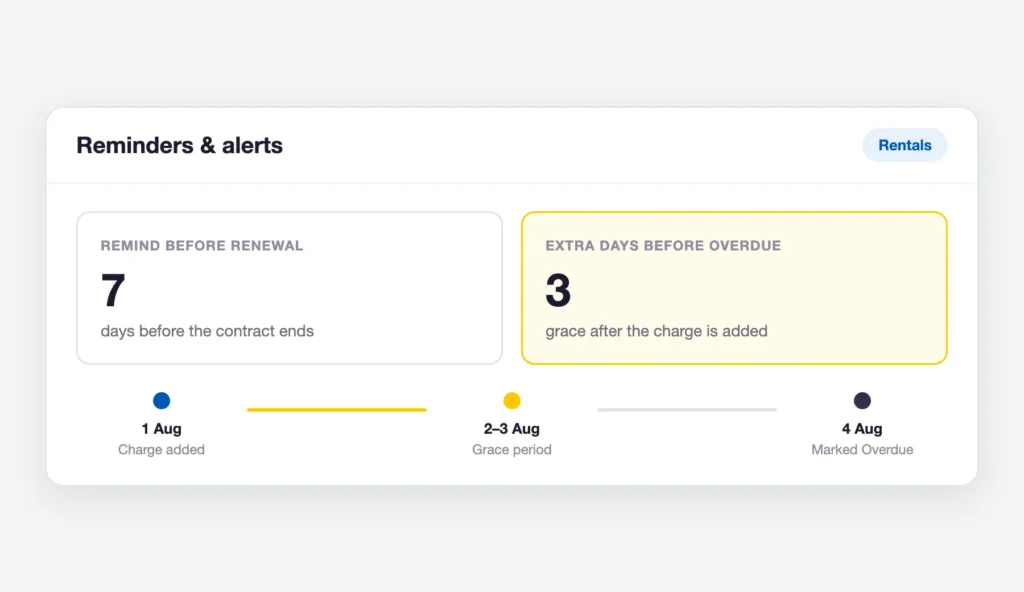
Extra days before marking overdue — a worked example
Say a monthly contract bills on the 1st of August and the customer has not paid.
- 1 August — the cycle charge is added. Payment status is Unpaid, but the contract is still Active.
- 2–3 August — your grace window. Nothing is flagged. This is the space you are giving a good customer to pay without being chased.
- 4 August — the charge is older than your three grace days, so the contract moves to Overdue and starts appearing on the overdue list and the dashboard card.
Set it to 0 and a contract is overdue the day after the charge lands. Set it to 10 and you will not hear about a problem for a week and a half. Three is a reasonable default; pick the number that matches how you actually collect.
The two toggles almost everyone misses
The two team alert rental settings in the table above — Rental payment due alerts and Rental overdue alerts — live under Settings → Reminder settings, and both are off when you start.
If you have carefully tuned your grace days and nobody is being told anything, this is why. Turn both on. Renewal and overdue alerts then reach your team and your customer by email; SMS, WhatsApp and push templates also ship in the template library for the messages you send by hand. Overdue contracts are chased on a repeating ladder rather than once and forgotten, so a contract that stays unpaid keeps surfacing instead of quietly ageing.
Settings you choose per contract
This is where most of the real configuration happens. These are not rental settings in the shop-wide sense — every one of them starts from your defaults and can be changed on the individual rental:
- Payment frequency — how often this particular customer is billed.
- Renewal type — Fixed, Auto or Open for this contract specifically.
- Billing mode — Automatic lets the system add each charge when it falls due; Manual means you add every charge yourself. Manual is the right choice when the amount varies cycle to cycle.
- Contract start date — required, and the anchor the first billing date is counted from.
- Contract end date — optional. Leave it empty for an open-ended rental with no fixed return date. It also drives the renewal reminder.
- Deposit amount — added up automatically from the deposit set on each device you attach.
- Assignee — the staff member who owns the handoff and the return.
- Source and terms & conditions — plus any custom fields your shop uses.
A useful habit: set the shop-wide defaults to your most common arrangement, then treat anything unusual as a per-contract decision. You should almost never need to go back to the settings screen.
Settings you choose per device
Each device in your rental pool carries its own pricing defaults, which flow onto any contract it joins:
- Monthly rent — the starting price whenever this device is added to a contract. You can still change the rate on the contract line.
- Security deposit — a default for this device. The amount actually collected is set on the contract, and the contract total is the sum of its devices’ deposits.
- Storage location — where the device lives when it is not out with a customer.
- Accessories — chargers, cases, keyboards and anything else that goes out with it.
- Status — Available, On rent, Under repair or Retired. Only Available devices can be added to a contract, which is what stops a device being rented twice.
Getting these device-level rental settings right is the single biggest time-saver in the module, because it means creating a contract is mostly a matter of picking a customer and picking devices.
Two behaviours worth knowing about
Two entries in the tables above deserve more than a one-line description, because they change what a customer is charged and people ask about them constantly.
Billing while a device is in repair
If a rented device comes in for repair and you mark it Under repair, BytePhase can either keep charging rent or pause billing for that device until it is back. If every active device on a contract is under repair, the whole cycle is skipped and the reason is recorded in the contract’s billing log, so a skipped charge is never a mystery later.
How many times a contract can renew itself
Contracts set to auto-renew extend their own end date each cycle. There is a cap on how many times that can happen — leave it unlimited and the rental continues until somebody cancels it. This is what stops a forgotten contract renewing quietly for years.
How it all plays out on one contract
Putting the settings together, here is a monthly laptop rental from start to finish:
- You create the contract. It inherits Monthly and Auto from your defaults, and you leave both alone.
- You attach a laptop. Its monthly rent and security deposit come across from the device record, and the contract deposit fills itself in.
- You move the contract to Confirmed, then Active. The first billing date is set from the start date.
- You collect the deposit from the contract’s Deposits tab, where it sits on its own ledger, separate from rent.
- Each month the charge is added automatically, the next billing date moves forward, and the end date extends because the contract auto-renews.
- A cycle goes unpaid. Three grace days later the contract flips to Overdue and — because you turned the toggles on — your team hears about it.
- The customer pays, the contract returns to Active, and when the laptop finally comes back you record its condition, refund the deposit, and the contract completes itself.
Wrap-up
Four fields, two toggles, and a handful of per-contract choices. That is the whole of rental settings in BytePhase. Spend ten minutes matching the defaults to how your shop actually works and you will rarely think about them again — which is the point.
If you have not set up rentals yet, the rental management module covers what the feature does end to end, from the device pool through contracts and deposits to returns. It pairs naturally with inventory management for the stock you sell and repair ticket management for the jobs that come through the door.