
How to Import Data to Your BytePhase CRM: Customers, Leads, Inventory & AMC Devices
How to Import Data to Your BytePhase CRM
Switching CRMs can feel daunting when years of customer records, leads, and stock data are on the line. BytePhase makes it simple to import data to your CRM in a few clicks, without manual re-entry or spreadsheet headaches.
This step-by-step guide shows you how to import customers, leads, inventory, and AMC devices into BytePhase, a repair shop management software built for repair businesses of every kind — computer, mobile, jewelry, appliance, and more.
Why Choose BytePhase for Data Migration?
When you import data to your CRM with BytePhase, you get:
-
Ease of Use: Guided prompts walk you through every step of the import.
-
Time Efficiency: Import a full dataset in minutes instead of retyping records one by one.
-
Error Reduction: A predefined sample file keeps your columns and formats consistent.
-
Comprehensive Coverage: Migrate customers, leads, inventory, and AMC devices — all from the same import tool.
Import Customers, Leads, Inventory & AMC Devices to BytePhase
Steps to Import Data to Your CRM
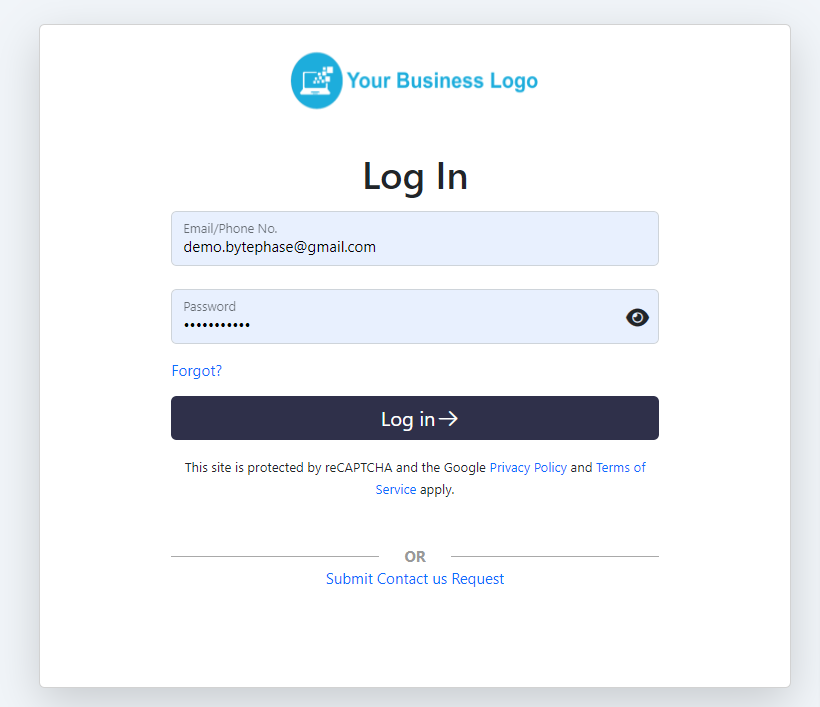
- Go to the BytePhase login page.
- Enter your credentials and log into your account.
- Once logged in, open the module you want to import data into — Customers, Leads, Inventory, or AMC Devices.
1. Navigate to the Relevant Listing Page
Decide what you want to import first — Customers, Leads, Inventory, or AMC Devices — and open that module’s Listing Page in BytePhase.
2. Locate the Import Option
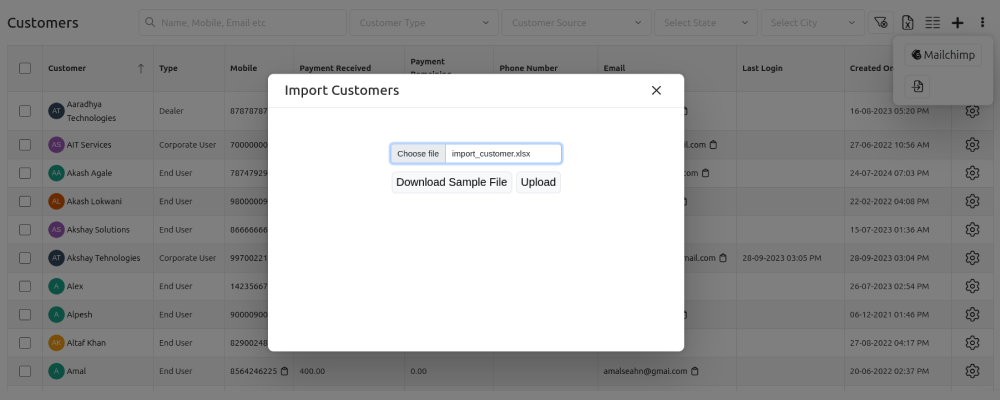
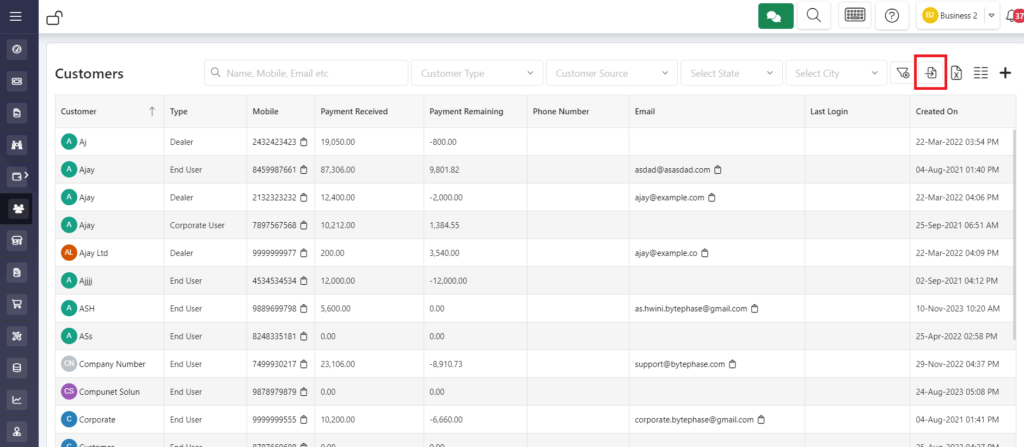
In the top-right corner of the listing page, click the Import Data button to open the import popup.
3. Download the Sample File
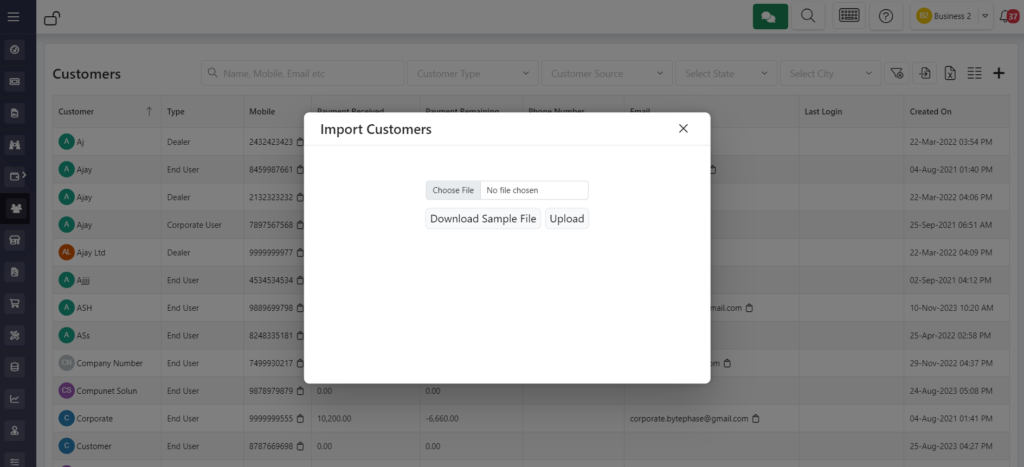
Inside the popup, click Download Sample File to get a preformatted Excel template with the correct columns for that module.
4. Understand the Required Format
Open the downloaded file to see the columns BytePhase expects. Every field needed for a successful import is already labeled for you.
5. Fill in the Data
Using the sample file as your guide, enter your records in the matching columns. Keeping the format consistent avoids errors at upload time.
6. Upload the File
Go back to the import popup in BytePhase and click Upload File to select your completed sheet.
7. Select and Import the File
Pick the Excel file you filled out and click Submit. BytePhase validates the rows and imports your data.
8. Repeat for Other Data
Repeat the same process for each remaining module — Customers, Leads, Inventory, and AMC Devices each import separately.
Benefits of Importing Data to Your CRM
- Simplified Process: The guided steps make data migration stress-free, even for non-technical users.
- Quick Setup: Import your essential data in a few clicks and start using BytePhase the same day.
- Scalable Inventory Setup: Bring your existing stock straight into BytePhase’s inventory management software in one upload — no manual re-entry, no matter how many SKUs you track.
- Precision: The predefined sample file keeps columns consistent, so fewer records fail validation.
- Enhanced Productivity: Spend less time on setup and more time running your repair shop.
Get Started with BytePhase
With BytePhase’s built-in import tool, moving your business data over is a one-time task, not a multi-day project. Bring in your customers, leads, inventory, and AMC devices, then get back to running your repair shop.
Ready to migrate your data? Start your 15-day free trial and import your first dataset today.