How to Configure Default Technician Print Options in BytePhase

Introduction to Technician Print Options in BytePhase
A technician printout is only as useful as the information on it. BytePhase’s Default Technician Print Options let you choose exactly which job details print on the technician copy generated from your repair ticket software, so technicians always have device specs, service type, and barcode data in hand before they start work.
This guide walks through how to configure technician print options in BytePhase in seven steps, plus why the setting matters and how to get the most out of it.
Why Are Default Technician Print Options Important?
🔹 Enhances Technician Productivity – Provides detailed job information in print format for faster execution.
🔹 Reduces Errors – Ensures technicians have accurate data on device specifications and service details.
🔹 Improves Service Documentation – A well-structured printout streamlines repairs, assessments, and service tracking.
🔹 Saves Time – Eliminates manual note-taking by including all relevant details in the printed technician report.
🔹 Professional & Standardized Print Format – Ensures consistency across all job sheets and technician reports.
Step-by-Step Guide: How to Configure Default Technician Print Options in BytePhase
Step 1: Log in to BytePhase Portal
- Open the BytePhase Portal and enter your login credentials.
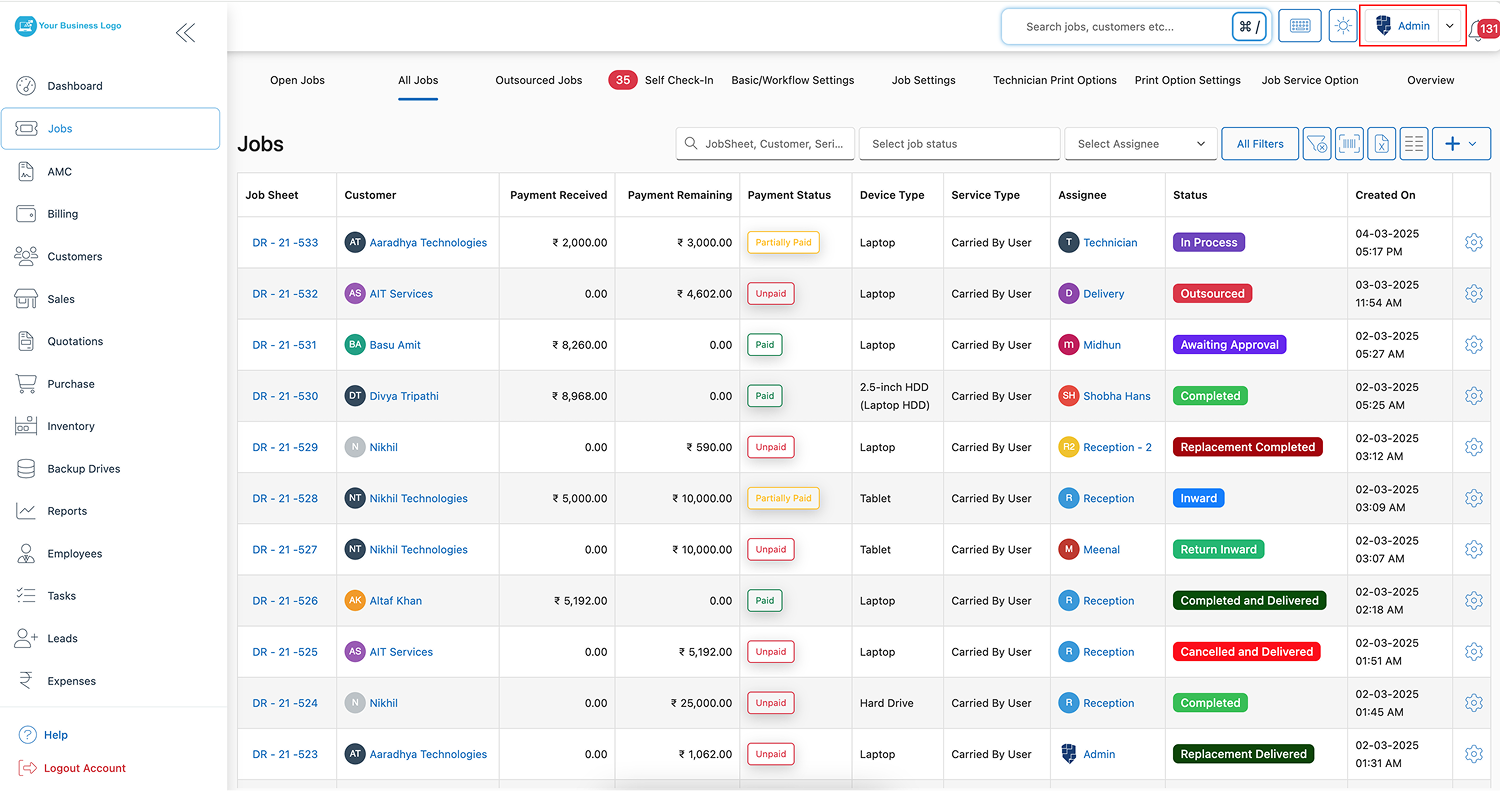
Step 2: Navigate to Business Settings
- Click on your profile icon in the top-right corner.
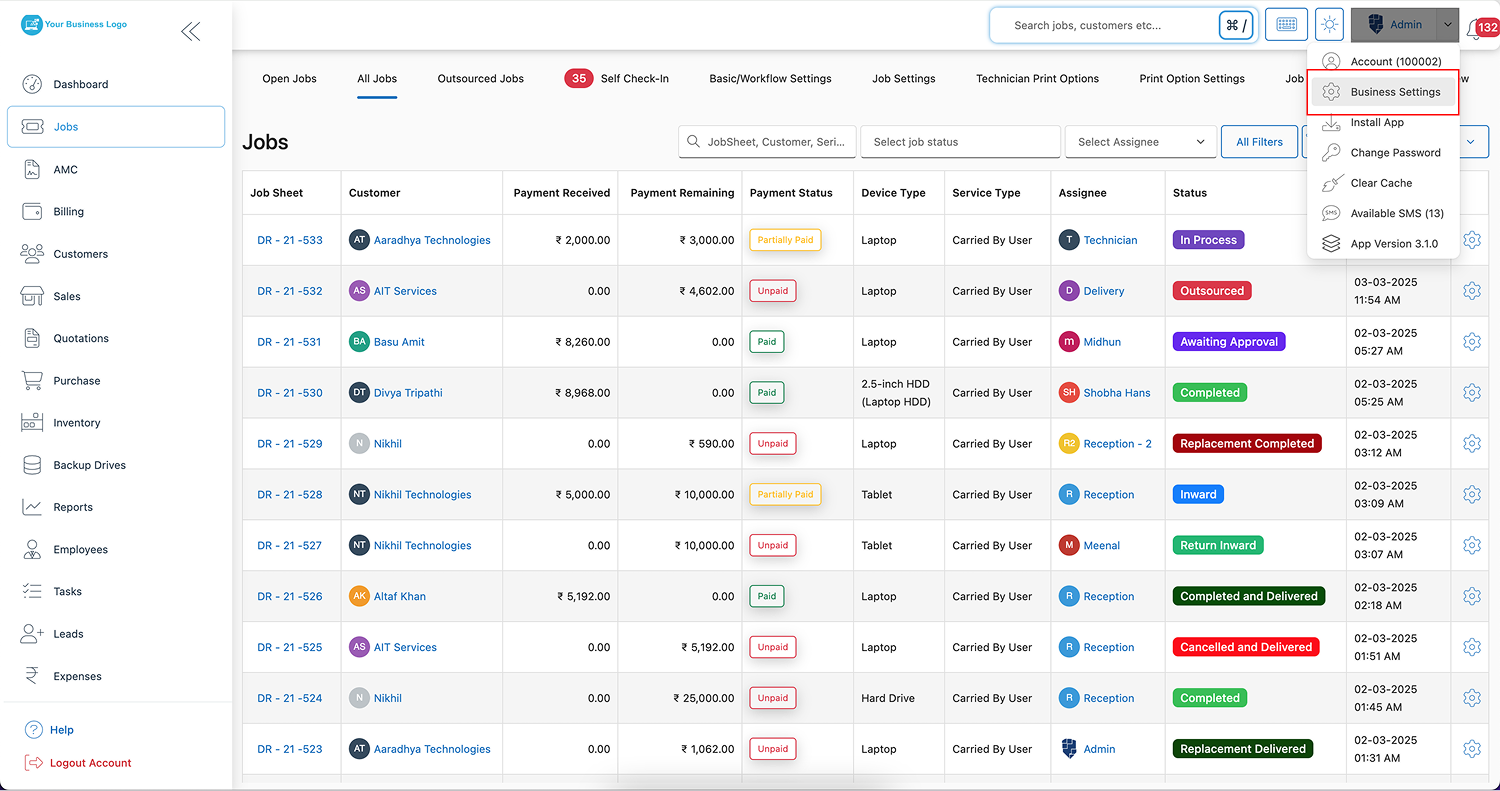
-
From the dropdown menu, select “Business Settings”.
Step 3: Open the Print Settings Tab
- Inside Business Settings, click on “Print Settings” to access customization options.
Step 4: Select Technician Print Option
-
Locate and click on “Technician Print Option” within the Print Settings menu.
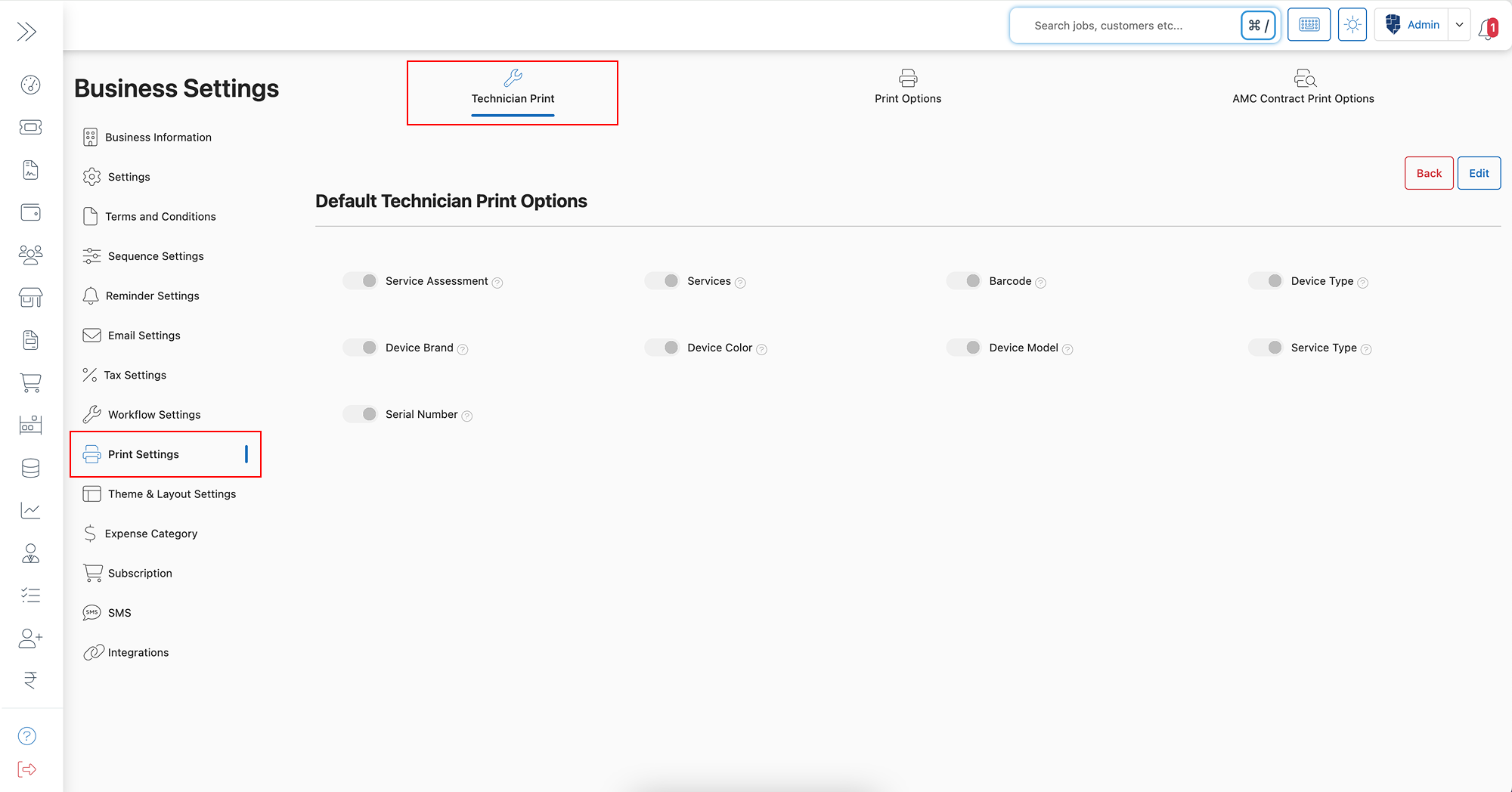
Step 5: Click on the Edit Button
- Click “Edit” to start modifying the technician print settings.
Step 6: Enable Relevant Print Options
- Select the necessary details to include in the technician print format:
✅ Service Assessment
✅ Services
✅ Barcode
✅ Device Type
✅ Device Brand
✅ Device Color
✅ Device Model
✅ Service Type
✅ Serial Number
Step 7: Click Save
- After selecting the required details, click “Save” to apply the settings.
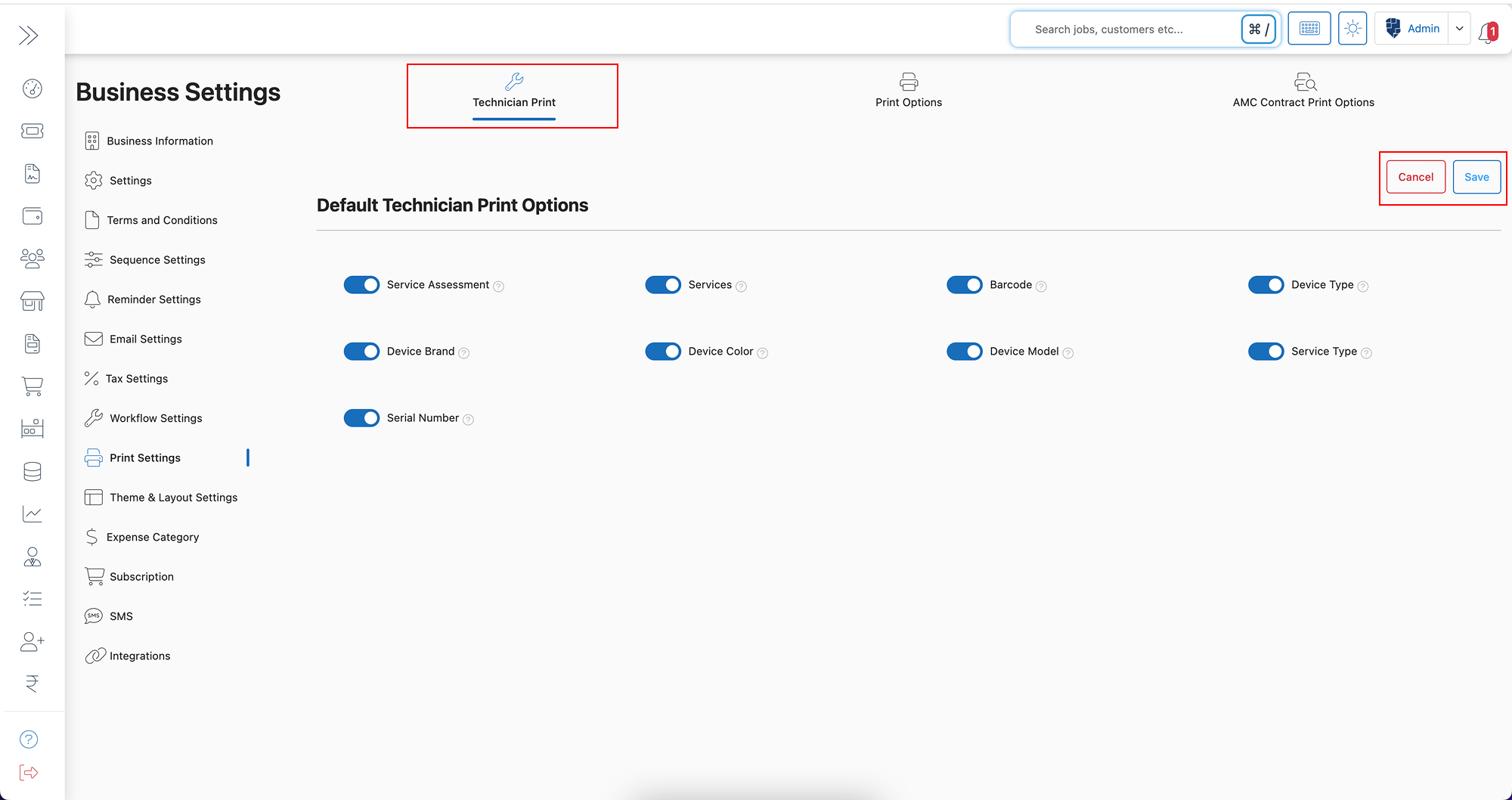
✅ Now, every technician printout will include the enabled details, ensuring clear and comprehensive service documentation!
Key Features & Benefits of Technician Print Options in BytePhase
✨ Customizable Print Settings – Choose what information to include in technician print reports.
✨ Structured & Detailed Reports – Improve job accuracy with pre-filled data on service sheets.
✨ Enhanced Communication – Helps technicians understand device specifications and service details.
✨ Barcode Integration – Streamlines inventory tracking and repair history with barcode scanning.
✨ Professional Print Layout – Creates organized, easy-to-read job sheets for technicians.
✨ Faster Service Execution – Eliminates confusion, reducing turnaround time for repairs and maintenance.
Practical Example: How Custom Print Options Improve Technician Efficiency
Imagine managing a mobile repair business where technicians handle multiple devices daily. If job sheets lack device details, serial numbers, and service types, technicians may waste time verifying information.
By configuring Default Technician Print Options in BytePhase, you can:
✅ Provide technicians with pre-printed job sheets containing all necessary repair details.
✅ Improve service speed by eliminating manual documentation.
✅ Ensure accuracy in repairs by including device specifications, brand, and model.
✅ Reduce communication gaps between the front desk, managers, and technicians.
Best Practices for Optimizing Technician Print Settings in BytePhase
✔ Select only relevant details to keep job sheets concise and informative.
✔ Enable barcode printing for quick device tracking and inventory management.
✔ Test print settings after enabling options to ensure clarity and readability.
✔ Regularly update settings to match evolving business needs and technician feedback.
✔ Ensure print alignment for professional-quality job sheets and reports.
Conclusion: Optimize Technician Job Sheets with BytePhase Print Settings
Configuring Default Technician Print Options in BytePhase ensures that technicians receive comprehensive and well-structured job sheets, improving service efficiency and accuracy. By customizing print settings, businesses can enhance workflows, reduce errors, and improve turnaround times for repairs and service jobs.
🎯 Want to improve technician efficiency and service documentation?
👉Log in to BytePhase today, configure your technician print options, and enhance your repair workflow today!
Read more about our other features.
Need assistance? Check our Help Center or contact BytePhase Support for expert help.