
How to Set Up a Custom Domain in BytePhase CRM
- Before You Start
- Understand the Status Flow First
- Step 1 of 4 — Add Your Domain in BytePhase CRM
- Step 2 of 4 — Verify You Own the Domain (TXT Record)
- How to add it in your DNS provider
- Step 3 of 4 — Add the SSL Validation Record (CNAME)
- Step 4 of 4 — Point Your Domain to BytePhase (Final CNAME / ALIAS)
- What You Get Once It’s Live
- What Happens Behind the Scenes
- Google Sign-In on Your Custom Domain
- Optional: Replace the Browser Tab Icon (Favicon)
- Troubleshooting
- Post-Setup Verification Checklist
- Removing or Changing Your Custom Domain
- Frequently Asked Questions
- Will this affect my existing email?
- Can I have more than one custom domain?
- Does a custom domain affect SEO of my main website?
- How long does DNS propagation actually take?
- Can I use Cloudflare with BytePhase?
- What if my DNS provider does not support ALIAS records?
- Does the SSL certificate ever need renewal?
- What happens to my existing yourshop.bytephaserecovery.com URL?
- Need Help?
How to Set Up a Custom Domain in BytePhase CRM
| AT A GLANCE
Connect your domain to BytePhase CRM in 4 DNS records. 15–30 minutes of active work, then DNS propagation runs on its own. Free SSL is auto-issued and auto-renewing. No coding, no servers, no email disruption. |
|---|
You’ve decided to connect your own domain to BytePhase CRM. Good call — and the setup is less scary than it looks.
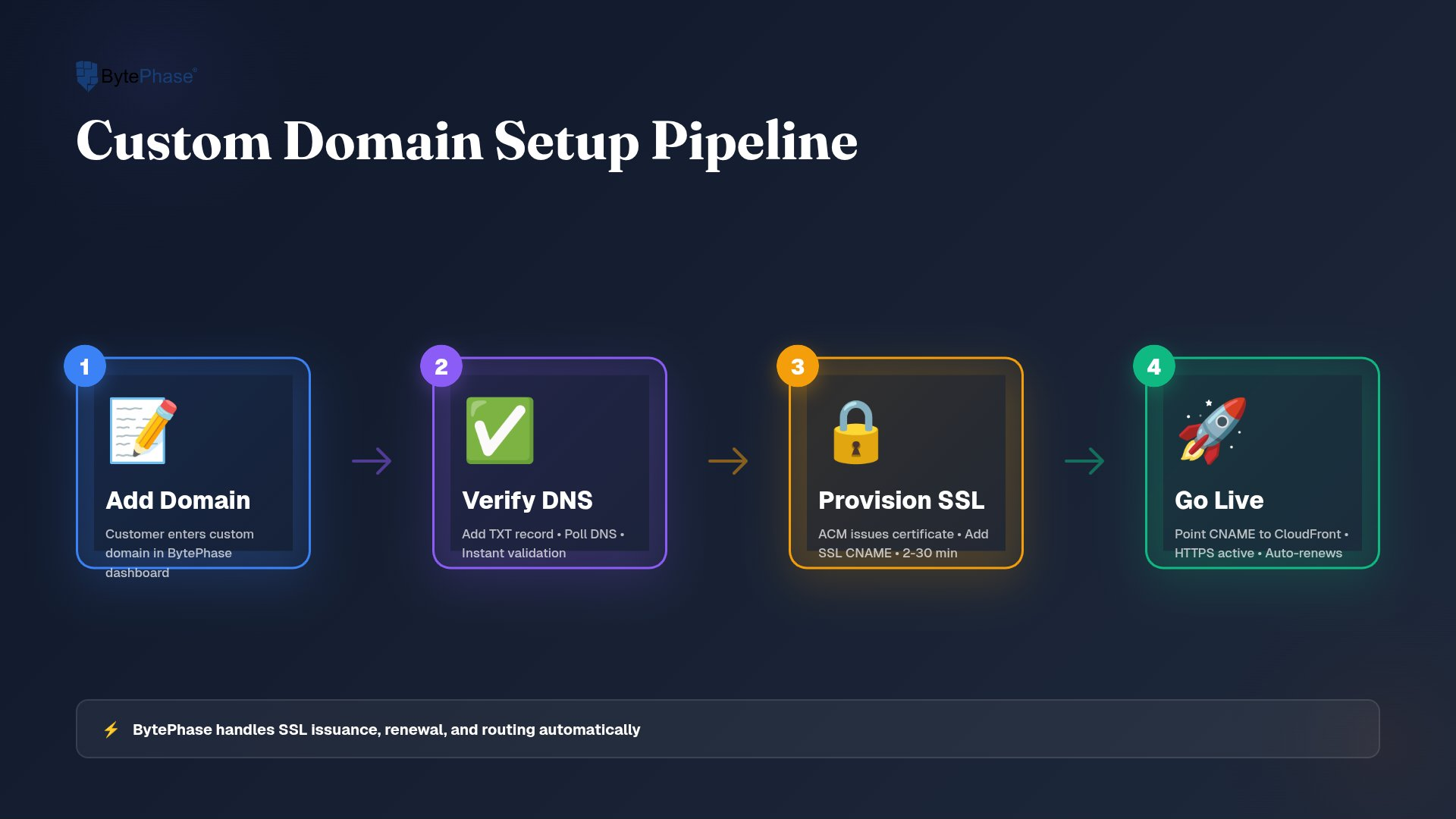
The active work takes 15–30 minutes: four steps, mostly copy-paste from inside the app. After that, DNS propagation runs in the background on its own. This guide shows every click with screenshots from the actual app. If you’ve never touched DNS before, you’ll still be fine.
| NOTE
Keep BytePhase CRM and your DNS provider open in two browser tabs side by side. You’ll be copying values from one into the other. |
|---|
| This setup only adds new DNS records — it does not touch your existing MX (email), A (website), or other records. Your business email keeps working unchanged, and your main website is unaffected. |
|---|
Understand the Status Flow First
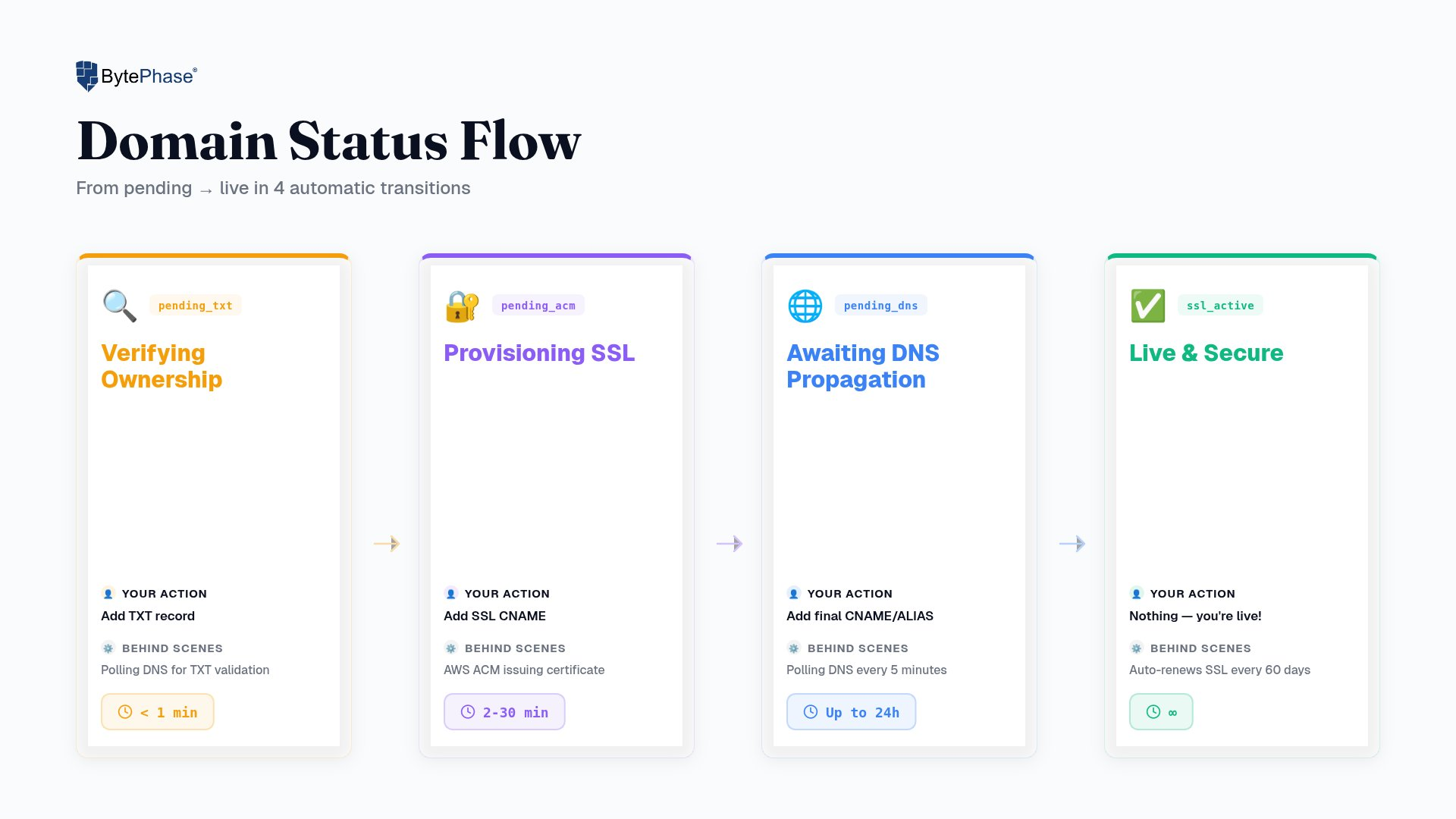
Your domain moves through four visible status badges inside BytePhase CRM. Knowing what each one means removes all the guesswork during setup.
| Status | What it means | What you do next | Duration |
|---|---|---|---|
| Pending Ownership Verification | Domain saved, TXT record not yet verified | Add TXT record → click Verify Ownership | Instant on success |
| Provisioning SSL | Ownership confirmed; free SSL cert being issued | Add SSL validation CNAME record | Up to 30 min |
| Pending DNS | SSL ready; your domain not yet pointed here | Add final CNAME or ALIAS record | Minutes to 24 hrs |
| SSL Active | Domain fully live with HTTPS | Nothing — verify in incognito | Done |
Step 1 of 4 — Add Your Domain in BytePhase CRM
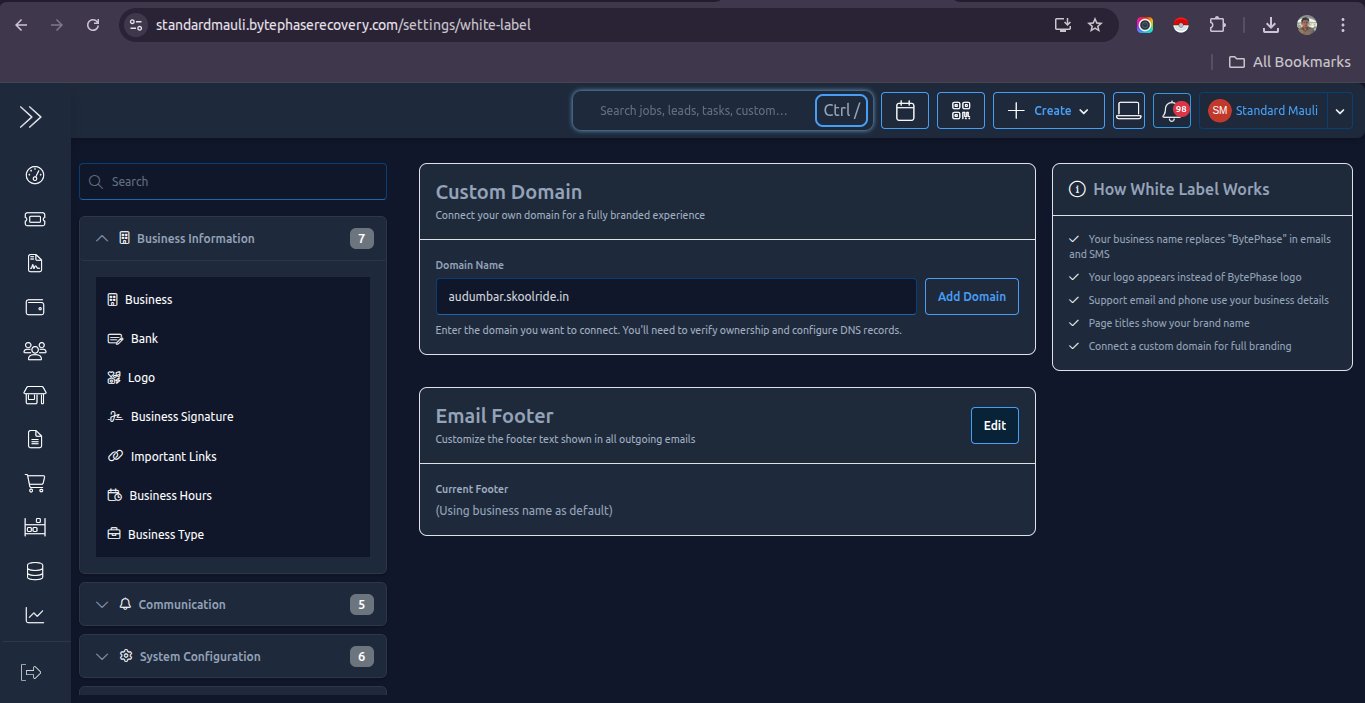
Start inside BytePhase CRM. Navigate to the White Label settings and enter the domain you want to connect.
1. Go to Business Settings — click the Settings icon in the left sidebar.
2. Open the White Label tab — under Business Information, click White Label.
3. Type your full domain name in the Domain Name field (e.g., crm.yourcompany.com).
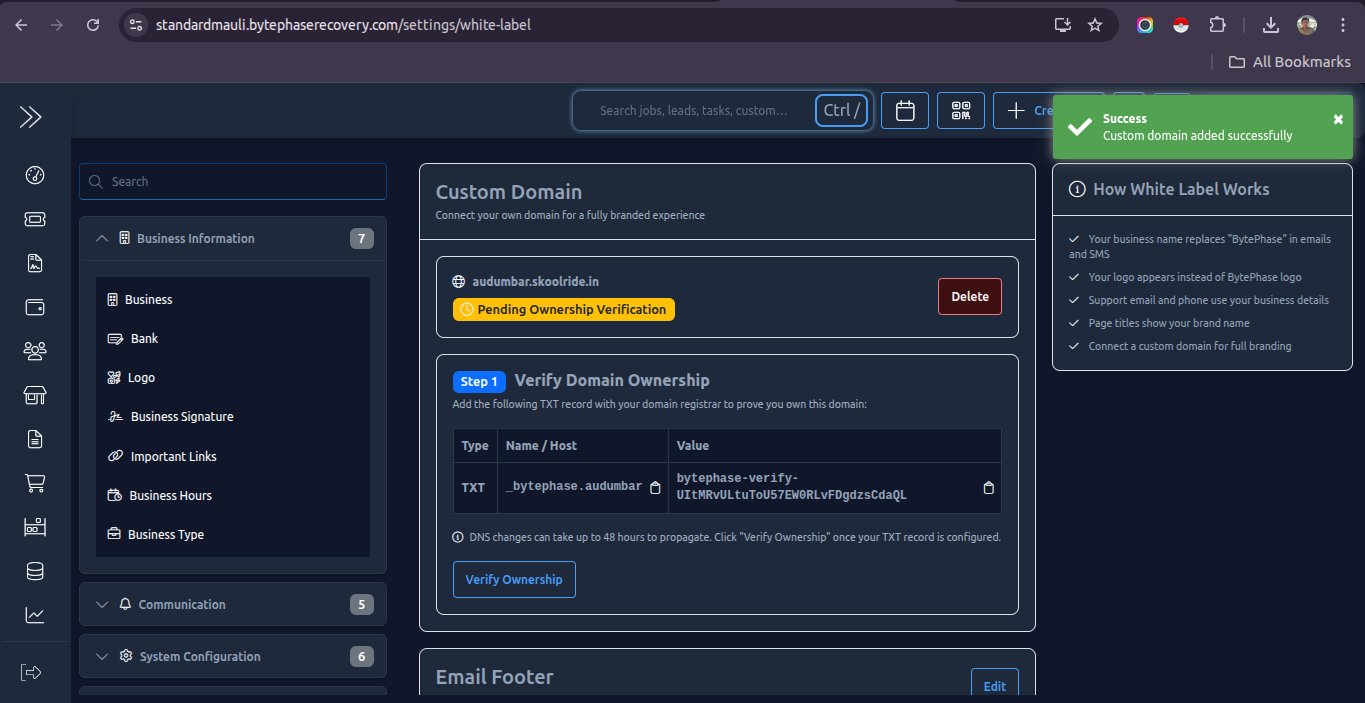
4. Click “Add Domain”.
| NOTE
BytePhase CRM now shows the exact TXT record values you need for Step 2. Keep this tab open — you’ll copy values from it. |
|---|
Step 2 of 4 — Verify You Own the Domain (TXT Record)
BytePhase CRM needs to confirm you control the domain before it can issue an SSL certificate for it. You prove ownership by adding a TXT record — a short text entry in your DNS that doesn’t affect your live website at all.
Record to add
Copy the exact values shown in BytePhase CRM. They will look like this:
| Type | Name / Host | Value / Points To | TTL |
|---|---|---|---|
| TXT | _bytephase.yoursubdomain | bytephase-verify-<your-unique-token> | 300 |
| TXT | _bytephase (apex) | bytephase-verify-<your-unique-token> | 300 |
| WARNING
Always copy the Name and Value from inside BytePhase CRM — not from this guide. Your verification token is unique to your account. |
|---|
How to add it in your DNS provider
The steps below use Hostinger as an example. The process is the same in GoDaddy, Cloudflare, Namecheap, and all other providers.
1. Log in to your DNS provider panel.
2. Go to DNS Management, DNS Zone, or Manage DNS Records.
3. Add a new TXT record — set Type = TXT, paste the Name and Value exactly from BytePhase CRM.
| WARNING
Most DNS panels auto-append your domain. Type the host part only — for example, type _bytephase.crm (not _bytephase.crm.yourcompany.com). If your panel shows a “FQDN” or “Full name” preview as you type, use that to confirm the final record name matches what BytePhase CRM shows. |
|---|
4. Save the record.
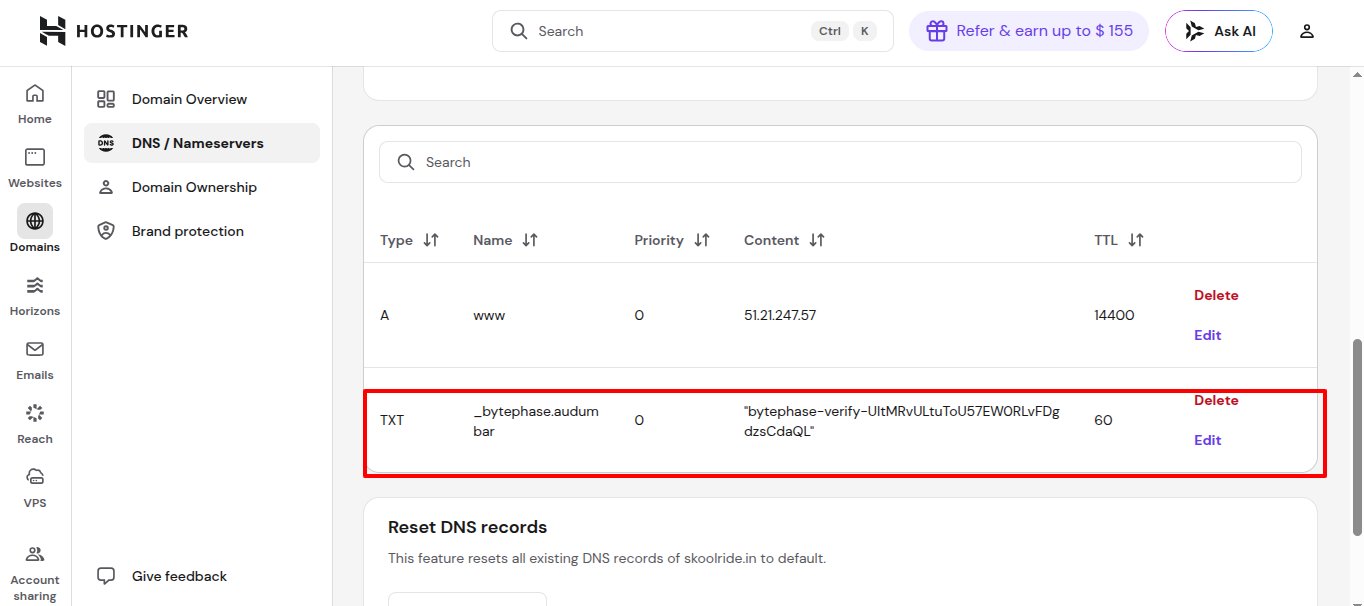
Go back to BytePhase CRM and click Verify Ownership. If DNS has propagated, ownership is confirmed immediately.
| TIP
If verification fails, wait 5–10 minutes and try again. You can check whether your TXT record is live at dnschecker.org — search your domain and select TXT type. |
|---|
Step 3 of 4 — Add the SSL Validation Record (CNAME)
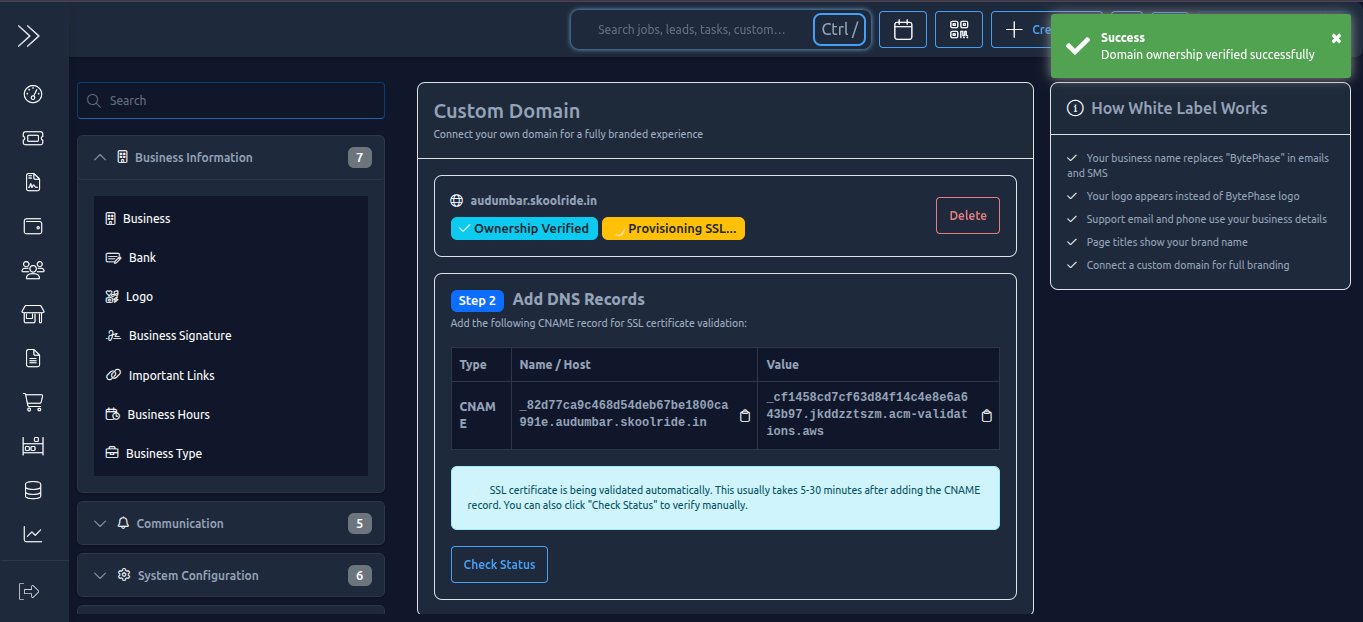
After ownership is verified, BytePhase CRM automatically requests your free SSL certificate from AWS. To complete the certificate issuance, the certificate authority needs you to add one CNAME record that proves continued control of the domain.
The domain status updates to Provisioning SSL and BytePhase CRM shows the CNAME record to add:
| Type | Name / Host | Value / Points To | TTL |
|---|---|---|---|
| CNAME | _<long-hash>.yoursubdomain | _<long-hash>.<region>.acm-validations.aws | 300 |
| WARNING
These Name and Value strings are very long. Use the copy button inside BytePhase CRM — a single missing character will cause validation to fail. |
|---|
How to add it in your DNS provider
1. Go back to your DNS provider panel.
2. Add a new CNAME record — paste the long Name and Value exactly from BytePhase CRM.
3. Save the record.
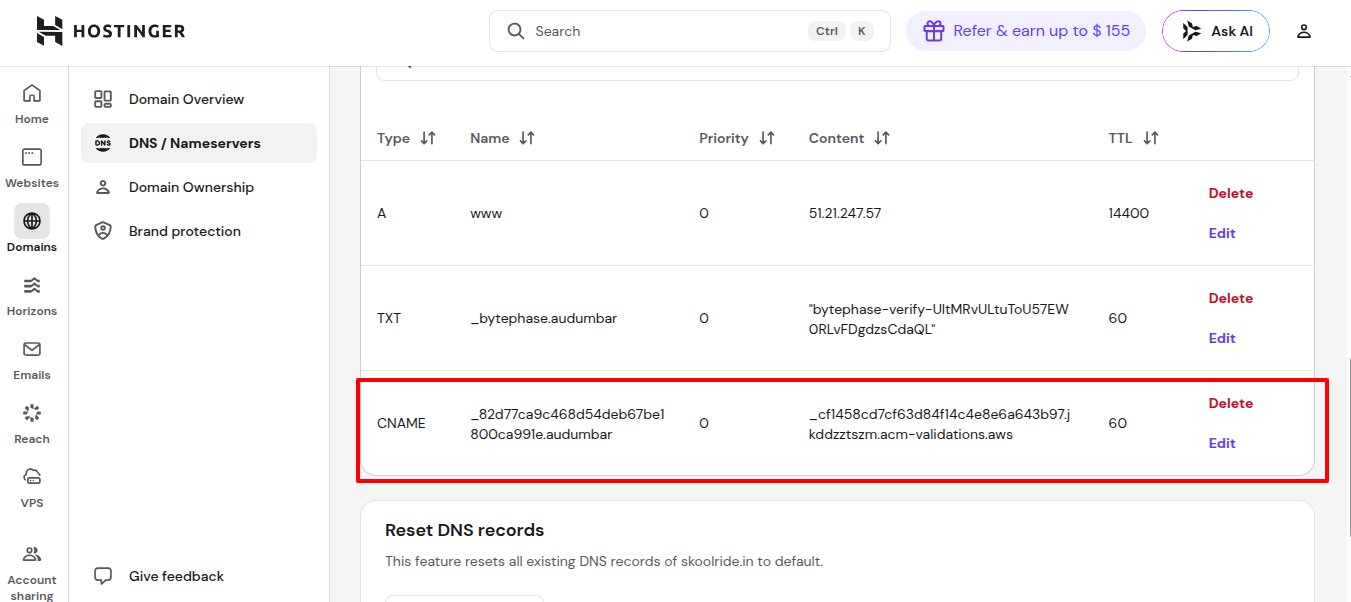
| NOTE
Nothing else to do now. BytePhase CRM checks every 2 minutes (up to 30 minutes total). When the certificate is ready, the status advances to Pending DNS automatically. You can click “Check Status” inside the app to trigger a manual check. |
|---|
Step 4 of 4 — Point Your Domain to BytePhase (Final CNAME / ALIAS)
This is the record that actually routes visitors who type your domain to BytePhase CRM. Once SSL is provisioned, the status changes to Pending DNS and BytePhase CRM shows the final record:
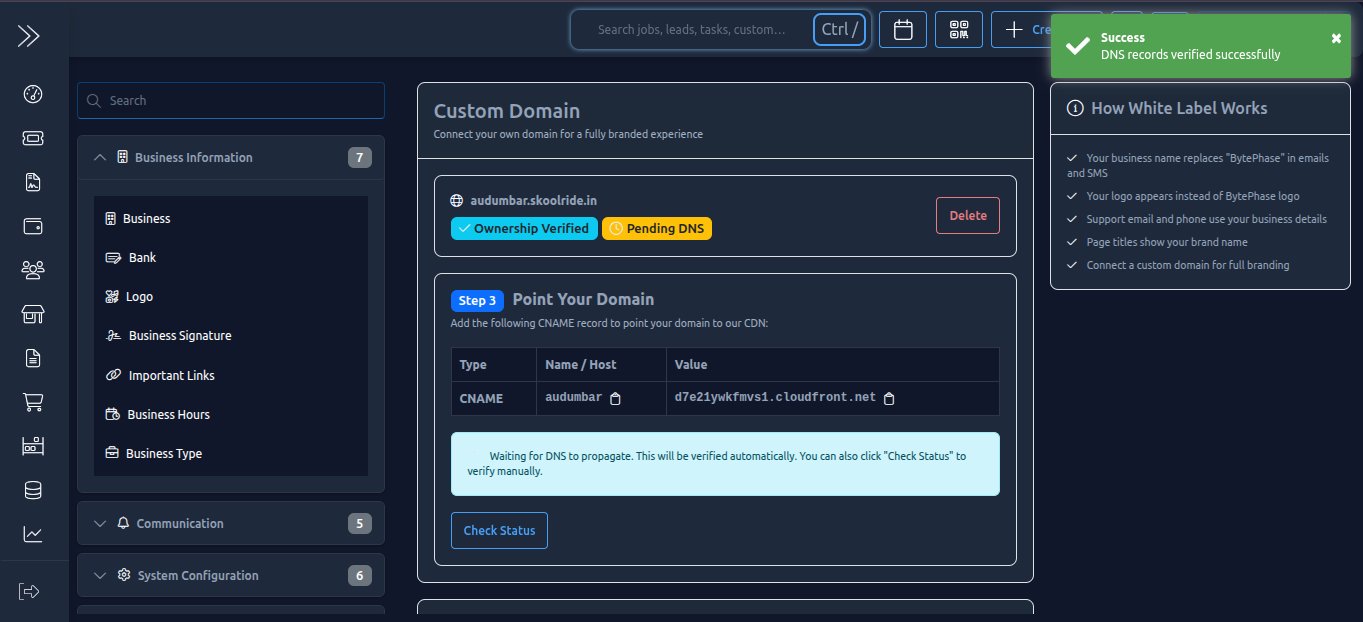
If you are using a subdomain (e.g., crm.yourcompany.com)
| Type | Name / Host | Value / Points To | TTL |
|---|---|---|---|
| CNAME | crm (your subdomain) | <unique-id>.cloudfront.net | 300 |
If you are using a root / apex domain (e.g., yourcompany.com)
| Type | Name / Host | Value / Points To | TTL |
|---|---|---|---|
| ALIAS or ANAME | @ or yourcompany.com | <unique-id>.cloudfront.net | 300 |
| WARNING
Root domains cannot use a CNAME record — this is a standard DNS limitation, not a BytePhase one. Use ALIAS or ANAME instead. DNS providers that support this: Cloudflare (CNAME flattening, free, recommended), AWS Route 53, DNSimple. If your current provider does not support it, moving DNS management to Cloudflare is free and takes about 10 minutes. |
|---|
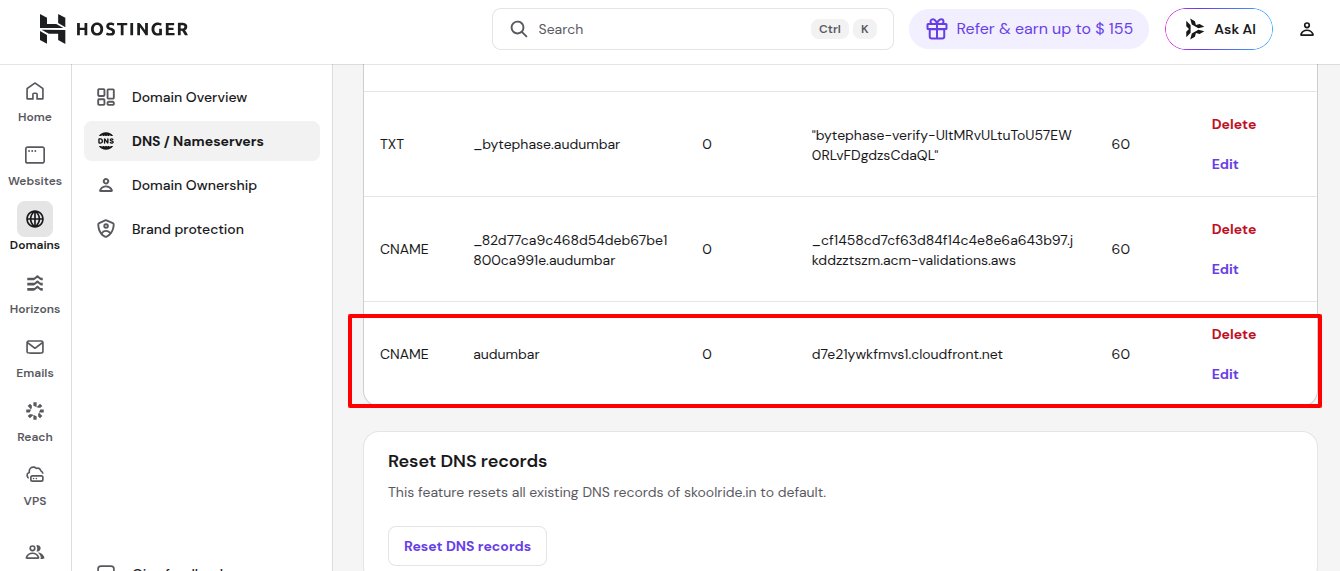
1. Go back to your DNS provider panel.
2. Add a CNAME record (or ALIAS/ANAME for root domains) with the values from BytePhase CRM.
3. Save the record.
| WARNING
Cloudflare users — turn the proxy OFF (grey cloud, not orange). When you add the CNAME in Cloudflare, the orange “proxied” cloud is enabled by default. This breaks SSL validation and routing. Click the cloud icon to switch it to grey (“DNS only”). You can re-enable Cloudflare proxy later, but only after your domain is fully live and you understand the SSL implications. |
|---|
Now wait. BytePhase CRM checks every 5 minutes for up to 24 hours. Most domains go live within 15–30 minutes. DNS propagation speed is outside BytePhase’s control.
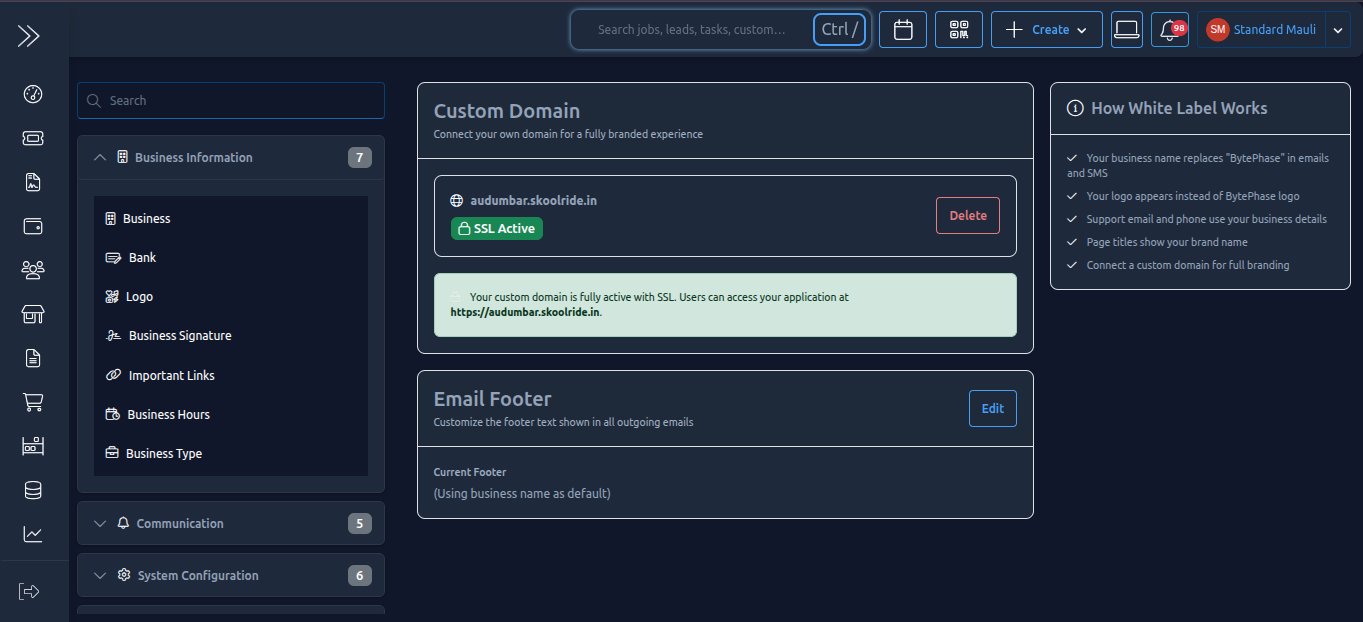
| BEST PRACTICE Once SSL Active appears, open your domain in an incognito / private browser window to verify. You should see the BytePhase CRM login page with a padlock icon in the address bar. That’s it — you’re live. |
|---|
What You Get Once It’s Live
That SSL Active badge unlocks more than just a branded login page. Here’s what changes the moment your domain goes live:
Every customer-facing URL becomes yours
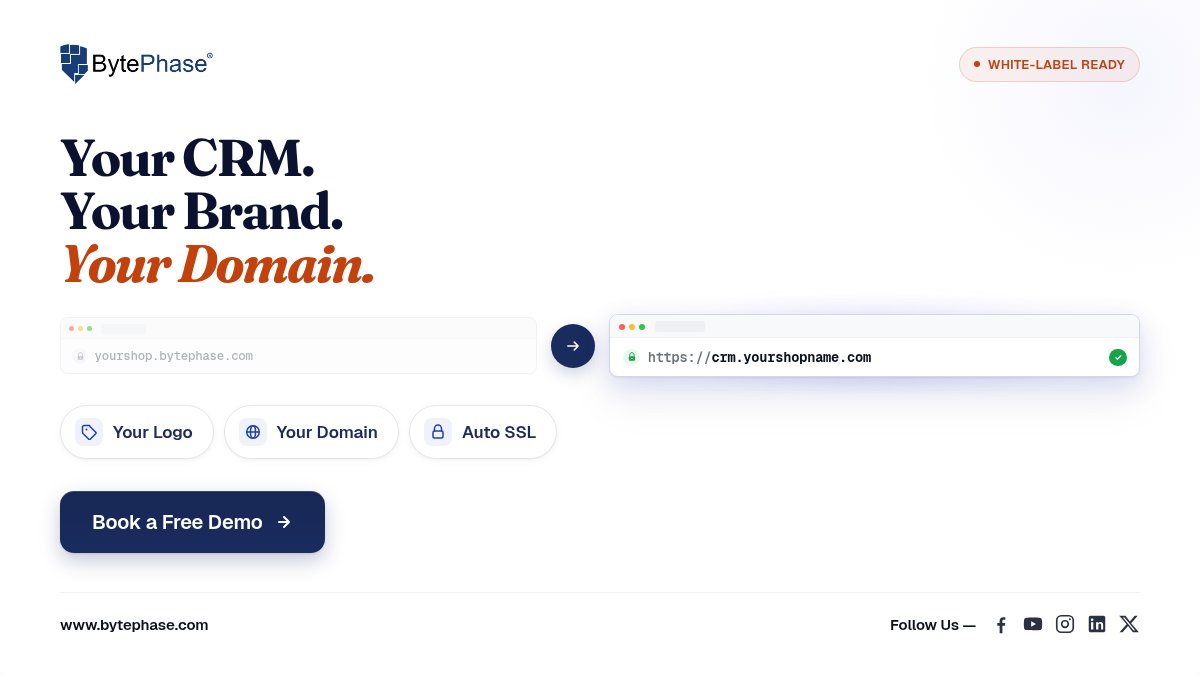
From this moment on, every WhatsApp message, every email, every short URL, every directory scan link, every unsubscribe link, and every task notification BytePhase CRM sends through your account uses your custom domain. Your customers stop seeing bytephaserecovery.com entirely. To them, your business is the platform.
Free SSL that renews itself
AWS issues your SSL certificate for free, and renews it automatically every 13 months. You will never see an expiry warning, never need to email support about a broken padlock, and never need to touch a certificate file.
Free global CDN — your CRM loads faster
Routing through AWS CloudFront is not just a cost-saving for us — it is also a speed boost for you. CloudFront caches static assets at edge locations around the world, so a customer in Mumbai or Singapore or London hits a server close to them, not one in our origin region. Pages load measurably faster on your custom domain than on our default subdomain.
Your old subdomain still works
Your default BytePhase subdomain (e.g., yourshop.bytephaserecovery.com) keeps working. Old links in old emails won’t break. Your team can keep using it for admin tasks, and you can take your time updating bookmarks, signatures, and printed material.
What Happens Behind the Scenes
Here’s the 30-second version of what happens every time one of your customers visits your custom domain:
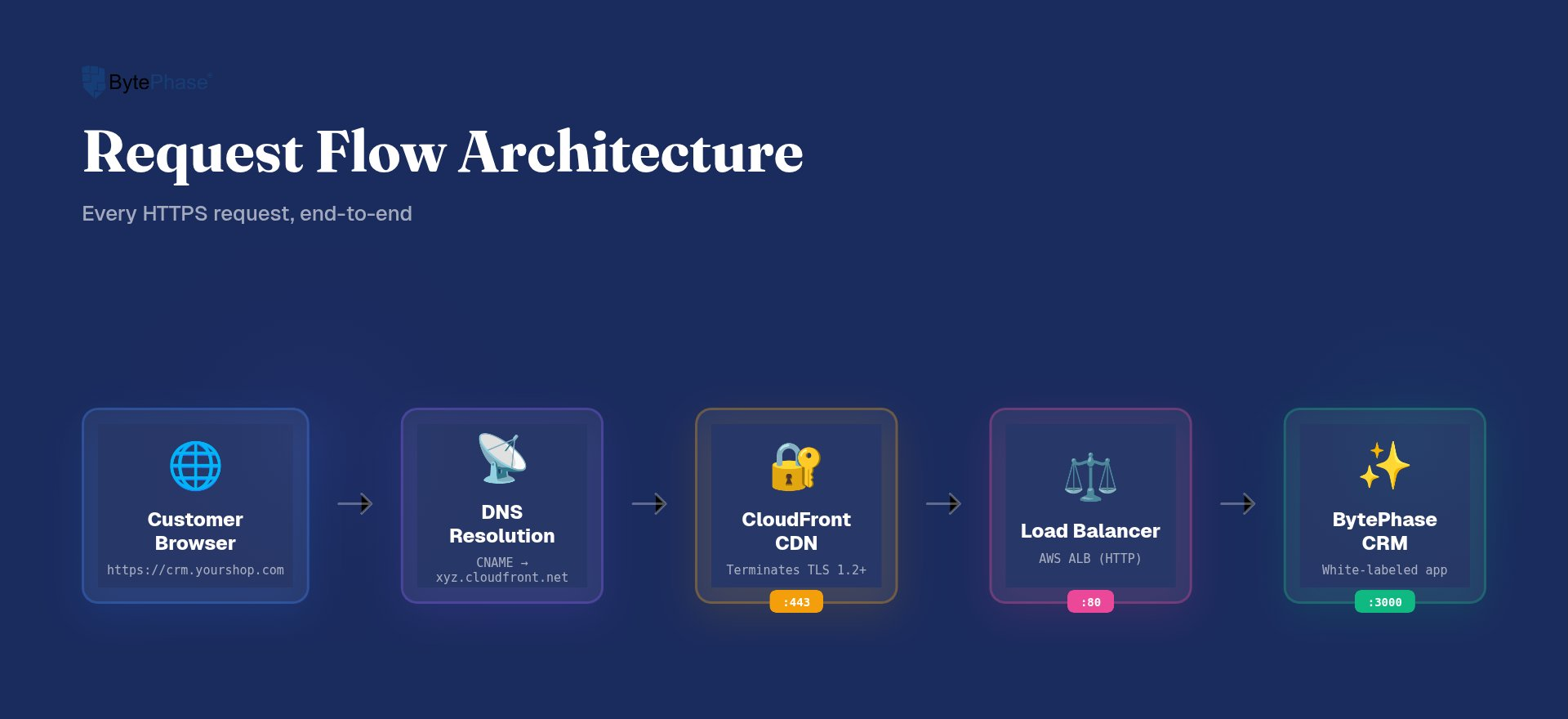
Your domain points to AWS CloudFront via the CNAME you added. CloudFront handles the HTTPS handshake using the certificate BytePhase provisioned for you in Step 3 — then quietly forwards the request to BytePhase CRM. AWS automatically renews the certificate every 13 months — you’ll never see an expiry warning. You never touch it again.
Google Sign-In on Your Custom Domain
TIP
Skip this section entirely if your users log in with email/password or phone OTP. It only applies if Sign in with Google is enabled for your BytePhase CRM account.
Why this step is needed
Google’s authentication system — called OAuth 2.0 — works on a strict whitelist. Every application that uses “Sign in with Google” must register the exact URLs it is allowed to redirect users to after login. BytePhase CRM is already registered for its default subdomain (yourshop.bytephaserecovery.com), but your new custom domain is a completely different URL as far as Google is concerned.
Until your custom domain is added to that whitelist, anyone who clicks the Google login button on your custom domain will hit a wall. Google will refuse the request and show a generic error page instead of the account picker.
| WARNING
Error 400: redirect_uri_mismatch — This is the error your users will see if they try to sign in with Google on your custom domain before this step is completed. It is not a problem with BytePhase or with your DNS setup. It is simply Google enforcing its whitelist rule. |
|---|
What happens and who does it
The good news: you don’t touch anything. This is a change that has to be made inside BytePhase’s own Google Cloud project — not yours. Your job is just to request it once your domain shows SSL Active.
Once BytePhase adds your custom domain to the allowed origins list in Google Cloud Console, Google will recognise login requests from your domain and the Sign in with Google button will start working immediately. The fix is instant on Google’s side — no deployment, no DNS change, no waiting.
| NOTE
Contact support@bytephase.com once your domain shows SSL Active. Include your custom domain URL in the message. BytePhase will add it to our Google Cloud project and confirm when it’s done — usually within a few minutes. This only needs to happen once per domain. |
|---|
What BytePhase does (for full transparency)
Here is exactly what our team does in Google Cloud Console when you raise this request. You do not need to do any of this — it is included so you understand what is happening on our end:
1. Sign in to Google Cloud Console and select the BytePhase Production project.
2. Navigate to APIs and Services → Credentials.
3. Open the “BytePhase CRM Login” OAuth 2.0 Client ID (Web application type).
4. Under Authorised JavaScript origins — add your custom domain root (e.g., https://crm.yourcompany.com). This tells Google that login requests originating from your domain are legitimate.
5. Under Authorised redirect URIs — add the post-login callback URL (e.g., https://crm.yourcompany.com/auth/google/callback). This is the page Google sends the user back to after they approve the login.
6. Save. Google propagates the change within 5 minutes.
How to verify it worked
1. Open your custom domain in an incognito browser window.
2. Click the “Sign in with Google” button on the login page.
3. The Google account picker should appear normally.
4. If you still see Error 400, clear your browser cache, wait 5 minutes, and try again. If it persists, contact support with your domain and a screenshot of the error.
Optional: Replace the Browser Tab Icon (Favicon)
Once your custom domain is live, you can take the branding one step further — replace the BytePhase icon that appears on the browser tab with your own shop’s logo.
By default, anyone who opens your custom domain will see the BytePhase favicon in their browser tab. Look at the tab below — that small icon is what your customers see right now:

| TIP
To set your custom favicon, go to Business Settings → Logo inside BytePhase CRM and upload your logo file. BytePhase will use it as the favicon on your custom domain automatically. A square PNG or ICO file at 32×32 px or 64×64 px works best. |
|---|
| NOTE
The favicon only replaces on your custom domain. The BytePhase subdomain (e.g., yourshop.bytephaserecovery.com) will continue to show the BytePhase icon — this is expected. |
|---|
Troubleshooting
| WARNING
Verification keeps failing: The Name / Host field must match exactly what BytePhase CRM shows — no extra dot, no trailing space. Wait 10 minutes after saving the record, then click Verify Ownership again. Check at dnschecker.org (search your domain, select TXT type) to confirm the record is live. |
|---|
| WARNING
Domain stuck on Provisioning SSL for more than 30 minutes: The most common cause is adding the Step 2 TXT record but forgetting the Step 3 SSL CNAME. The CNAME Name and Value are very long — use the copy button in BytePhase CRM to avoid truncation. Click “Check Status” inside the app to trigger a manual check. |
|---|
| WARNING
Domain stuck on Pending DNS: DNS propagation can take up to 24 hours. BytePhase CRM is checking every 5 minutes automatically. Verify at dnschecker.org that your CNAME points to the cloudfront.net address. If using a root domain, confirm your provider supports ALIAS / ANAME records. |
|---|
| WARNING
Browser shows a security warning after going live: SSL may still be propagating globally. Wait a few minutes and reload in an incognito window to bypass your browser cache. If it persists after 30 minutes, contact support. |
|---|
| WARNING
Stuck on Provisioning SSL with TXT and CNAME both correct? Check your domain’s CAA records. CAA records restrict which certificate authorities can issue SSL certificates for your domain. BytePhase uses AWS Certificate Manager (Amazon Trust Services), so your CAA records must either be absent, or include amazon.com. Check at dnschecker.org by selecting CAA from the record-type dropdown. |
|---|
| WARNING
Final CNAME refuses to save? Your DNS provider may already have an A record or different CNAME on the same name (e.g., a parked-domain placeholder, or an old test record). Delete the existing record on that name first, then add the new CNAME pointing to CloudFront. A name in DNS can hold only one CNAME — they don’t merge. |
|---|
Post-Setup Verification Checklist
Run through these once SSL Active appears:
☐ Status badge shows SSL Active in BytePhase CRM.
☐ Your domain opens in an incognito browser with a padlock icon in the address bar.
☐ Send a test WhatsApp or email from BytePhase CRM and confirm the links in the message use your custom domain (not the BytePhase subdomain).
☐ Bookmark your BytePhase subdomain (e.g., yourshop.bytephaserecovery.com) — the White Label settings panel is read-only on your custom domain. To add or remove domains, change your footer, or update branding, you must go back to the BytePhase subdomain.
☐ Optional: Upload your logo under Business Settings → Logo to replace the browser tab favicon with your own icon.
☐ If you use Google Sign-In: contact support@bytephase.com to have your domain added to the OAuth allow-list.
Removing or Changing Your Custom Domain
Plans change. If you typoed the domain, want to switch to a different one, or simply want to revert to the default BytePhase subdomain, you can disconnect at any time.
Go to your BytePhase subdomain (not your custom domain — White Label is read-only there) → Business Settings → White Label → Custom Domain → Delete Domain. BytePhase will disable the CloudFront distribution and remove the SSL certificate over the next 5–15 minutes. Your default subdomain (e.g., yourshop.bytephaserecovery.com) starts working again immediately. After removal, you can clean up the DNS records you added in Steps 2, 3, and 4 from your DNS provider — they no longer point to anything live.
| NOTE
Existing customer messages already sent (WhatsApp, email) keep using your old custom domain in their links. These will start failing once removal completes. Plan domain changes around your messaging cadence. |
|---|
Frequently Asked Questions
Will this affect my existing email?
No. This setup adds DNS records — it does not modify your MX records or any other email-related records. Your business email continues working exactly as it did before.
Can I have more than one custom domain?
Each BytePhase CRM account supports one custom domain at a time. If you need to switch, follow the removal steps above, then add the new one through the same flow.
Does a custom domain affect SEO of my main website?
No. Your CRM lives on its own subdomain or domain. SEO signals for your main marketing site (yourcompany.com) are completely separate from yourcompany.com/crm-style traffic and unaffected by this setup.
How long does DNS propagation actually take?
Most setups go live within 15–30 minutes once you add the final CNAME. The official ceiling is 24 hours because some upstream DNS resolvers cache aggressively. BytePhase CRM keeps polling automatically — there is nothing to do but wait.
Can I use Cloudflare with BytePhase?
Yes — Cloudflare works well, including for root/apex domains via its CNAME-flattening feature. The one trap is the orange-cloud proxy toggle: leave it OFF (grey cloud) for both the SSL validation CNAME and the final CNAME. See the Cloudflare warning in Step 4.
What if my DNS provider does not support ALIAS records?
If you are using a root domain (e.g., yourcompany.com) and your provider does not support ALIAS or ANAME, you have two options: (1) move DNS management to Cloudflare — free, takes about 10 minutes, and supports CNAME flattening on apex domains; or (2) use a subdomain (e.g., crm.yourcompany.com) instead, which works with a standard CNAME on any provider.
Does the SSL certificate ever need renewal?
No manual action needed. AWS Certificate Manager renews your certificate every 13 months automatically. As long as the SSL validation CNAME you added in Step 3 stays in your DNS, renewal happens silently in the background. If you ever delete that record, renewal will fail — so leave it in place.
What happens to my existing yourshop.bytephaserecovery.com URL?
It keeps working forever. Your default subdomain stays live as a fallback and as the management URL for your White Label settings. Old links your customers received before you switched will continue to resolve.
Need Help?
You’re live — congratulations. Share this guide with your team so onboarding new staff is one link away. Want a hand polishing the rest of your white label (logo, email sender, footer)? Our team can walk you through it. And if you’re stuck at any point, support is here — include your domain name and a screenshot of the current status badge to resolve issues much faster.
Email: support@bytephase.com — Quick Response
Book Demo: Schedule Your BytePhase Demo