
How to Integrate Twilio SMS with BytePhase for Automated Customer Updates
Why SMS Updates Matter for Your Repair Shop
Customers don’t want to call and ask “is my repair ready yet?” — they want a text the moment it is. Twilio SMS integration lets your repair business send that update automatically, the instant a ticket’s status changes. BytePhase, the repair shop management software trusted by 2,000+ repair businesses across 32+ countries, connects directly to Twilio so you can send repair-status alerts, pickup reminders, and delivery notifications without anyone picking up the phone.
This guide covers exactly what you need: generating your Twilio Account SID and Auth Token, then adding them to BytePhase so SMS sending works right away.
Twilio uses an Account SID and an Auth Token for API authentication. Here’s how to find them:
- Visit the Twilio Website: Open your web browser and navigate to the official Twilio website (
https://www.twilio.com/). - Sign Up or Log In: If you don’t have a Twilio account, you’ll need to sign up for one. Twilio offers a free trial account that you can use for testing. If you’re an existing user, simply log in to your Console dashboard.
- Access Your Console Dashboard: Once logged in, you’ll typically land on your Twilio Console dashboard. This is your central hub for managing your Twilio account, viewing usage, and accessing credentials.
- Locate Account SID and Auth Token: On your Console Dashboard, you should see a section labeled “Account Info” or “Project Info.” Here, you will find your:
- Account SID: This is a unique identifier for your Twilio account, starting with “AC”.
- Auth Token: This is your secret token, acting like a password for your API requests. For security reasons, it will initially be hidden. Click the “eye” icon (👁️) to reveal it.
- Copy Your Credentials: Carefully copy both your Account SID and your Auth Token. Treat your Auth Token like a password and keep it highly secure. Do not share it publicly or embed it directly in code that might be exposed.
- Acquire a Twilio Phone Number (if you haven’t already): To send SMS messages, you’ll need an active Twilio phone number. From your Twilio Console, navigate to “Phone Numbers” > “Manage” > “Buy a number.” Search for an SMS-enabled number in your desired region and follow the prompts to purchase and provision it. (Trial accounts often get a provisional number automatically).
Pro-Tip: If you suspect your Auth Token has been compromised, you can regenerate it from the same “Account Info” section in your Twilio Console.
Step 2: Configuring Your Twilio SMS Credentials in BytePhase
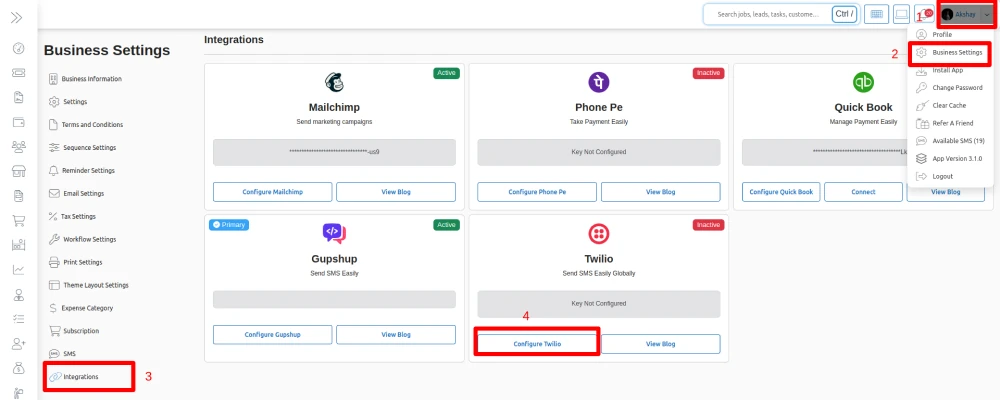
Once you have your Twilio Account SID, Auth Token, and a Twilio phone number, finishing the Twilio SMS integration in BytePhase takes just a few minutes:
- Log in to Your BytePhase Admin Account: Open your browser and log in to your BytePhase repair shop management system using your admin credentials.
- Access Business Settings: Look towards the top right side of your BytePhase dashboard. You’ll typically see your name or profile icon. Click on this to reveal a dropdown menu, and select “Business Settings.”
- Navigate to Integrations: Within the Business Settings menu, you’ll find various options. Click on “Integrations” to view the available third-party services.
- Configure Twilio: Locate the “Twilio” integration option in the list. Click the “Configure” button next to it.
- Enter Your Credentials: A pop-up window will appear with fields for:
- Account SID: Paste the Account SID you copied from Twilio here.
- Auth Token: Paste the Auth Token you copied from Twilio here.
- (Optional/Required depending on BytePhase setup): Twilio Phone Number: Enter the Twilio phone number you purchased (including the country code, e.g., +1234567890).
- Save Changes: After entering all the required credentials, click the “Save” button.
That’s it — your BytePhase account is now connected to Twilio. From here, a ticket’s status change can trigger an automatic SMS, so repair ticket management and customer updates happen in one place instead of two. New to BytePhase? Start your 15-day free trial and turn SMS updates on from day one.